
How to create an RFP response with Gixo
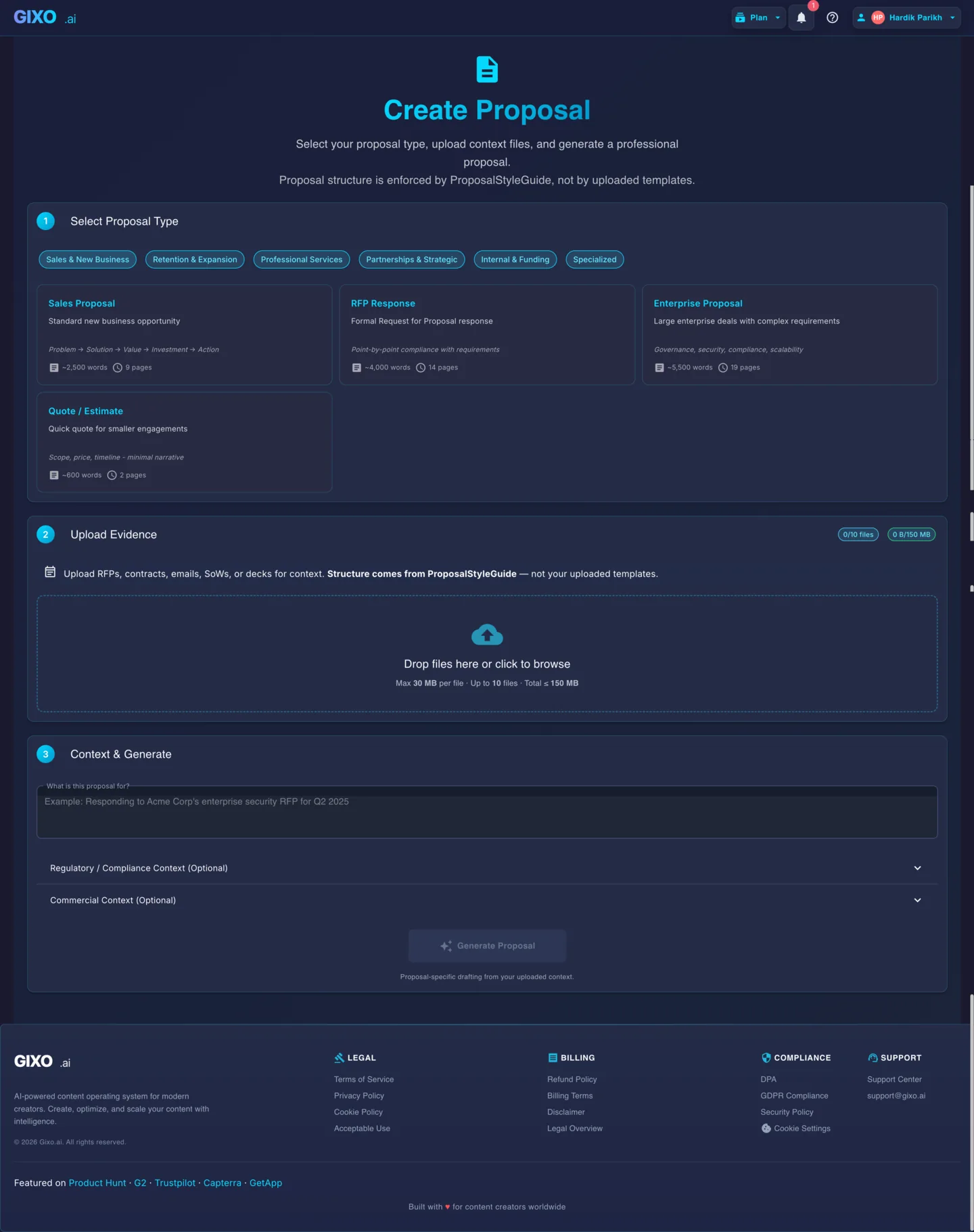
Choose RFP Response first, upload the buyer's files and your evidence, then supply context and generate. Use the workspace to review requirements, assign owners and record approvals before exporting a proposal or returning the original questionnaire. Your team makes the final submission.
See what Arc helps your team review
Choose the proposal type, add the RFP, brief, notes, or prior work, then review a structured first draft before it reaches a client.
- 1Add source materialRFPs, briefs, notes, decks, and prior work
- 2Draft to the proposal typeSections and structure follow the real opportunity
- 3Review before deliveryYour team checks facts, scope, pricing, and commitments
Five Steps to an RFP Response
Open Arc and choose RFP Response in the proposal-type step. This selects the drafting structure; it does not certify compliance with a particular solicitation.
Add the buyer's RFP or original questionnaire and supporting evidence such as capability statements, approved case studies, and pricing notes. Set source roles so buyer requirements and your evidence have distinct jobs.
Provide the opportunity context and drafting instructions, then generate. Inspect the resulting narrative and requirement workspace against the buyer's original document before treating either as complete.
Assign response owners, reviewers, and due dates. Search approved answers for reusable material, adapt it to this buyer, and verify supporting evidence. Resolve missing or unsupported claims and record the required review-gate decisions. Saving an answer for reuse still requires library review.
Export the reviewed narrative in an available proposal format. For a supported XLSX, CSV, or DOCX questionnaire, preview answer targets and return responses into the original file. Preflight blocks unsafe targets such as protected or formula cells, merged cells, invalid dropdown values, missing required answers, and conflicting mappings. Inspect the final file; your team submits it.
Frequently Asked Questions
Updated