
Gixo presentation editor guide
Build complete slide decks from a fast topic start or from outline-first planning with notes and reference material, then edit, present, and export in one workspace.
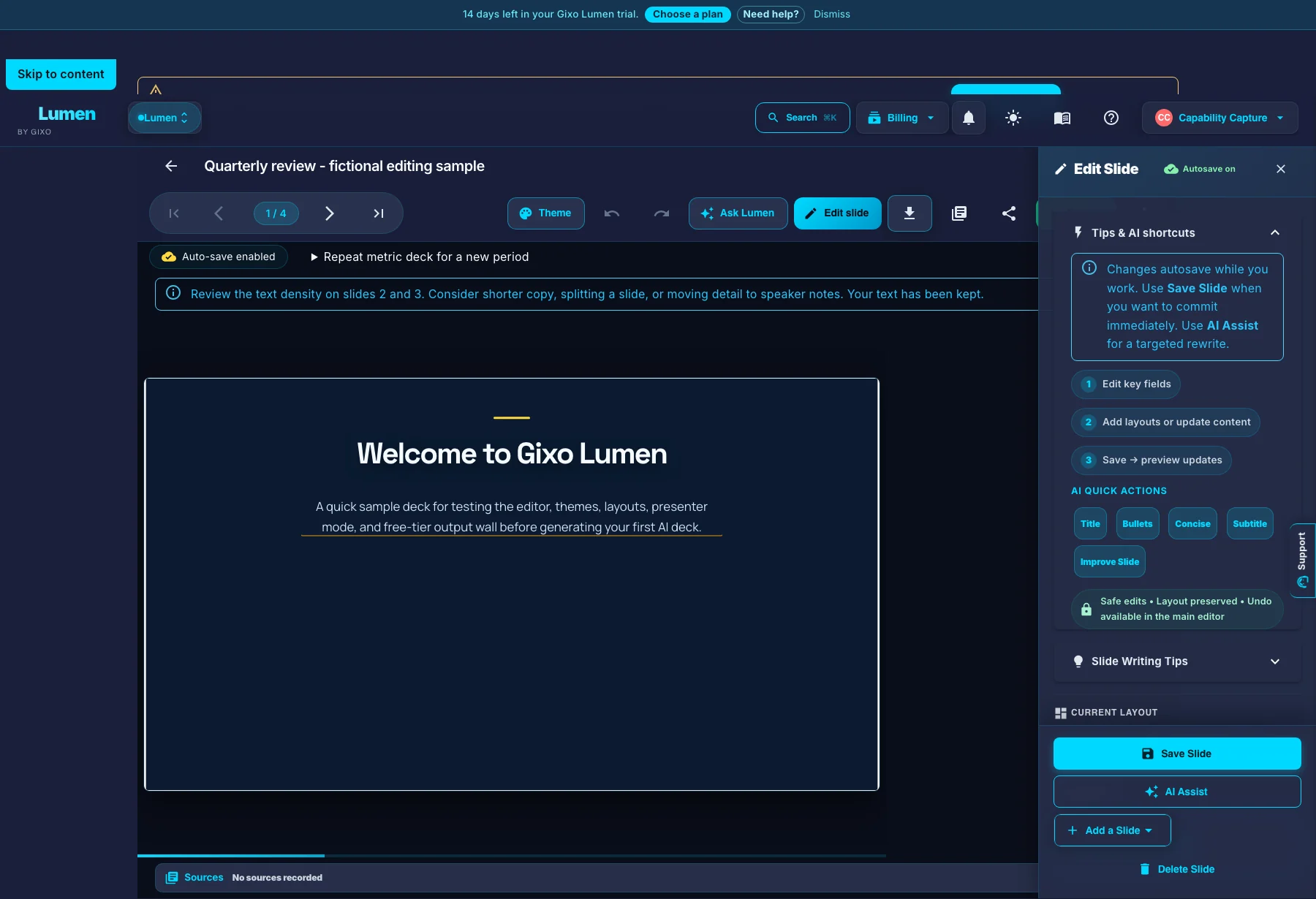
The editor toolbar
Theme, undo/redo, AI edit, download, and present — all one click away, with the slide rail on the left and sources attached below the canvas.
How It Works
From source input to a reviewed presentation in four steps.
Start from a topic for the fastest route, or use the outline-first workflow for notes, briefs, articles, and uploaded reference material.
Choose the workflow fit first, then pick the visual direction that matches the audience and the deck style you need.
Gixo builds the first full deck, then you can edit text inline, change themes, reorder slides, and create AI images inside the same workspace.
Enter full-screen present mode with keyboard navigation, or export the deck for offline sharing and distribution.
Key Features
Professional presentations without the design overhead.
34 professional themes with coordinated color palettes, typography, and layout styles. Switch themes at any time — the engine re-renders every slide instantly without losing content.
Click any slide to edit its content inline. Modify headings, bullet points, data tables, and speaker notes directly in the editor without leaving the deck view.
Generate contextual images with AI and embed them directly into slides. Describe what you need and the image generator creates visuals that match your topic and theme.
Full-screen presentation with smooth slide transitions and keyboard navigation. Use arrow keys, spacebar, or touch gestures to advance. Works in any modern browser.
See thumbnail previews of every slide in a single view. Quickly scan your deck structure, jump to any slide, and identify sections that need attention before presenting.
Export PPTX, PDF, HTML, or slide images. PowerPoint export is hybrid: supported layouts become editable text and shapes; complex slides may preserve fidelity as images. Downloads of your own decks remain unwatermarked and available after trial or plan access ends. Inspect the actual file before handoff.
Review AI edits, source figures, and chart data before handoff
An AI presentation editor should make revision review part of the working deck.
Use deck-wide refinement for changes such as tighter copy or clearer headings. Compare the original and proposed fields before accepting the changes you want. AI editing requires the applicable Lumen access. Save the current deck and resolve any revision conflict before requesting another handoff.
Generated-number checks can correct or remove unsupported figures in slide prose, but they do not certify the source or verify every chart value. Review the original material, chart categories, units, source notes, and data values. Editing chart values changes the evidence relationship; styling a chart does not establish new factual approval.
Paste chart rows or upload a Business calculation metric pack, select the metrics with a compatible unit, and compare current with proposed values before replacing chart data. Imported metrics retain a calculation snapshot with their raw values and input references. The chart plots display values; the snapshot proves replay of the supplied calculation, not that its inputs are true. A manual data edit deactivates the old source binding, so upload and review again to restore it.
For a recurring reporting deck with saved metric sources, the owner can save current edits, supply the next period’s calculation pack, review mapped chart changes, and create a separate period draft. The saved source deck stays available. Text, static charts, and pinned Prism visual snapshots stay as authored, so review those for the new period yourself. This is an explicit review-and-create workflow; it does not schedule or publish reports.
Present the slide deck, inspect a hybrid PowerPoint export, or convert a Lumen deck into a responsive Stanza visual story for a scrolling reader. Stanza is included under Lumen access. Review the story scenes and the eventual file or share view; a format conversion is a new presentation of the material, not a new fact check.
Set the editing request before asking for alternatives
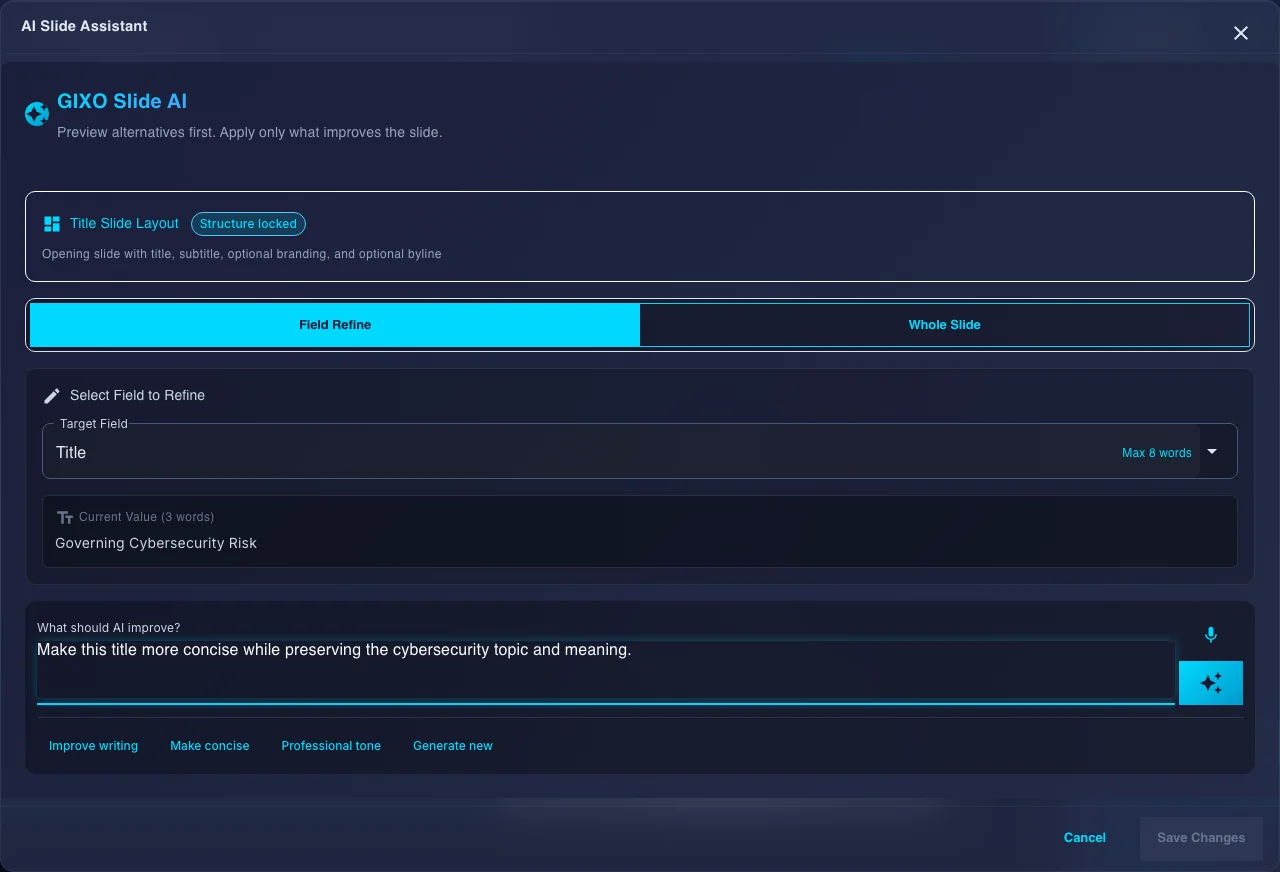
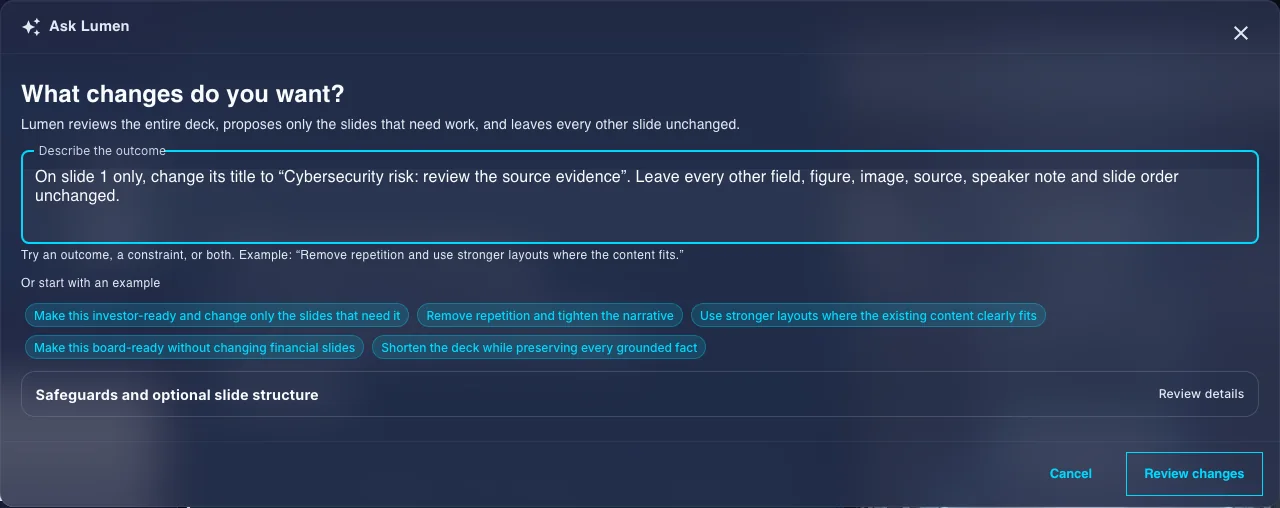
The field dialog targets the current slide text. Ask Lumen accepts an outcome for the saved deck. These controls are shown before submission, so the images do not demonstrate returned alternatives or an applied edit.
Use the editor as a slide maker: add slides, reorder them, and close with a thank you slide
Generation gets you a draft. The three edits that turn a draft into a presentation you would actually stand up and deliver are almost always the same: add the slide that is missing, move the slides that are in the wrong order, and finish the deck properly.
Add or remove slides at any point in the deck, then pick the layout that matches the point you are making — a comparison, a set of stats, a process, a timeline. The layout carries the visual structure, so choosing the right one is most of the slide design work.
Use the drag handles in the overview grid or the slide rail on the left to reorder. Read the titles top to bottom in the grid: if the sequence does not tell the story on its own, the problem is the order, not the design.
Add a final slide and edit its text. A thank-you slide that only says "Thank you" wastes the last thing the room looks at — put the ask, the next step, or your contact details on it, and let the closing slide keep working while questions run.
Frequently Asked Questions
Updated