
Skip to content
Quill
Sign In Get started
Workflow-specific products Content, decks, briefs, proposals, legal, and sales each have a clearer buying path.
Review before delivery Draft, edit, collaborate, approve, and export in the same workspace.
Security + procurement path Security policy, support, and Azure Marketplace buying are public.

Gixo content editor guide

Create ready-to-share blog posts, news reports, and how-to guides with AI help and a simple editor.

How AI edits a document in Quill

Three different jobs, three different tools. Pick by how much of the piece you want to change.

Rework a passage you have highlighted

Quick AI — six one-click actions on the selection: rewrite, simplify, expand, fix, professional, casual. The result replaces your selection in place and you accept or undo it.

A bigger rewrite of one selection

Power Edit — type your own instruction instead of picking an action, with the rest of the article available as context. Preview the replacement before you accept it.

A set of changes across the whole piece

Ask Quill — describe the change you want and Quill proposes the individual edits, each with its reason, before anything is saved. Keep the ones that help and drop the rest. Proposing uses your plan's capacity; applying what you keep is free.

A proposal can still be wrong, and Ask Quill needs full edit access on the document. Reviewing what it suggests is the point — nothing is saved until you choose it.
Start Creating Content All Guides
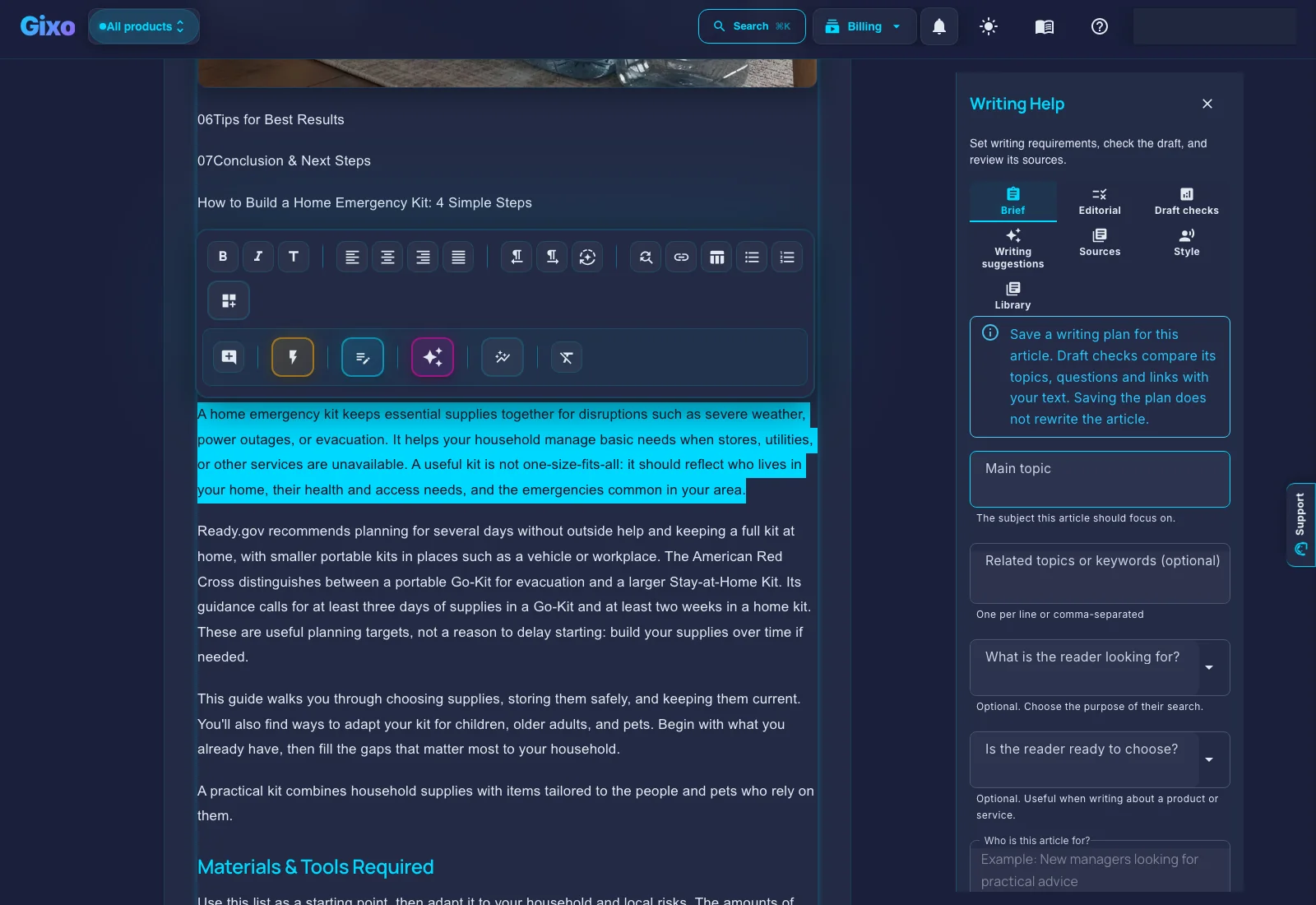
Current Quill editor showing a selected sample passage, formatting and AI toolbar, and Writing help Brief controls
The content editor is where Quill turns a generated draft into an asset a team can edit, polish, and export.
89 Language and Locale Options
6 Export Formats
AI Powered
Brand Voice

How It Works

From first draft to review-ready content in four steps.

1
Choose what you want to write

Select from blog posts, news reports, how-to guides, or product descriptions. Pick a template or start from scratch with your own structure.

2
Add your topic and settings

Enter your topic, set the length and language, and describe tone, audience and constraints in Extra Notes. Choose eligible source and brand guidance when it fits the brief.

3
AI writes the first draft

Gixo creates a structured draft with headings, body text, and helpful details so you can review it right away.

4
Edit, polish, and export

Use the editor and AI helper to improve each section. Then export to PDF, HTML, TXT, or JSON, or publish with integrations.

Key features of Gixo's content writing tools

The main tools that help you write faster without losing control.

Rich Text Editor

Block-based editing with full formatting controls — headings, lists, bold, italic, links, images, and code blocks. Edit content the same way you would in any professional writing tool.

AI helper

Improve one section at a time with AI. Select a block of text and expand it, shorten it, or rewrite it without remaking the whole document.

Brand Voice Matching

Build an eligible Brand Voice profile from writing samples to guide new drafts. Dictionary terms separately guide terminology and can be checked in Quill. Inspect each result; these inputs do not guarantee a uniform voice.

Sources and proof

When source support is available, Gixo can add facts, numbers, and source notes so readers and editors can see where key claims came from.

Multi-Format Export

Export review-ready content as PDF, HTML, plain text, or structured JSON. Formatting, headings, and images are carried into each output format, though the target format decides what it can represent.

Sharing and teamwork

Share documents with team members using secure links. Work together in one place, leave feedback, and keep track of revisions.

See the controls behind an edit.

Inspect a selected passage, an article-level request and the image editor. These are actual Quill screens from a local demonstration using a reviewed sample article clone.
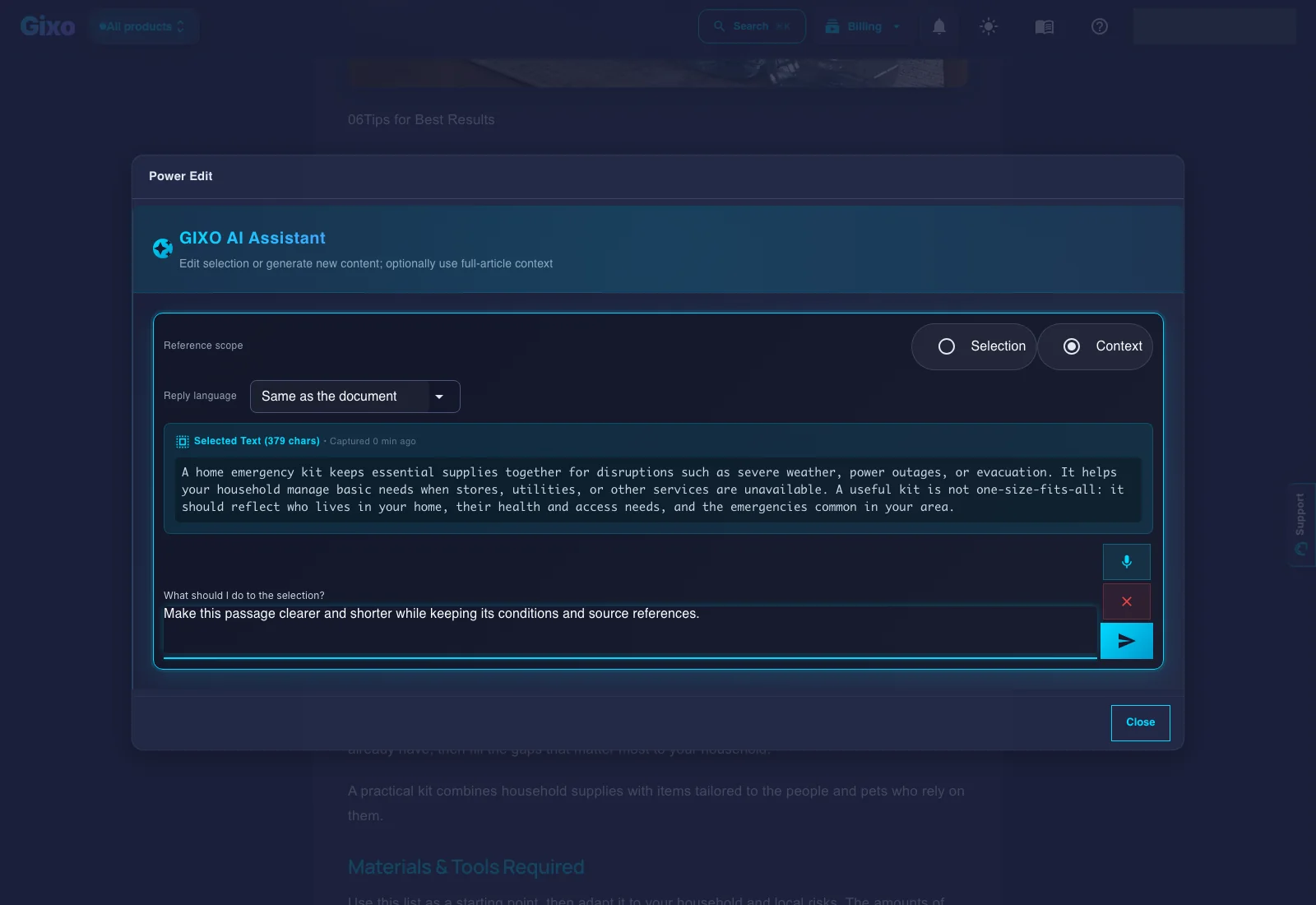
Quill Power Edit dialog showing the selected passage, selection or article context, reply language and a prepared editing instruction
Give a selection its own instruction. Power Edit keeps the highlighted text visible and lets you choose selection or article context. The instruction shown here was prepared and left unsubmitted.
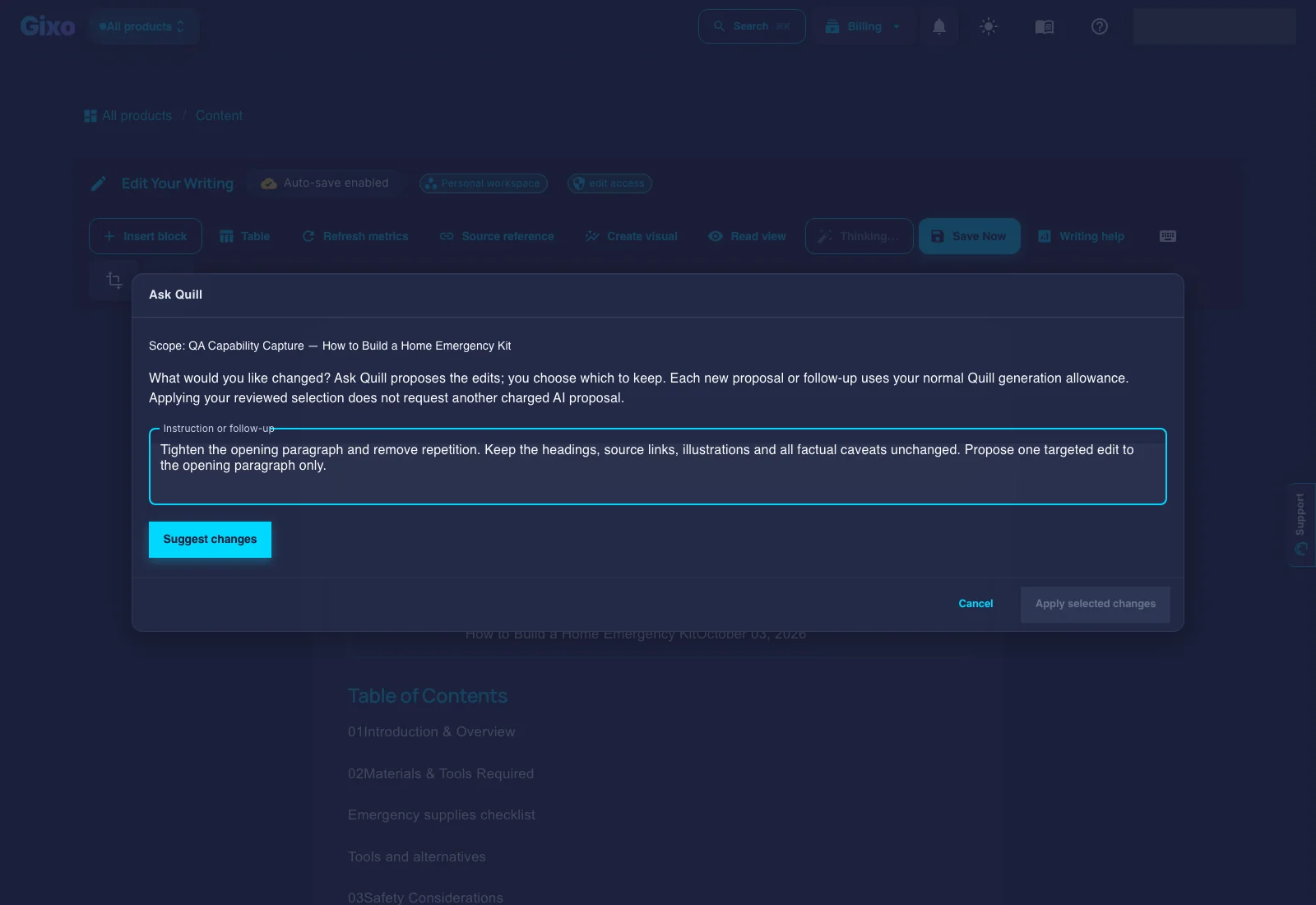
Ask Quill instruction dialog showing the current article scope, a prepared instruction, Suggest changes and the inactive Apply selected changes control
Describe an article-level change. Ask Quill's instruction dialog keeps the current article scope visible. This instruction was prepared and left unsubmitted; no proposal or applied edit is shown.
Quill Image Editor opened on the sample illustration with a preview, region selection, edit presets and a prepared custom edit instruction
Work on an illustration in context. Open an image from the article to inspect the image-edit controls. The custom instruction shown here was left unsubmitted; the screen does not claim that an image edit succeeded.

Captured on 9 October 2026. Scratch identity details are masked. Creation and AI assistance depend on editing access, product eligibility and available plan allowance.

Editor Tip
Use the AI Field Assistant to refine individual paragraphs without regenerating the entire article. Select any text block and click the AI button to improve, expand, or rewrite just that section.

Frequently Asked Questions

What types of content can I create with the Content Editor?
The Content Editor offers blog posts, news reports, how-to guides, product descriptions, and other selectable formats. Format and template instructions guide the draft; review its structure, claims, and suitability before sharing.
Can I edit AI-made content after it is created?
With edit access, you can rewrite paragraphs by hand, move blocks, add images and change formatting. Quick AI works on a selection, Power Edit accepts your own selection instruction, and Ask Quill proposes article-level changes for review. AI assistance also depends on eligibility and available allowance.
How does brand voice work in the Content Editor?
Create a Brand Voice profile from writing samples and choose the profile used for eligible generation. Profiles guide new drafts rather than guarantee a match. Quill selection edits use their instruction and surrounding context; check the result. Brand Voice requires Quill Starter or higher, or Professional or higher in another eligible Gixo product.
What export formats does the Content Editor support?
The export workspace offers PDF, DOCX, HTML, Markdown, JSON and plain text (TXT). Each format carries the content it can represent; inspect layout, styling and links in the receiving application before delivery.

Start writing

Draft blog posts, news reports and how-to guides, then edit and review them before sharing.

Create your first article

Inside Quill

Keep the finished draft and its next actions together

Current Gixo Quill draft view showing a QA-labelled article, its format and word count, and edit, regenerate, repurpose, download, share, and publish actions
Current Quill draft view using a QA-labelled article rather than customer work. Format, workspace, export, editing, repurposing, sharing, and publishing controls remain attached to the artifact.

Updated