
Exporting guide
Export your content to PDF, HTML, DOCX, EPUB, TXT, JSON, and image formats. Professional formatting with theme support across every product.
How It Works
Export any content item in four quick steps.
Navigate to the article, presentation, decision document, framework, infographic, or book you want to export and open it in the editor or viewer.
Find the Export or Download button in the toolbar. It is available in every editor and viewer across the platform.
Choose your preferred format — PDF, HTML, DOCX, EPUB, TXT, JSON, or image. Configure options like theme, page size, and quality settings before exporting.
Your export is generated on the server and downloaded directly to your device. Large exports like full books are processed in the background and ready within seconds.
Presentation exports generate individual slide images in addition to the full PDF. Use these for social media posts, thumbnails, or embedding individual slides in other documents.
Export Formats
Professional output across the main formats people usually need.
Professionally formatted documents with proper headers, typography, page numbers, and layout. Ideal for reports, print, and formal distribution.
Clean, semantic HTML output ready for CMS platforms, web publishing, or embedding. Includes proper heading hierarchy and responsive structure.
Properly formatted ebooks with chapter navigation, table of contents, and metadata. Built specifically for Books Studio content and compatible with all major e-readers.
Export presentations as individual PNG or JPEG slide images. Perfect for social media, thumbnails, or embedding single slides in external documents.
Plain text for quick copying and structured JSON for developers or apps that need machine-readable output.
Microsoft Word format for articles, briefs, and legal documents. It keeps headings, tables, and formatting, and is best when people need an editable file.
Exports automatically respect your selected theme and styling. Colors, fonts, and layouts carry over to the exported file so the output matches what you see in the editor.
Blog layout, theme and file delivery
Open the HTML. Change the reading layout.
The original Northwind source is rendered twice with the same Modern SaaS theme: Guide adds section navigation; Reader keeps a centered reading column. The separate Fieldnote Workshop page uses a Bento composition. All three files are actual outputs of Quill’s current HTML builders from supplied fictional content.

Keep layout and theme separate
Compare the Guide and Reader files before changing the theme: the wording and source table stay the same. A web-page composition has different section structure from an article layout; it does not rewrite or verify the supplied claims.
These are deterministic exports, not a newly captured signed-in design save or an AI-generated website. The Workshop buttons navigate inside the example; no booking service or external CMS is connected. Inspect file hashes and sizes.
Download a blog article or webpage as responsive HTML
Web publication has its own layouts and themes. Use it when readers need a page that reflows with the browser; choose PDF for fixed pages or Word for document editing.
Choose the structure for the content
For an article, open Download and choose Web article layouts & themes (HTML). Reader is a quiet centered column; Editorial uses an asymmetric opening; Magazine emphasizes the featured image; Guide adds section navigation; Report provides a summary panel and room for data; Case Study uses a split opening and clear section hierarchy.
Set the visual treatment independently
Choose Modern SaaS, Minimal, Editorial, Gixo, Midnight, Botanical, Terracotta or Heritage. Compare the same wording in the preview. When a source thumbnail is available, the article designer lets you include it as the featured image.
Choose a webpage composition and delivery path
For supported Quill content, choose Publish from the saved content’s sharing/menu actions. In Publish as a blog or web page, set Publish as to Web page. Choose Stacked, Split, Showcase, Editorial, Bento or Compact and a theme. Save design keeps those choices with the saved content; it does not change the original content format or rewrite the wording. Download HTML exports the current preview when download access is confirmed. More → Create public link is a separate sharing action. Use the WebPage editor to review individual modules where available. Contact forms need your own submission service.
Open the file and check the reading experience
Inspect the heading hierarchy, section links, images, tables and narrow-screen reading order. The HTML includes publication CSS and selected fonts. Images keep hosted URLs, so an HTML file containing images is not automatically a complete offline archive. Download access is required.
File, public link or connected CMS?
Downloading HTML creates a file for you to host. A Gixo public link uses the existing sharing controls; manage its password, expiry and revocation in My shares. Sending to a connected WordPress or Ghost site is a separate delivery flow, and the destination controls its own site styling. Hosting an HTML file elsewhere does not automatically configure its canonical URL, indexing, analytics or sitemap.
Match the export format to how the reader or destination will use the file
Choose responsive HTML when readers need browser reflow and section navigation; choose PDF when page breaks and print layout must stay fixed; choose DOCX when reviewers need tracked changes or document editing.
| Export path | What travels with the file and what stays external |
|---|---|
| Web article HTML | Includes layout markup (Reader, Editorial, Magazine, Guide, Report, Case Study), theme CSS and font links; hosted images remain external URLs. |
| Webpage HTML | Requires Save design in the WebPage workspace before Download HTML; interactive forms require your own endpoint. |
| PDF & DOCX | Embeds document typography, tables, callout blocks and images into a fixed-page PDF or editable Word document. |
| Public link vs CMS | Gixo share links support password, expiry and revocation in My shares; WordPress/Ghost publishing sends content to the destination site’s own theme. |
Open the authored web source JSON, blog HTML and webpage HTML below to verify the exported markup directly.
A worked workflow
Import, selected-text editing and a structured handoff
Use a short, permissioned source with a heading, numbered procedure, table and image caption. The task is to improve one unclear paragraph while preserving the rest of the document’s structure.
Follow the imported guide and web source into the saved HTML, PDF and Word exports
The fictional field-service guide was imported with headings, a table and a checklist, edited with a Pro Tip block, a Power Edit revision of the escalation-protocol paragraph and an Image Studio illustration, and exported to PDF and Word. Alongside it, two authored web sources were rendered through Quill's responsive HTML designer (Guide + Botanical blog layout and Bento + Heritage webpage composition) and inspected at desktop (1440×1050) and mobile (390×844) widths.
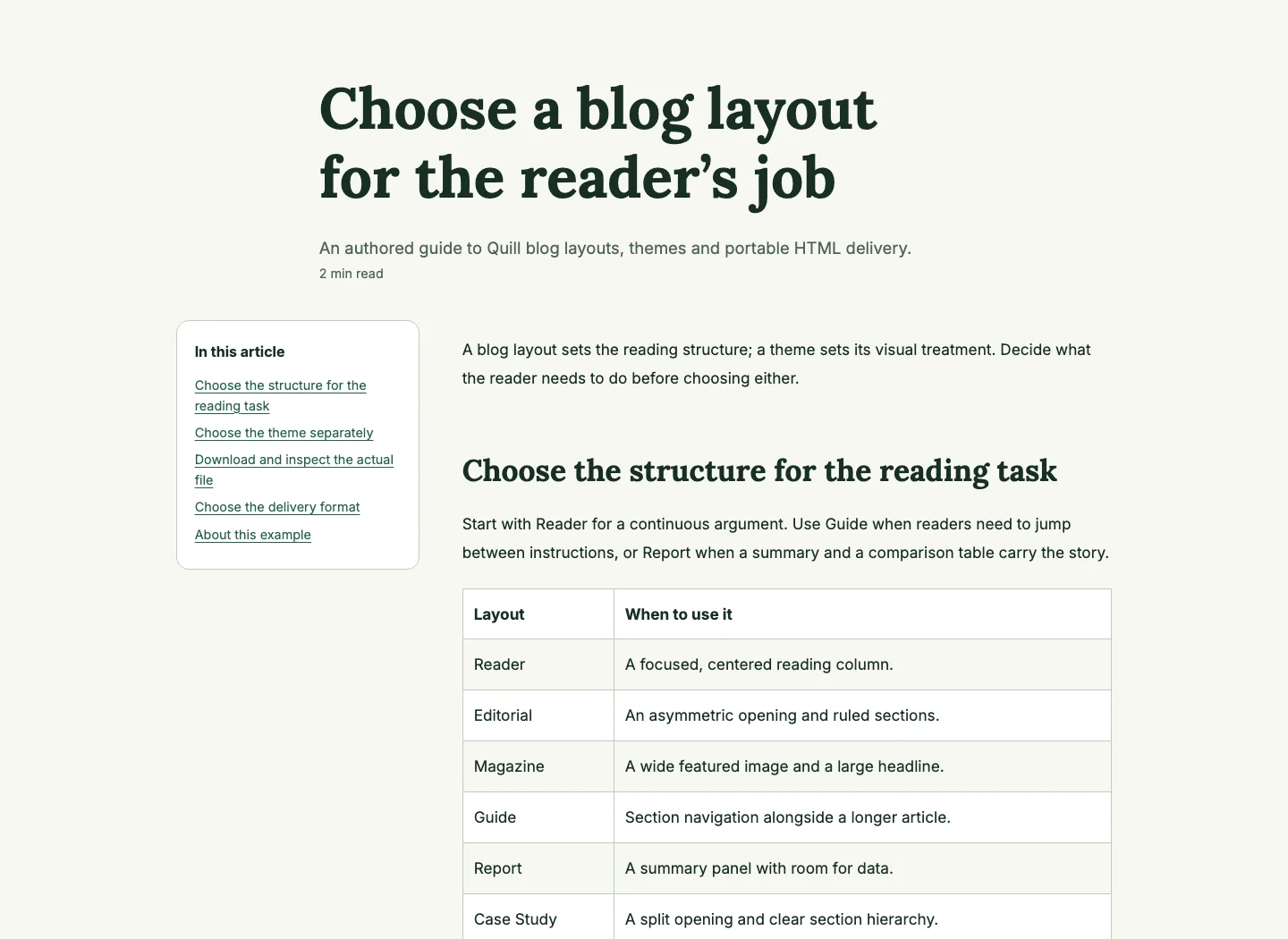
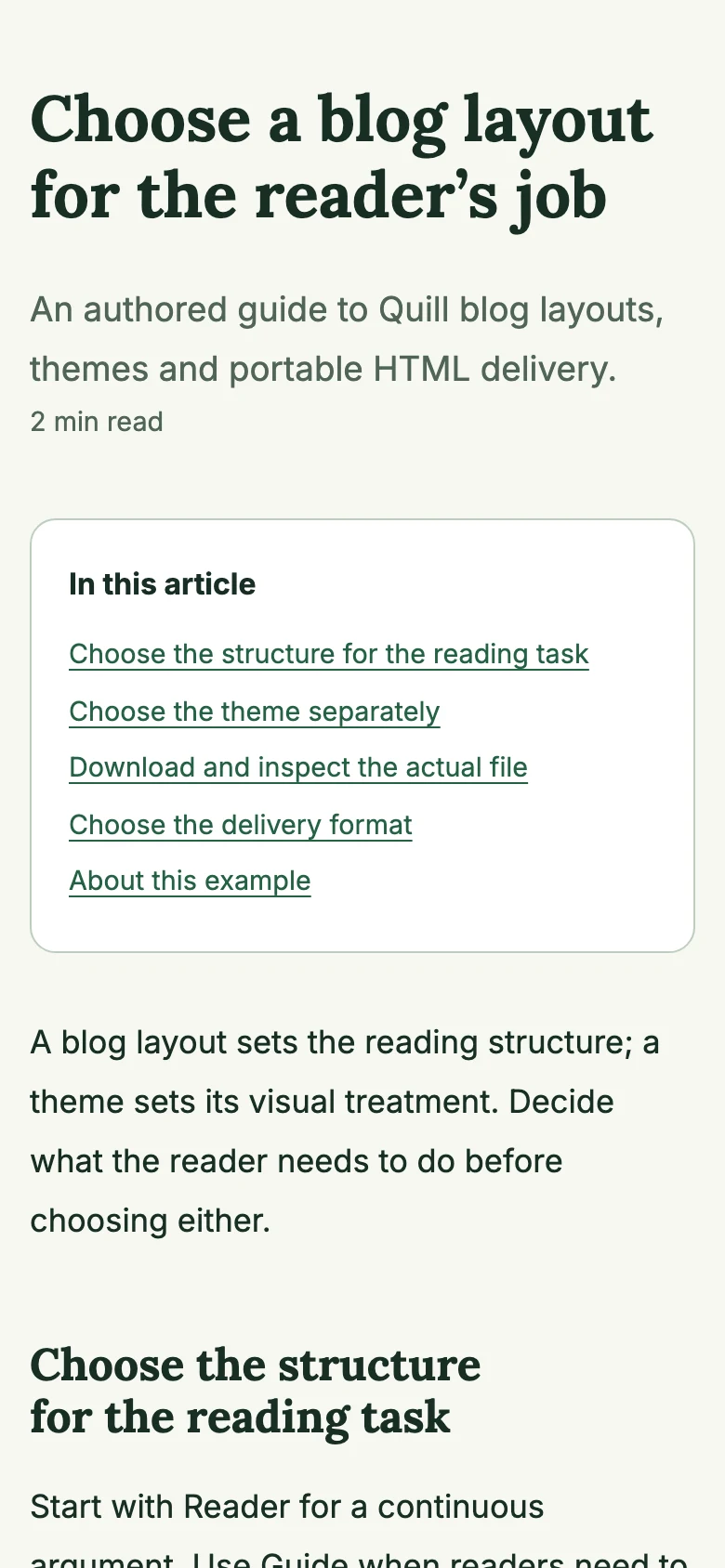
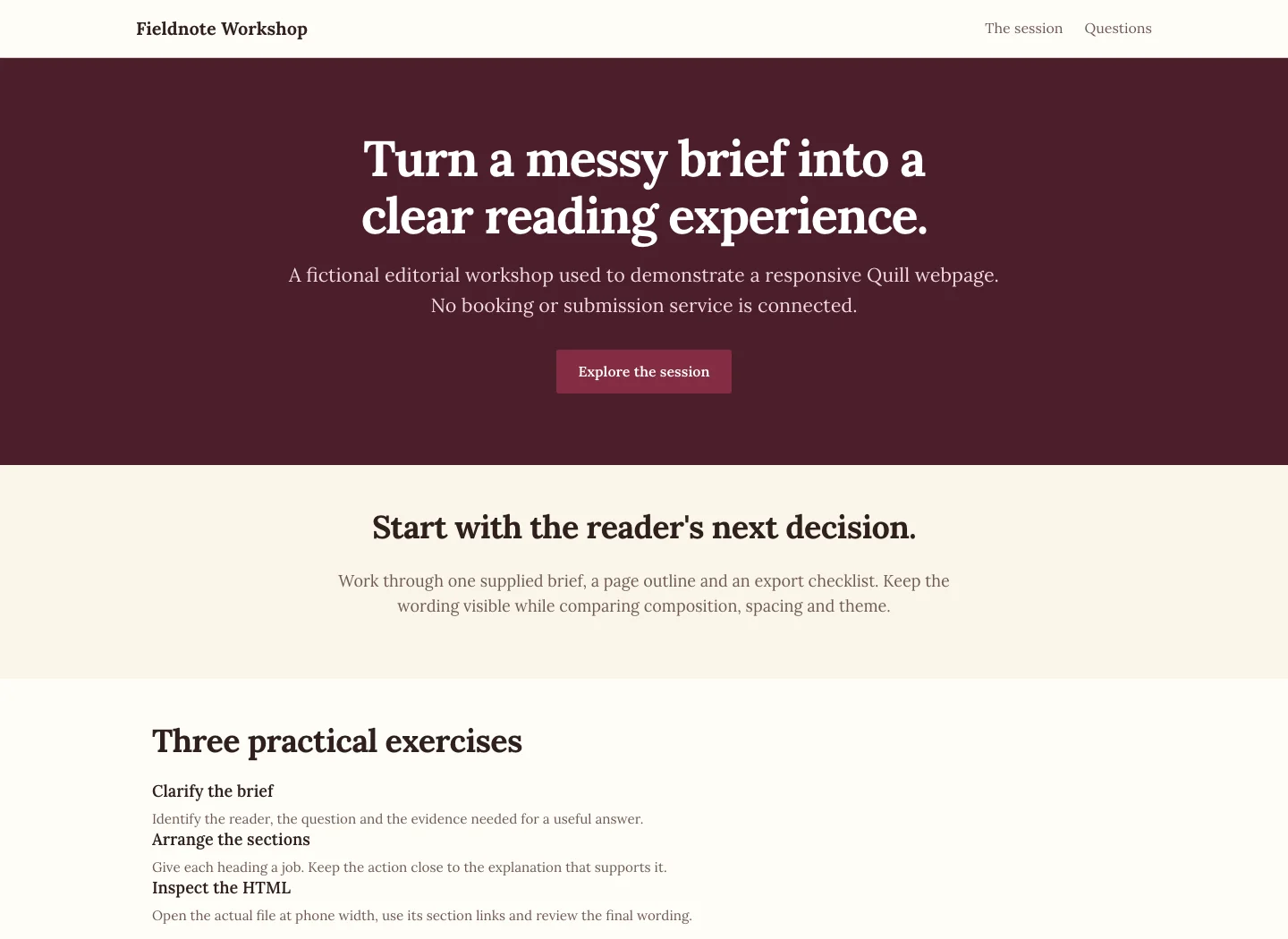
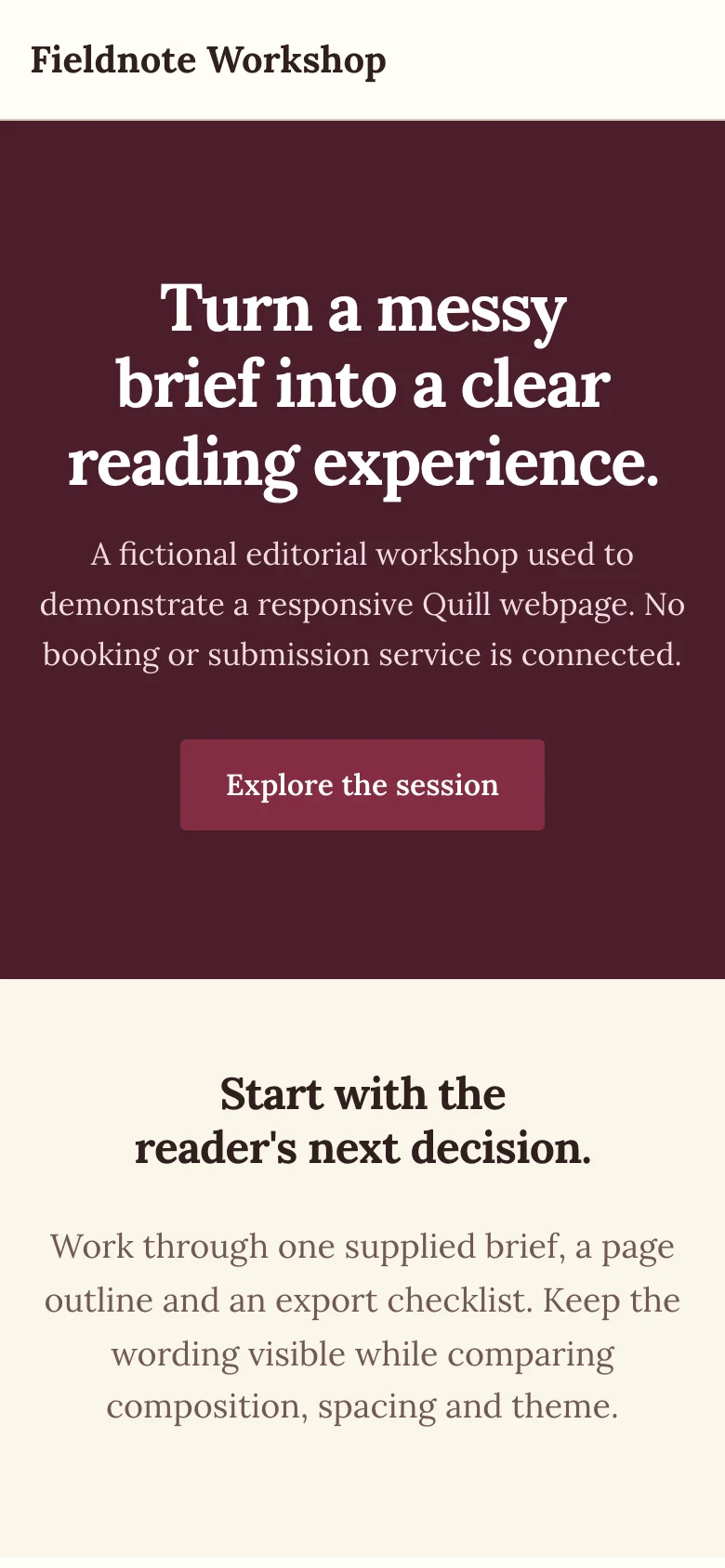
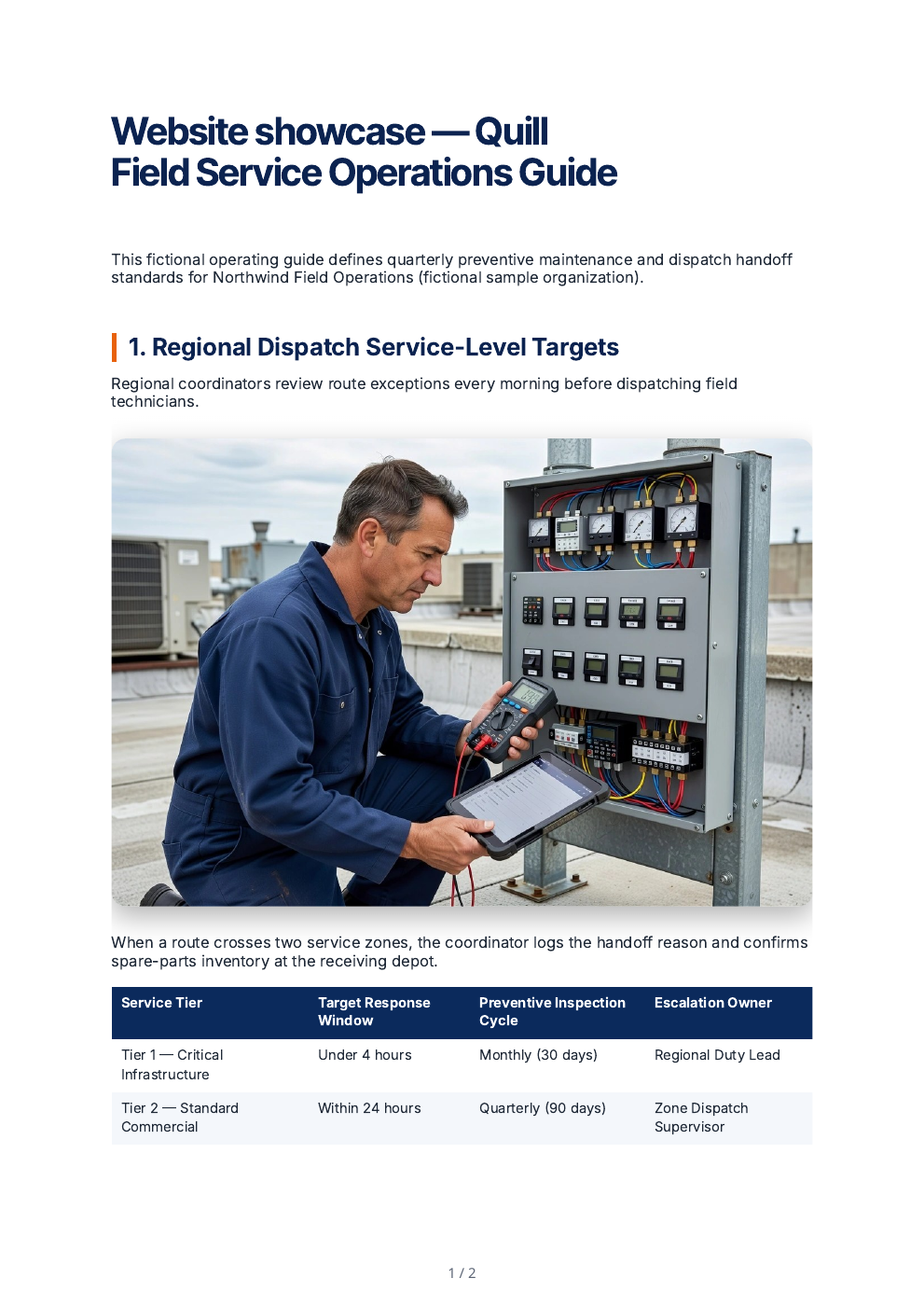
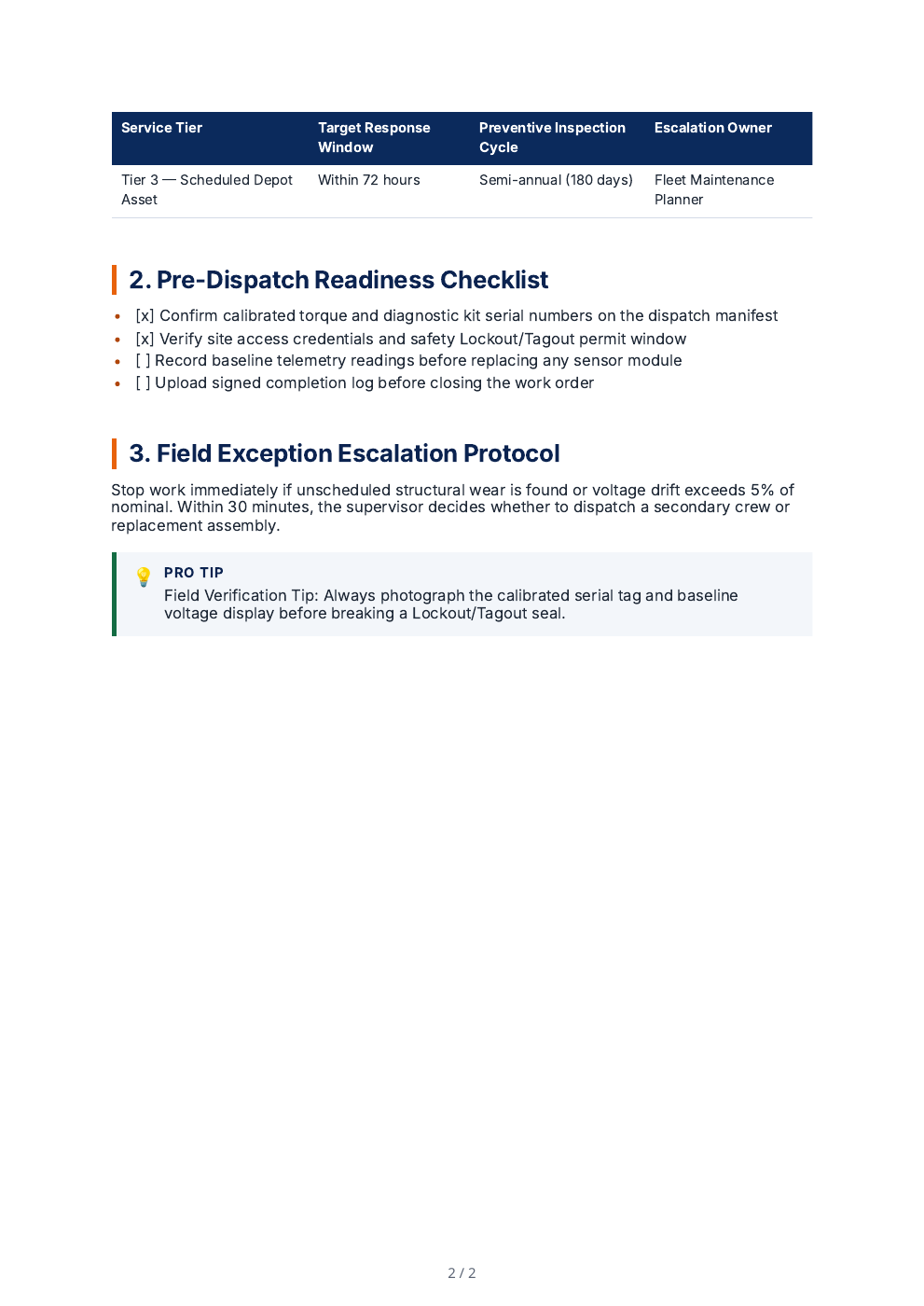
The HTML files are deterministic exports from the authored source JSON using Quill's production HTML helpers, embedded CSS and font links; hosted images keep their URLs and no external CMS or form backend is implied.
The supplied brief
- Source structure
- One heading, a three-step list, a two-column table and a caption with attribution.
- Edit boundary
- Select only the unclear paragraph and request a shorter explanation for a first-time reader.
- Block requirement
- Insert a structured comparison block with supplied item names and criteria.
- Image requirement
- Use an approved image or a clearly identified new result, with appropriate attribution and alternative text.
Inspect the imported structure
Choose the appropriate pasted text, HTML, Markdown, document, spreadsheet, OCR or supported media path and review extracted content before using it.
Inspect: Extraction can change layout and structure. Check the list numbering, table cells, caption and source identity; do not infer lossless import from a successful upload.
Edit only the intended selection
Select the paragraph, provide the Power Edit instruction, inspect streamed or completed suggestions and explicitly apply the replacement when satisfied.
Inspect: Full-document context informs the response but is not permission to replace the whole document. Compare the selected range and surrounding content after applying.
Build the structured block
Choose the block type, complete its typed fields and inspect the preview. Use item-level regeneration only where the form offers it.
Inspect: A block’s layout and its AI field assistance are separate operations. Verify supplied figures and labels before insertion.
Review an image revision
Inspect Image Studio’s subject, style, dimensions and other offered controls. Compare a finish or prompt edit with the original, then review alternative text.
Inspect: An edited image is a new result. Keep source attribution where required and check that text removal or a crop did not alter meaningful content.
Compare the exported formats
Set the supported format, theme, spacing, author, headers and footers, then open the actual Word/PDF/HTML outputs.
Inspect: Check that the heading, list, table and attribution remain usable. Editable Word, print PDF and web HTML have different structure and layout behavior.
Before approving the result
- Compare the selected paragraph and untouched surrounding text.
- Read the inserted block and image alternative text.
- Inspect the actual downloaded file after changing export settings.
Source-traced editing and export walkthrough using a fictional source structure. General-editor controls do not establish that the same unrestricted tools are available in Lex.
Frequently Asked Questions
Inside Quill
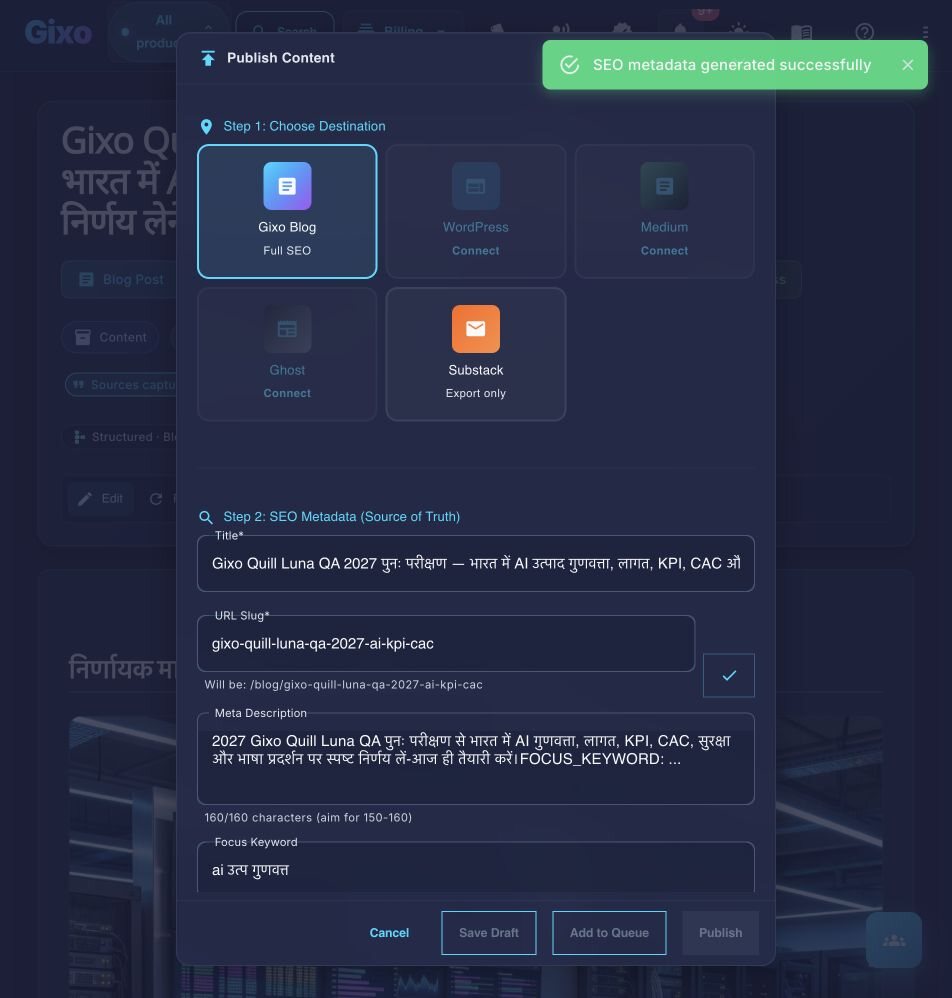
Carry an approved draft into publishing metadata and delivery
Updated