Guided product tour
See the complete deck workflow before you start.
Follow the actual Lumen path from source material to outline review, slide editing, theme control, presenter tools, and final handoff. Every image below comes from the product workflow.
This tour shows product UI and output specimens. It does not use staged customer claims or imply that the first generated pass is final.
Five checkpoints
The workflow stays attached to one working deck.
Use the tour to decide whether Lumen fits your review and handoff process, then open a specimen or start a trial to test it with your own material.
- 1
Start with context
Bring the topic, notes, brief, article, or source files.
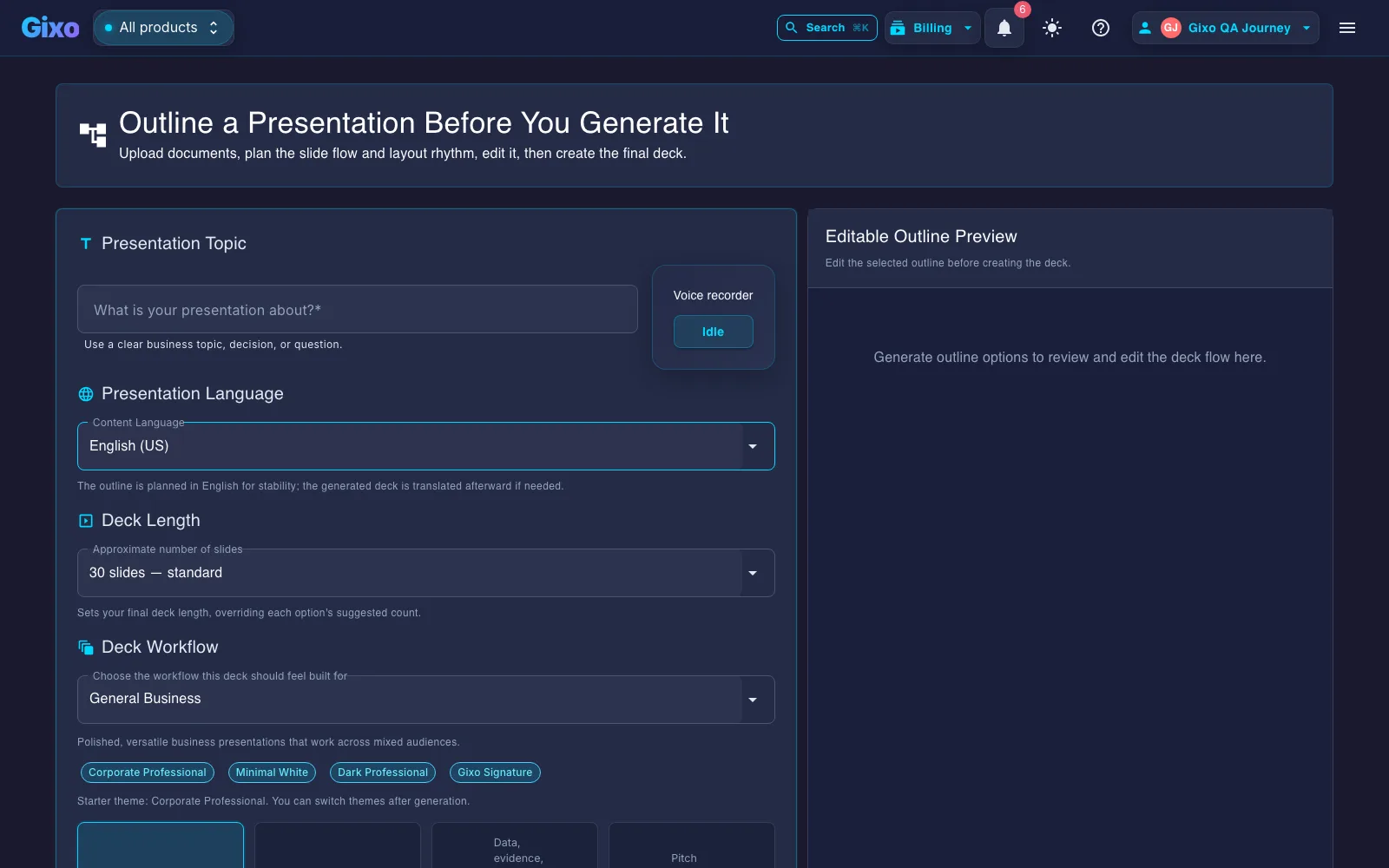
Choose a fast topic start when speed matters or an outline-first path when reviewers need to challenge the structure before generation.
- Select the workflow profile for the room
- Keep uploaded material primary
- Choose whether supporting web research is allowed
Start from a topic or source material, then shape the outline before full generation. - 2
Review the narrative
Inspect the outline before the deck becomes expensive to change.
Check the audience, decision, section order, evidence needs, and missing transitions before committing to the full slide build.
- Reorder or rewrite outline sections
- Match the structure to the delivery context
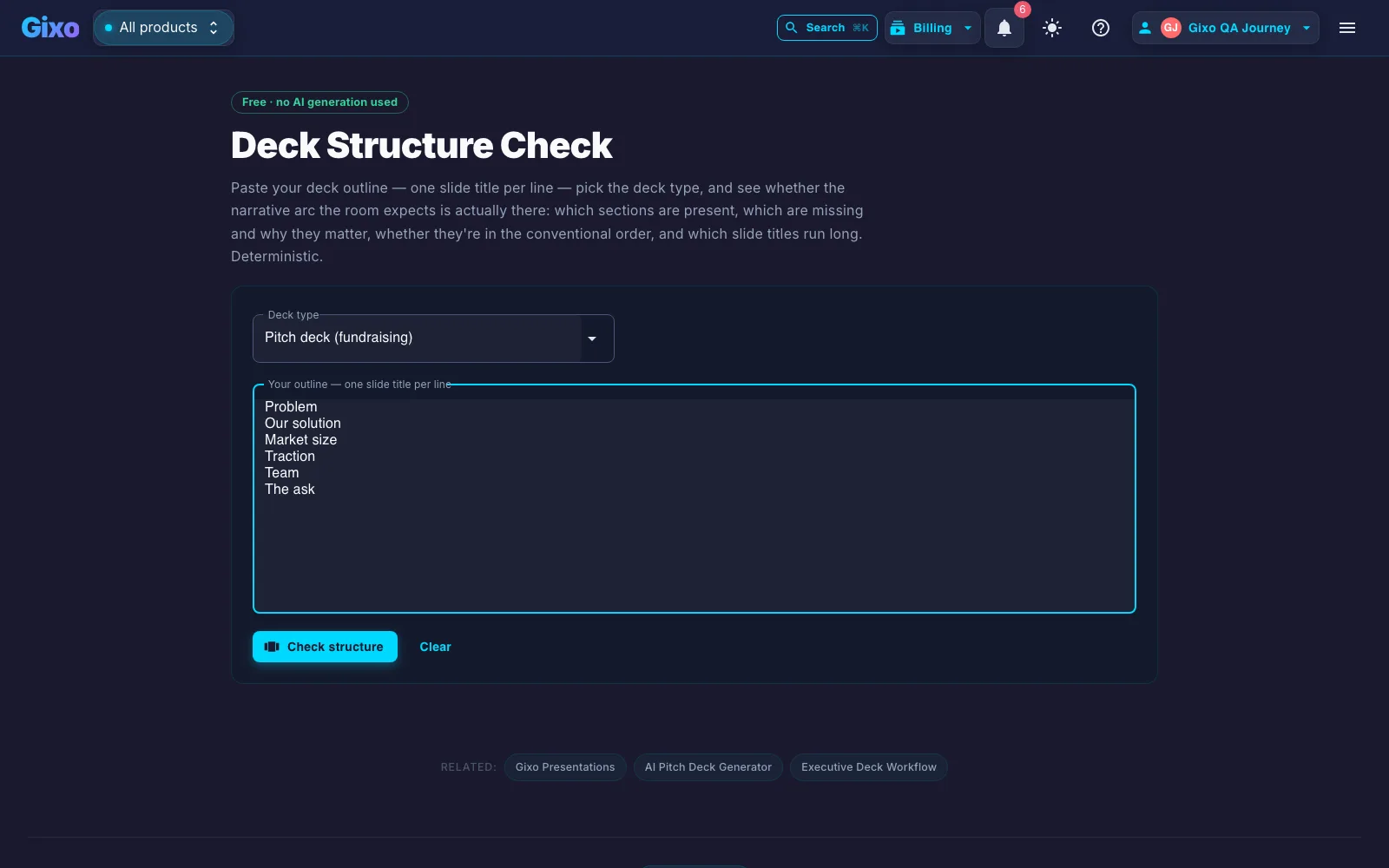
- Use the free deck checker for expected-section gaps
The structure check helps reviewers find missing sections before visual polish begins. - 3
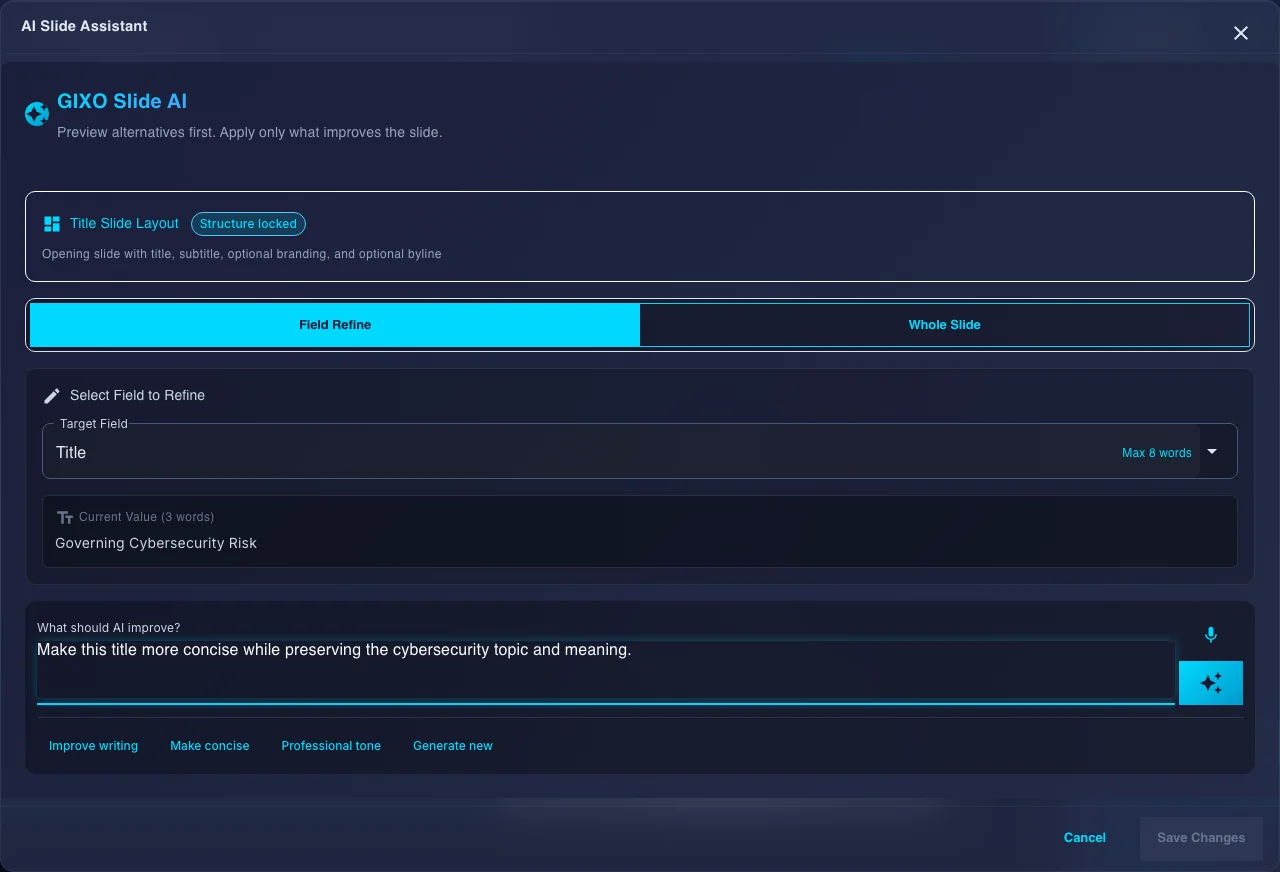
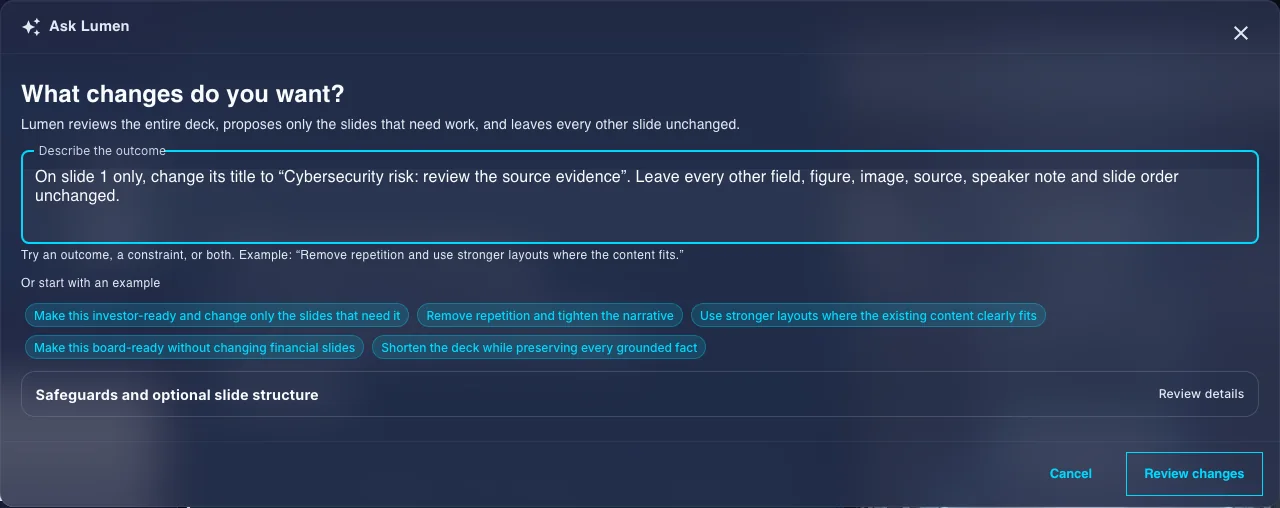
Edit the working deck
Refine slides without rebuilding the presentation elsewhere.
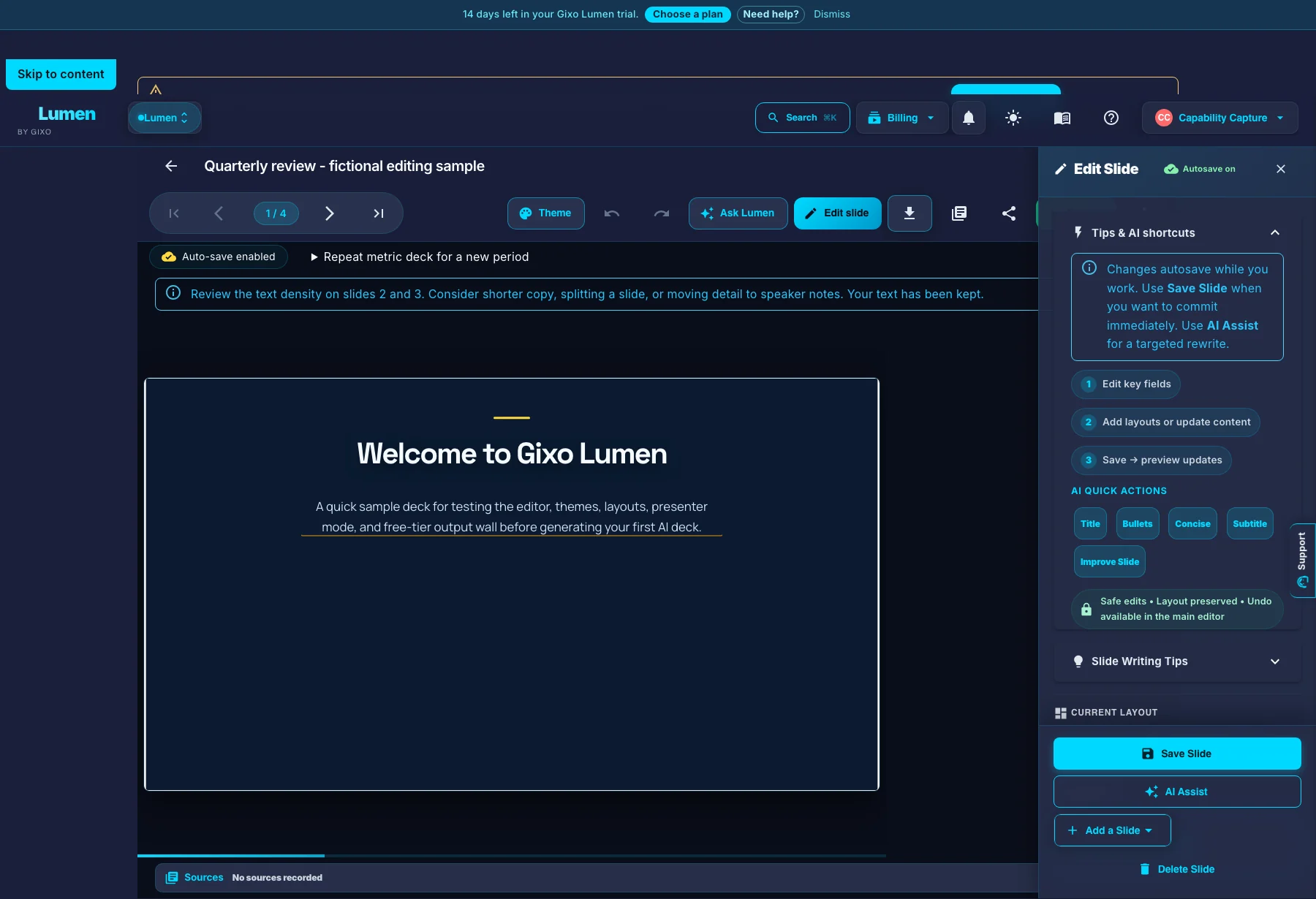
Use slide-level editing, layout changes, AI-assisted alternatives, images, citations, and deck-wide review controls on the same artifact.
- Edit individual fields and slide layouts
- Preview AI refinements before applying them
- Keep citations and source context available to reviewers
The editor keeps slide changes, AI refinement, evidence review, and delivery attached to one deck. - 4
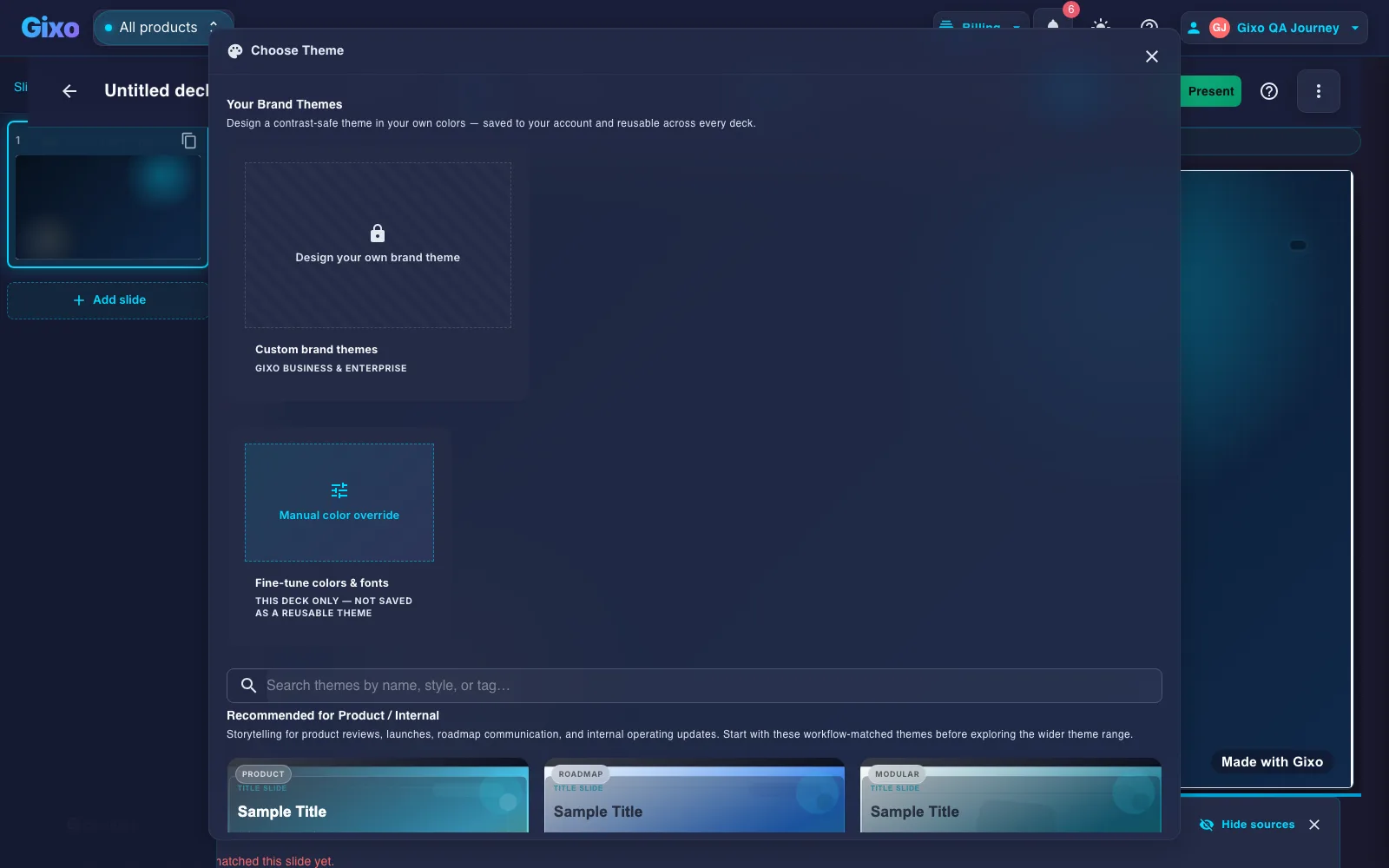
Control the visual system
Switch themes or apply Brand Kit controls after content exists.
Evaluate typography, contrast, density, and brand direction across the whole deck without rewriting the narrative.
- Choose from the active theme library
- Apply saved Brand Kit colors and fonts on eligible plans
- Review contrast before client or executive delivery
Theme switching changes the deck-wide visual direction while preserving the slide content. - 5
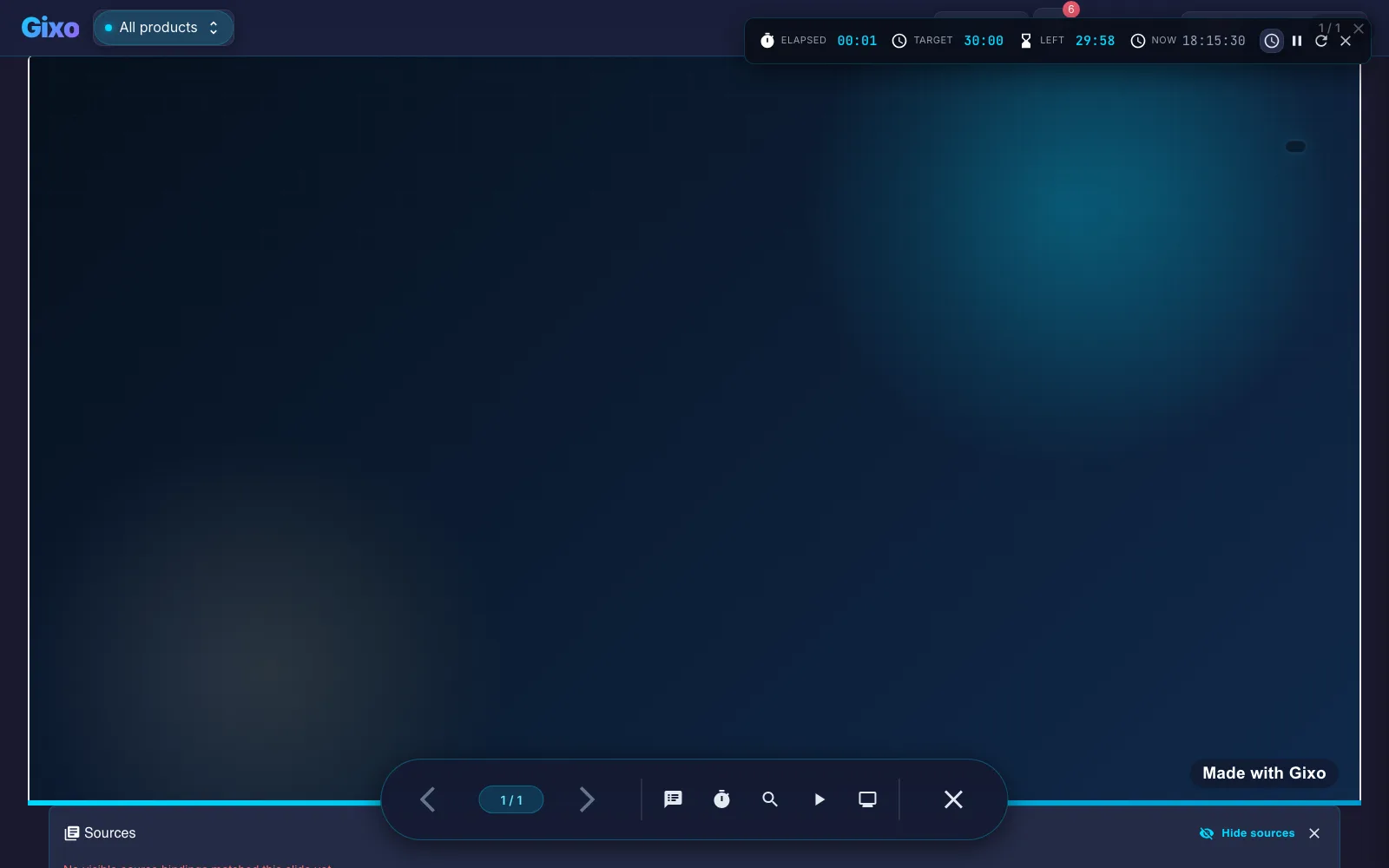
Present and hand off
Rehearse, present, and evaluate the exported file.
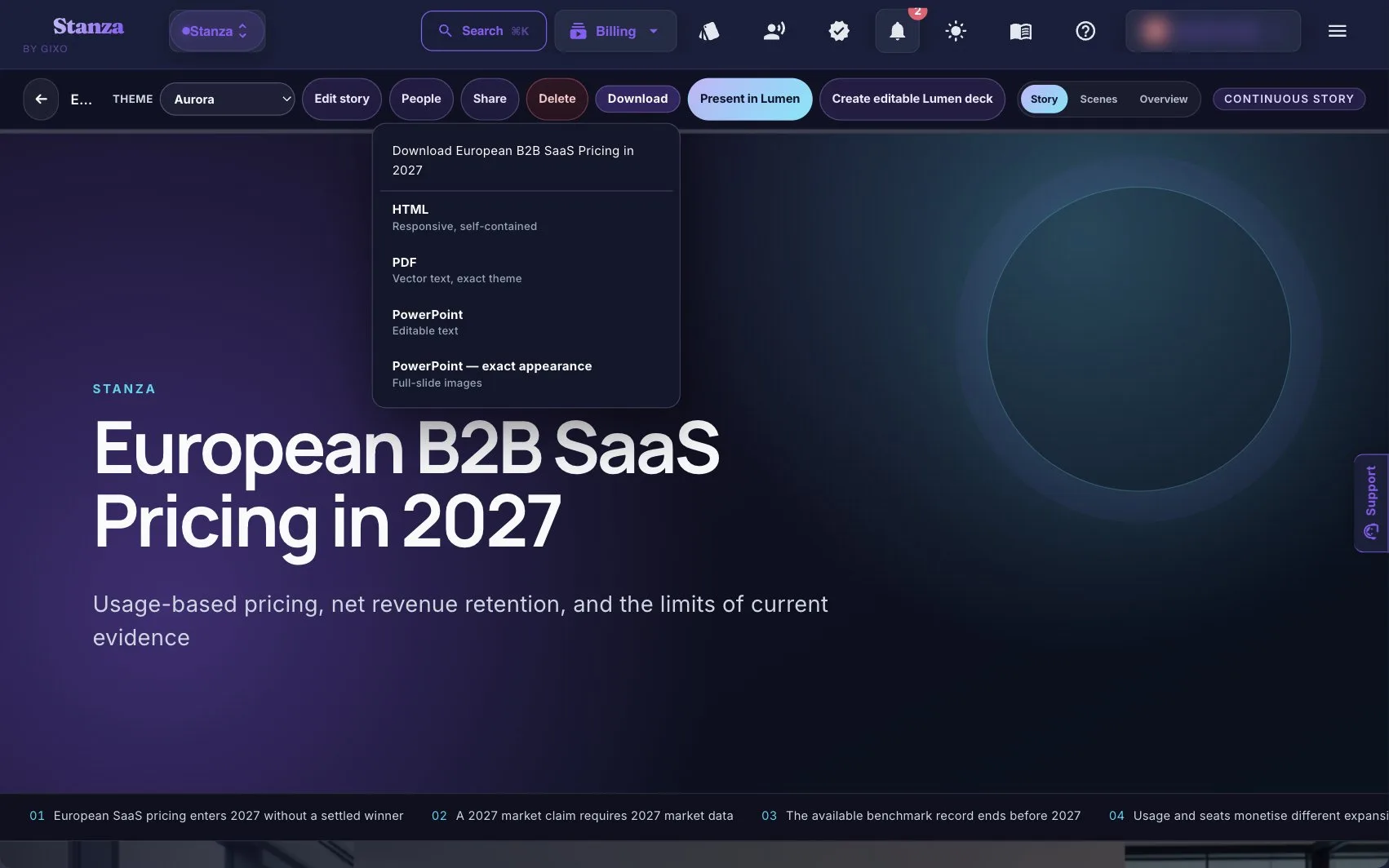
Use present mode and speaker notes in the browser, then inspect the hybrid PowerPoint or PDF output before it reaches a client or stakeholder.
- Use slide navigation, notes, timer, and present mode
- Review every claim and citation
- Test the exported file in the recipient's real workflow
Present mode keeps the working deck usable before and after export.
Use the trial to inspect structure, editability, evidence, and export fidelity.
The 14-day Starter trial includes AI generation and clean hybrid PPTX/PDF export. Stable layouts become editable text and shapes; complex slides may preserve fidelity as images. Forever Free supports manual decks with watermarked hybrid export.
From source material to presentation handoff
Build the deck, review it, and evaluate the exported handoff in one workspace.
Start a 14-day, no-card Starter trial to generate and review decks and evaluate clean hybrid PPTX and PDF exports. Forever Free exports remain watermarked; paid Lumen adds the higher-capacity delivery paths shown in pricing.