
Gixo Lumen · User guide
Everything you need to build a deck in Lumen
Slide decks and scrolling visual stories: how to make them, present them and get the files out, with a link to each screen.
Start here
What Lumen is
Lumen turns a topic or a planned outline — grounded, if you like, in web pages and files you provide — into a slide deck. Each slide gets a layout suited to what it has to say. You then edit the deck directly or with AI, restyle it with any of 34 themes, present it with speaker notes and a timer, and download it as PowerPoint, PDF, HTML or images.
The same workspace makes visual stories: responsive, scrolling web stories that read well on a phone, instead of fixed slides. Decks expand into stories, and stories convert back into editable decks. Visual stories used to be called Stanza; the name still shows in their web addresses (/stanza) and on some gixo.ai pages.
Your Lumen workspace
Everything you make in Lumen — decks and visual stories — is in one library on the Lumen home, as picture cards that show each deck's first slide, with search, sort and an All / Decks / Visual stories filter. New deck at the top opens four tiles: Slides from a topic, Slides from documents, Blank deck and Visual story. Until you have made something, the same four tiles show on the home as Make something. Recently deleted, beside the filter, restores what you deleted. The old deck list at /decks now opens this library on Decks.
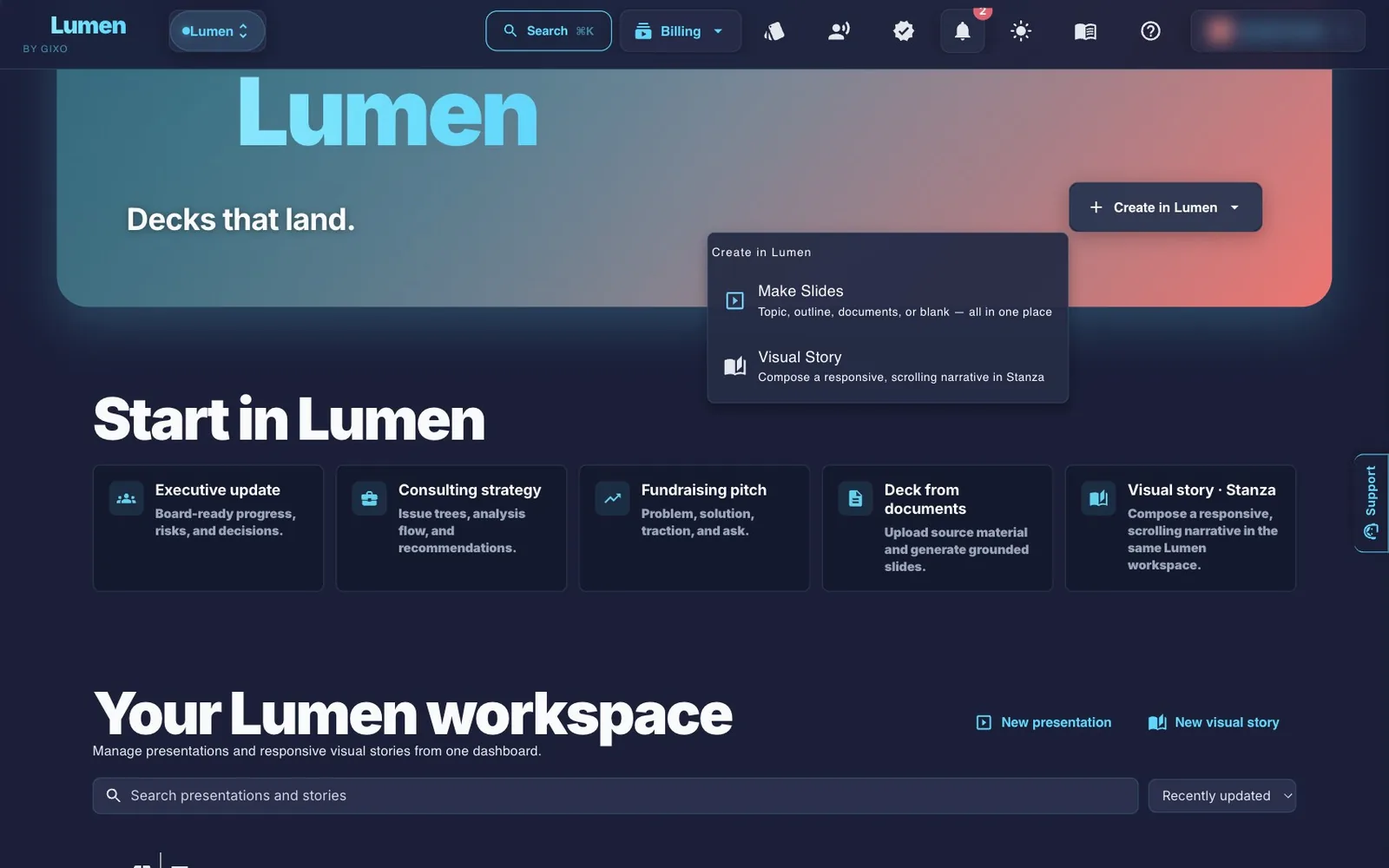
Ways to start a deck
For source-backed generation, Lumen plans selected facts that should appear visibly in the slides, then checks the draft against the supplied material. Bounded repair rejects candidates that lose previously reviewed facts or source-backed assets; invalid reviewer quotations can trigger a rereview. If source planning or coverage review cannot complete, Lumen still delivers the draft and saves what it could not settle under Review (see below). Completion alone does not mean the source coverage passed. These checks do not independently prove the source is right, or that every fact came through unchanged. Review the final wording, figures and references.
Deck from Documents, the older form that uploads up to five source files and generates straight from them, is part of Gixo Lumen and still opens from links and document conversions that send you there. gixo.ai/decks/create/advanced
Sources mean a plan first
Once you add files, a web page or pasted text, or change the research settings, Skip the plan is no longer offered: Lumen plans the slides first so you can check what it took from your sources. A deck that has started keeps building in the background, so you can leave the page and come back to its progress.
Making slides from a topic
- TopicAnswer What should your slides be about? with a short topic, decision or question — for example, a product launch plan. It becomes the deck's title. Audience and goal (optional) says who the deck is for, what it should achieve and anything else Lumen should follow.
- Deck settingsOne line until you open it. Slides: 5 for a short briefing, 12 for a quick proof, 20 concise, 30 standard (the default) or 40 in-depth; Language; Deck workflow; and Research. The outline is planned in English and the deck is translated afterward if needed.
- Plan slidesThe default step. Lumen drafts three outline options; pick a flow, edit any line, then Make deck. Skip the plan makes the deck straight away instead.
- Watch it buildLumen shows stages and an estimated duration as it works. The estimate is guidance, not a measured completion time; source processing, images and service load can change it. After the job is accepted, you can leave the page and return to its progress; an early preview fills in as slides are finished.
- Open the deckWhen the deck is ready (Your Slides Are Ready! after Skip the plan, Presentation Created Successfully after a plan), open it in the editor.
Adding sources and planning
Open Add sources to drop files (PDF, Word, PowerPoint, Excel, text, pictures, audio or video, up to five at a time), paste a source URL and Import URL, or paste text and Add text. The general upload limit is 500 MiB per file; DOCX, XLSX, XLS and PPTX files are limited to 64 MiB. Extraction and transcription have additional processing limits and can use a plan’s daily allowance. Research, under Deck settings, sets how sources are used: Auto chooses based on the material, Reference only disables web browsing, and Allow web browsing permits additional context while keeping uploaded material authoritative. The outline itself is planned without web search. The evidence trust profiles Balanced, High-trust only and Primary-only filter web sources, and Trusted domains limits them to sites you name; they do not certify that a source or generated claim is true. Image-source choices are separate from the text research policy. Plan slides shows Your outline with three flows; edit any line, then Make deck. If the planner writes figures your topic, instructions and sources do not state, the outline lists them; the deck's review checks each one unless you tick These figures are mine. Change a setting after planning and Lumen offers Plan again or Keep this outline. The selected count is a target: source-based content and cleanup can produce a shorter deck. Review the sequence, figures and cited passages before presenting.
Eight deck workflows
The workflow you pick shapes both the story the deck tells and the slides Lumen chooses.
| Workflow | Shapes the deck for |
|---|---|
| General Business | Polished, versatile presentations for mixed audiences. This is the default. |
| Consulting / Strategy | Structured thinking for client strategy, transformation or advisory work. |
| Finance / Investment | Evidence-first financial storytelling for investment and operating reviews. |
| Startup / Fundraising | Pitch storytelling for founders, investor updates and fundraising. |
| Sales / Marketing | Persuasion-led decks for pitches, campaigns and revenue conversations. |
| Corporate / Executive | Boardroom-ready leadership updates and cross-functional alignment. |
| Product / Internal | Product reviews, launches, roadmaps and internal operating updates. |
| Training / Education | Teaching-first decks for onboarding, workshops, courses and enablement. |
Themes and layouts
Lumen has 34 themes and 26 selectable slide layouts. It chooses a layout for each slide from what that slide has to say: a comparison gets a comparison layout, a key number gets a big-number layout. The layouts include timelines, process flows, charts, tables, roadmaps, matrices, dashboards, team slides and FAQs. Change the theme at any point and every slide restyles without rebuilding the deck.
Changing the theme saves the deck
A new theme applies straight away to every slide and is saved immediately. Apply Brand Kit is available on the Professional plan and up, and saved brand themes on the Business plan and up.
The deck editor
Every deck opens in the editor. Arrow keys move between slides, and the toolbar holds everything else.
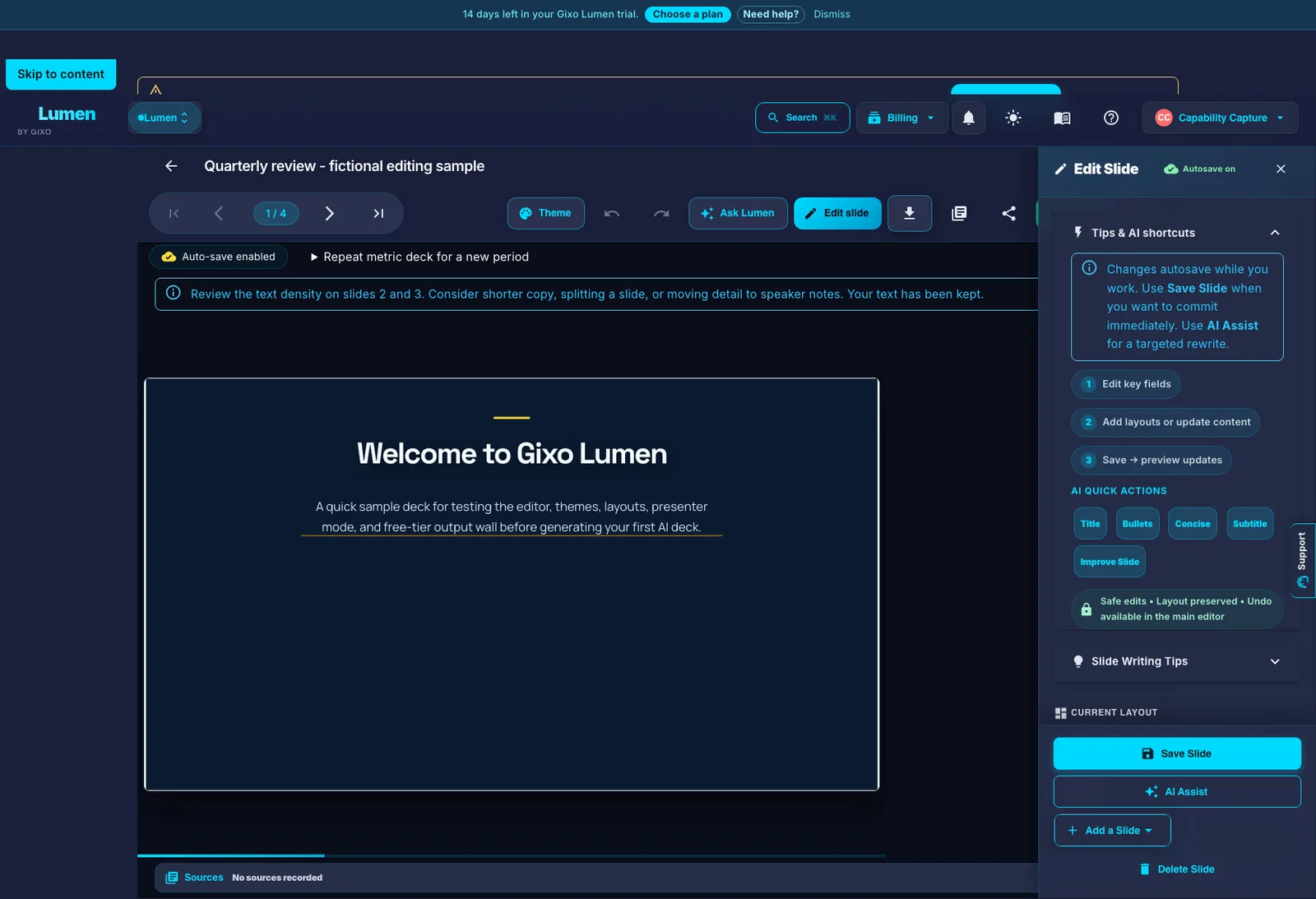
| Toolbar | What it does |
|---|---|
| Deck name | Click the name to rename the deck. |
| Theme | Presets, saved brand themes and a manual colour override, all in one place. |
| Undo / Redo | ⌘Z and ⌘⇧Z. |
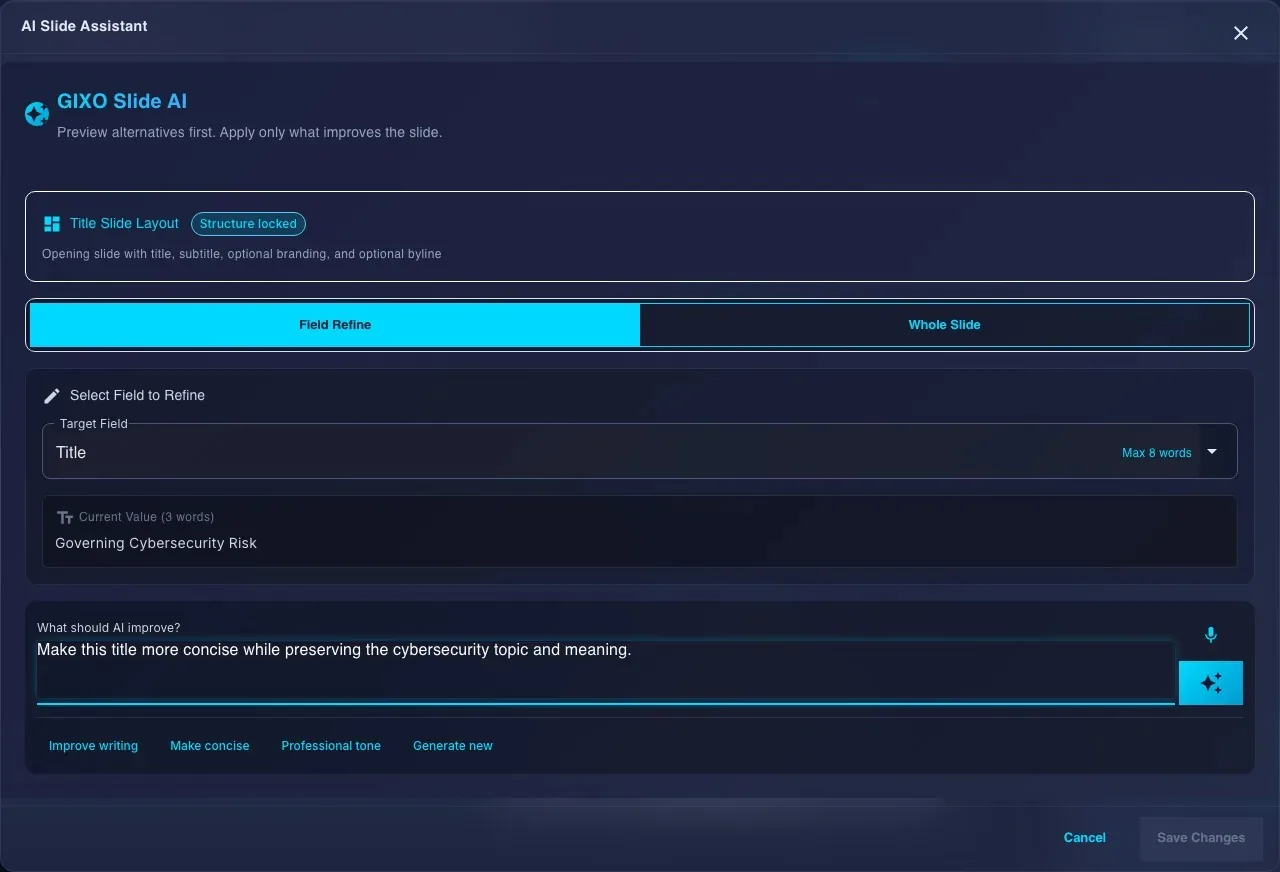
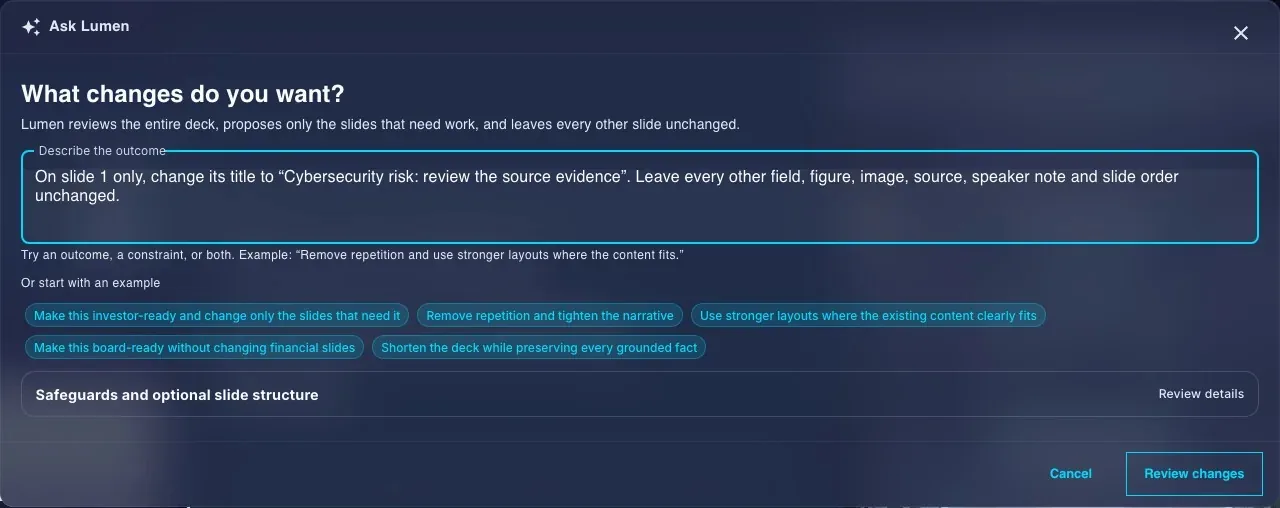
| Ask Lumen | This slide rewrites one field or the whole slide. Whole deck takes a change you describe and proposes edits only on the slides that need it; review them, select what to apply, then apply the approved changes. Requested additions, removals or reordering need explicit selection. Without paid Lumen the button reads Ask Lumen · Paid. |
| Edit slide | Opens the slide panel. You can also click the text on the slide to change it; changes save as you type. Ask Lumen to write this slide, in the panel, opens the same slide assistant as Ask Lumen → This slide. |
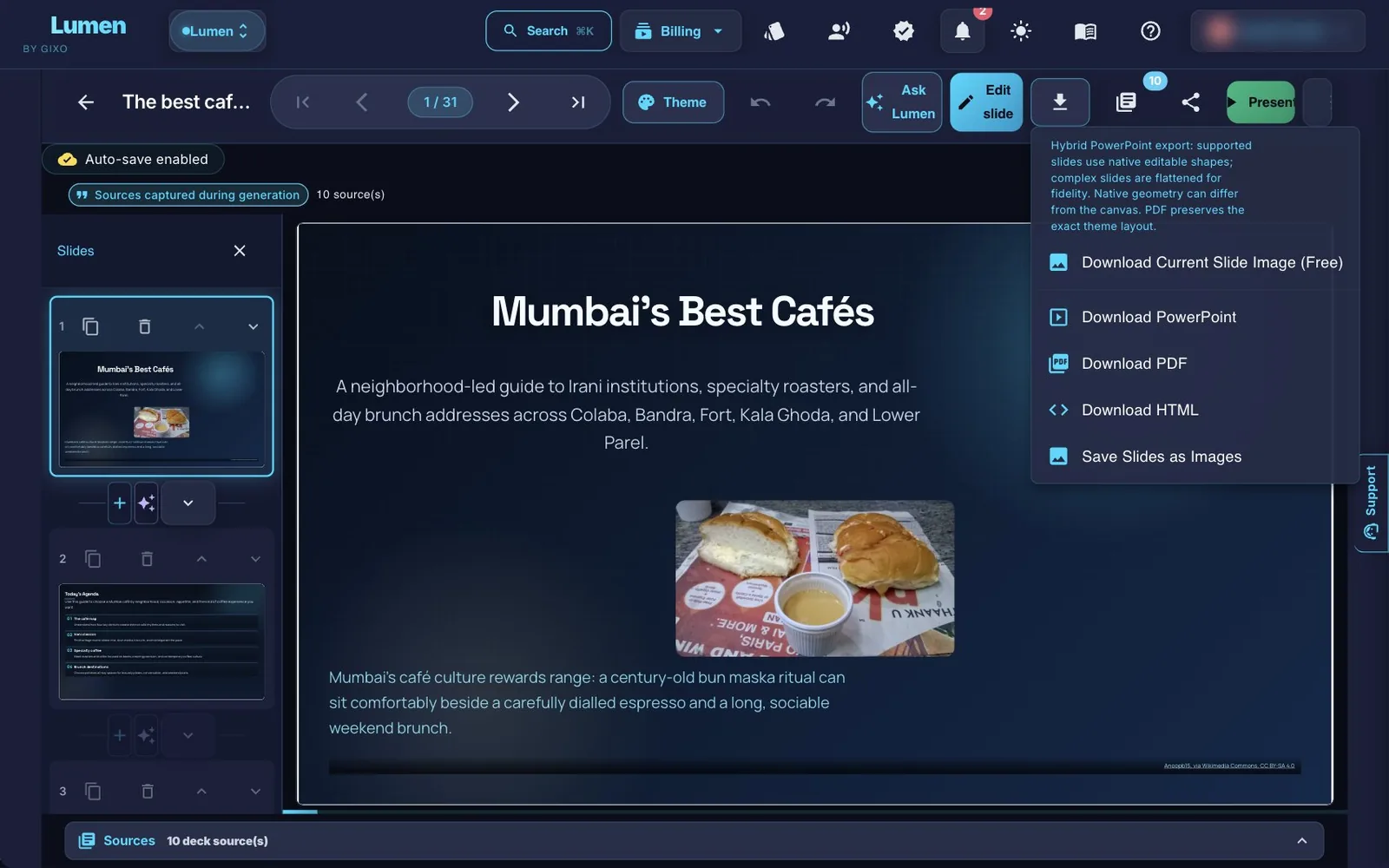
| Download | Download PowerPoint, Download PDF, Save Slides as Images, Download HTML, or Download This Slide as an Image. When a slide still needs a picture, the button reads Download · picture needed and takes you to it. |
| Sources | The sources the deck cites. |
| Share | A public link, or sharing with named people on your team. |
| Present | Full-screen present mode (see below). |
| More | Show / Hide Slide Strip, See All Slides (the overview grid), Keyboard shortcuts, Version History, slide density, Make Another Version, Regenerate Deck, Make a Copy (an exact duplicate, no AI), Update numbers for a new period (on a deck with a chart linked to Business numbers), Expand into a Visual Story, Apply Brand Kit, People & comments and Delete presentation. |
The slide panel's Add a Slide menu also holds Prism: Add a Prism visual (diagram, chart or card) creates one from the slide context, and Insert a saved visual brings one in from your Prism library. Save the deck first. A visual created here retains its structured request for Edit visual; a library visual must be edited in Prism and inserted again. Access and generation allowance are checked by the visual workflow.
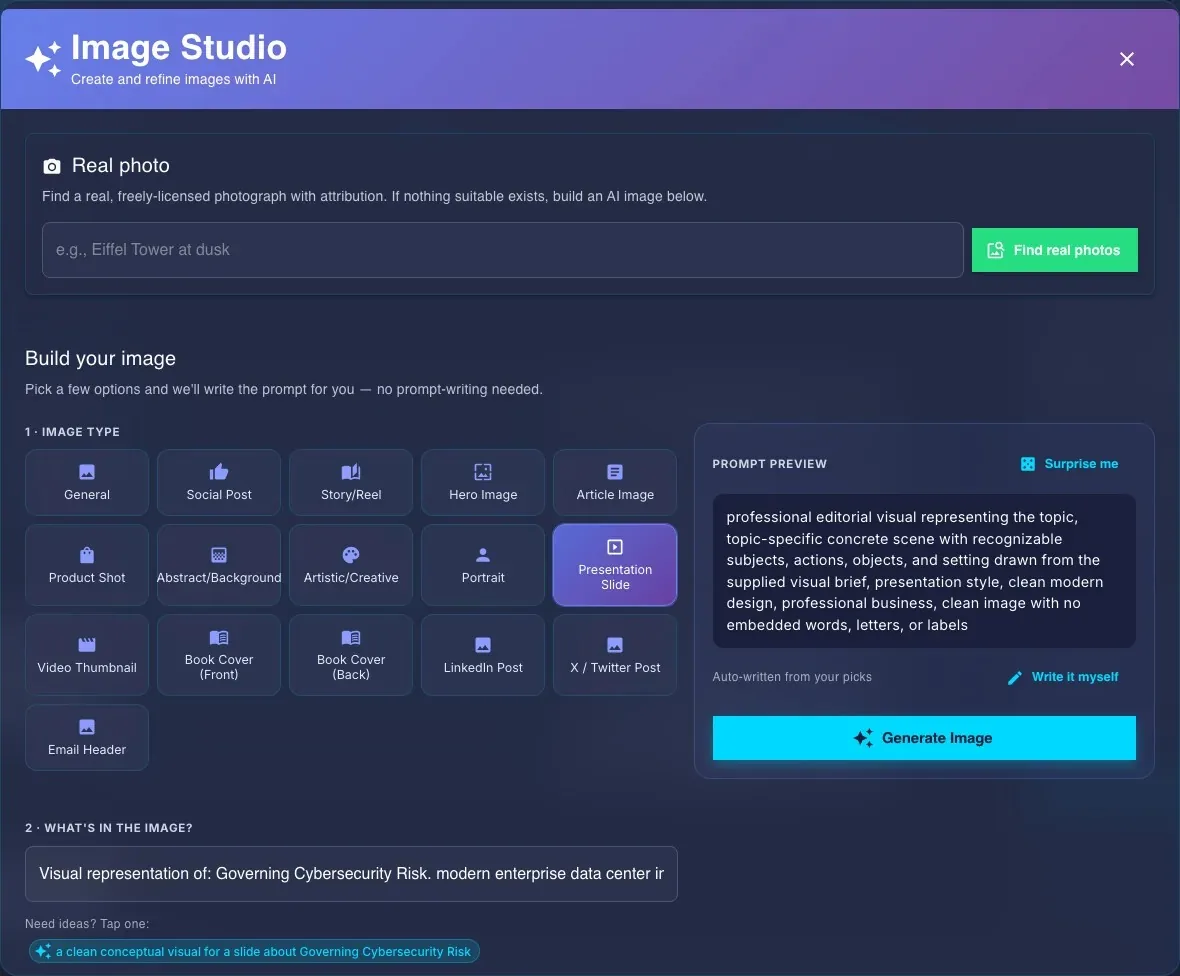
On a slide with a compatible editable image slot, open Image Studio to prepare an image prompt, upload your own picture or request attributed real-photo options. Review the returned image, source and usage terms before selecting one; results and AI operations depend on the applicable access, allowance and service availability.
Cheap to iterate
A single-slide AI review (Ask Lumen → This slide) doesn't use plan capacity. A successful whole-deck Ask Lumen review that proposes edits uses capacity, even if you later choose not to apply them. A review with no proposed edits releases that allowance. Regenerate Deck and Make Another Version also use capacity.
Review: what a deck was saved with
Lumen keeps every deck it finishes. When something needs your eye, Review (n), beside Sources at the foot of the deck, lists it: a source coverage review that did not pass or could not finish, with its open points; notes such as a slide over its word budget or a source passage left out; figures it could not back; figures kept in English after a translation; and slides with a lot of text. A deck that could not be translated is saved in English with a note saying so — regenerate it to try the translation again — and any piece of text whose translation could not finish stays in English, with a count.
Presenting
Present opens full screen. Press N for speaker notes, T for the timer, G to see all slides, Ctrl/⌘+F to search the slides, H for every shortcut and Esc to close the top panel or stop presenting. Open audience window (second screen) gives the room a slide-only window in the same browser that follows your current slide while you keep your notes. The in-app presenter uses a server connection; keep it connected and use a downloaded file if you need to present offline.
Getting the files out
Open Download in the editor and choose PowerPoint, PDF, all slides as images, HTML, or the current slide as an image.
The headline
Downloading your own deck never needs a plan. PowerPoint, PDF, HTML and image exports carry no watermark, during a trial and after it ends. If the export service is busy, try again in a moment.
What “hybrid” PowerPoint export means
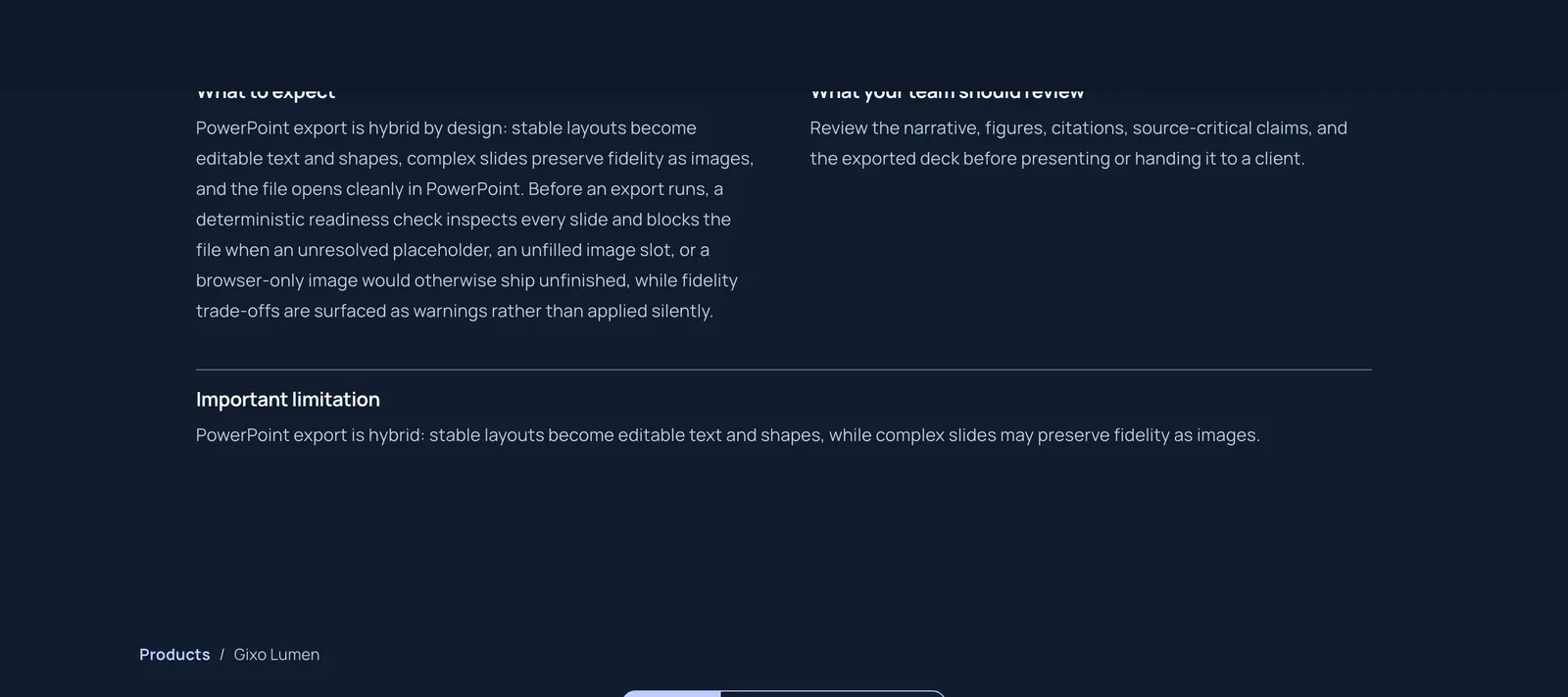
Slides with a supported layout come out as native, editable text and shapes. Complex slides come out as images so they keep their design. PDF uses the themed rendering, so it is a useful visual handoff. Review its pages before sending, especially fonts, images and line wrapping. PowerPoint export supports every language in the language picker; review fonts and line wrapping on the recipient’s computer, or use PDF, HTML and images for a visual handoff.
- A readiness check runs first. It stops a PDF or PowerPoint export if a slide still has an unresolved placeholder, an unfilled image slot or a browser-only image, and it tells you which slide to fix. It also warns about slides whose text won't be editable in PowerPoint.
- Cited Sources slide. When saved generation-time source information can be formatted and no Sources slide is already present, export adds one to the PDF and PowerPoint files. Manually added citations alone do not ensure an appendix. Inspect the references before handoff.
Visual stories: stories that scroll
A deck is a sequence of fixed frames. A visual story is a responsive web page that someone scrolls, and it reflows cleanly on a phone. It lives in the same workspace, with its own editor and present mode.
- Describe the storyOn Make a visual story, choose Quick (describe it and generate) or Outline first (add sources, check every scene, then generate), and answer What should the story communicate? in 10 to 4,000 characters. More options holds the optional title, story type (Let Lumen choose, a story blueprint, Explainer or Pitch), audience and output language. In Quick mode, you can also paste up to 20,000 characters of source material there. Outline first accepts up to 80,000 combined characters through its source picker.
- Shape itAlso under More options. Reading flow: continuous scroll, section snap or guided story. Visual scenes: choose a target from 3 to 30; the create form starts at 22. When no count is specified, topic-only generation defaults to 22 and source-led generation can use fewer scenes. The final count can differ after content checks. Generated images: the input allows 0 to 12; zero switches image generation off. With images enabled, a positive selected count is honored within suitable scene capacity. Automatic coverage applies when no positive count is specified. Source checks, available scenes and provider results can leave fewer completed pictures.
- Pick a themeVisual stories have 16 themes, separate from the 34 deck themes. Examples include Aurora (dark, vivid, luminous), Paper (light, restrained, printed), Editorial Ink (warm, literary), Ocean Depth (immersive, calm), Botanical (organic, optimistic), Signal (bold, direct), Plum (expressive, cinematic) and Boardroom (precise, executive).
- Generate visual storyCreating a story requires active Lumen access and uses plan capacity. In Quick mode the button is Generate visual story. Choose Outline first to ground the story in up to five files, press Outline the scenes, check and edit the scene plan, then Generate approved story; Re-plan replaces the outline. The general upload limit is 500 MiB per file; DOCX, XLSX, XLS and PPTX files are limited to 64 MiB. Extraction and transcription have additional processing limits and can use a plan’s daily allowance. That link opens the page with Outline first chosen. It is not a separate paid tier. Without AI, Start from a blank story opens the editor with three starter scenes in English, and Explore a sample story adds a nine-scene tour to your workspace.
Editing a story
During first generation, a scene preview may appear while images finish. It remains unfinished: editing, downloading, sharing and conversion stay unavailable. A failed/refunded run restores the placeholder. During regeneration, the earlier completed story remains available until the replacement succeeds. A story that could not be translated is saved in English with a note saying so; regenerate it to try the translation again.
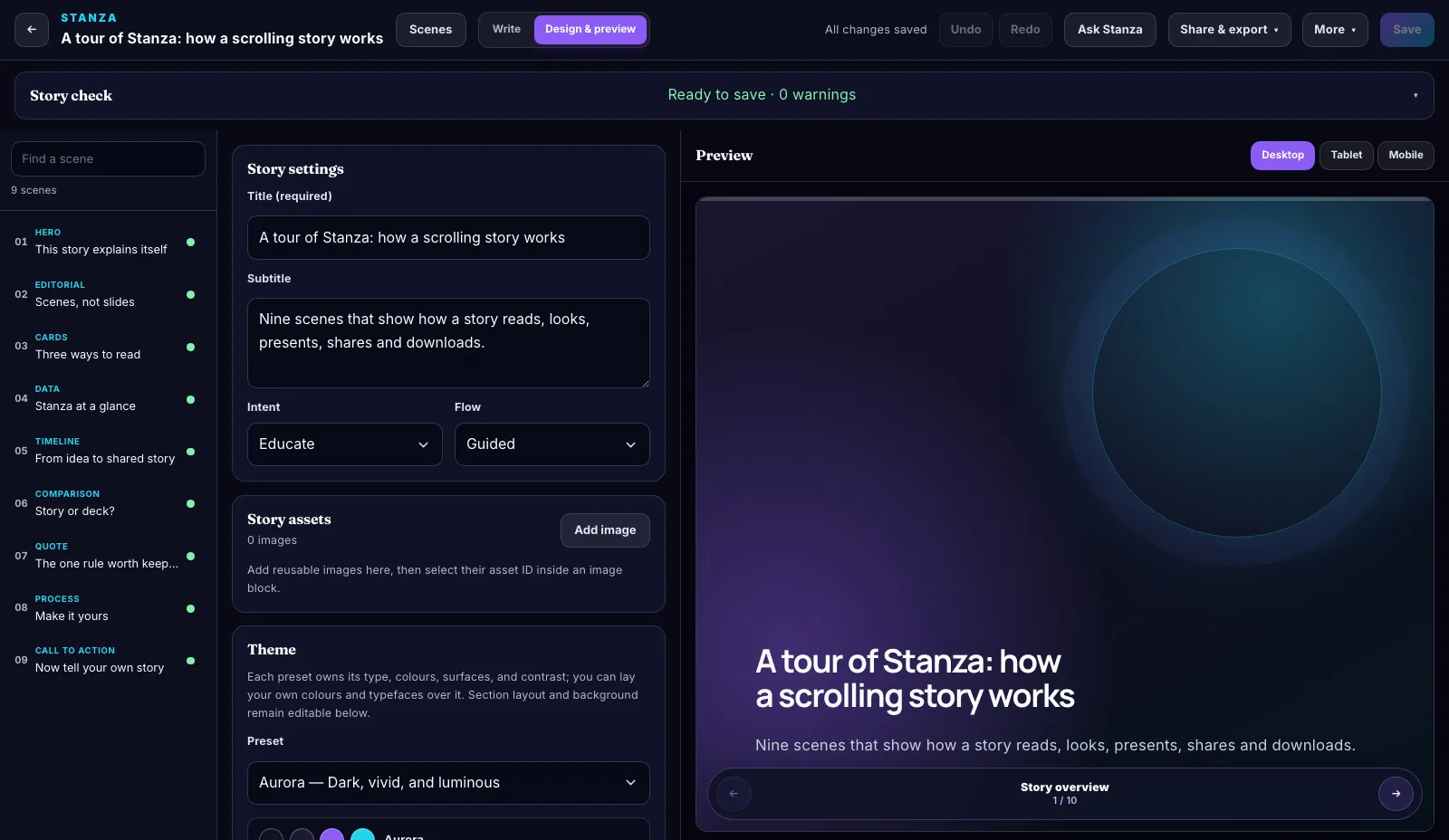
- Write and Design & preview modes. The story editor autosaves a couple of seconds after you stop typing, so work is not riding on you remembering to click anything. Save is still there when you want a deliberate checkpoint, undo and redo cover the steps in between, and it warns you before you leave with anything unsaved. If the same story is edited in two places, the editor detects the clash rather than silently overwriting one side.
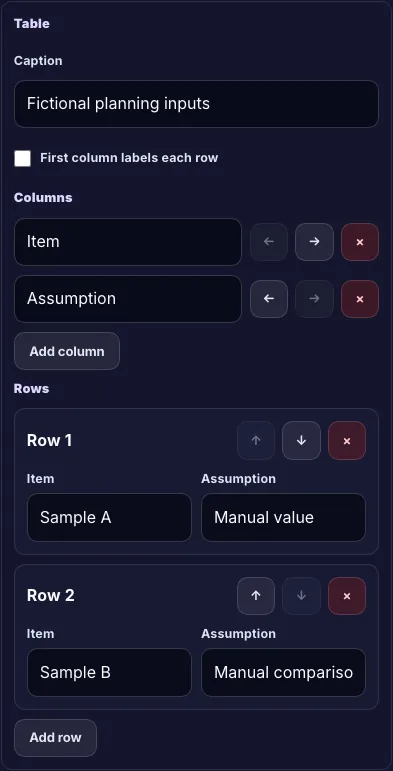
- Tables. Choose Table from the block picker to start with empty cells, then enter your rows. Review the values and how the table fits the scene before exporting.
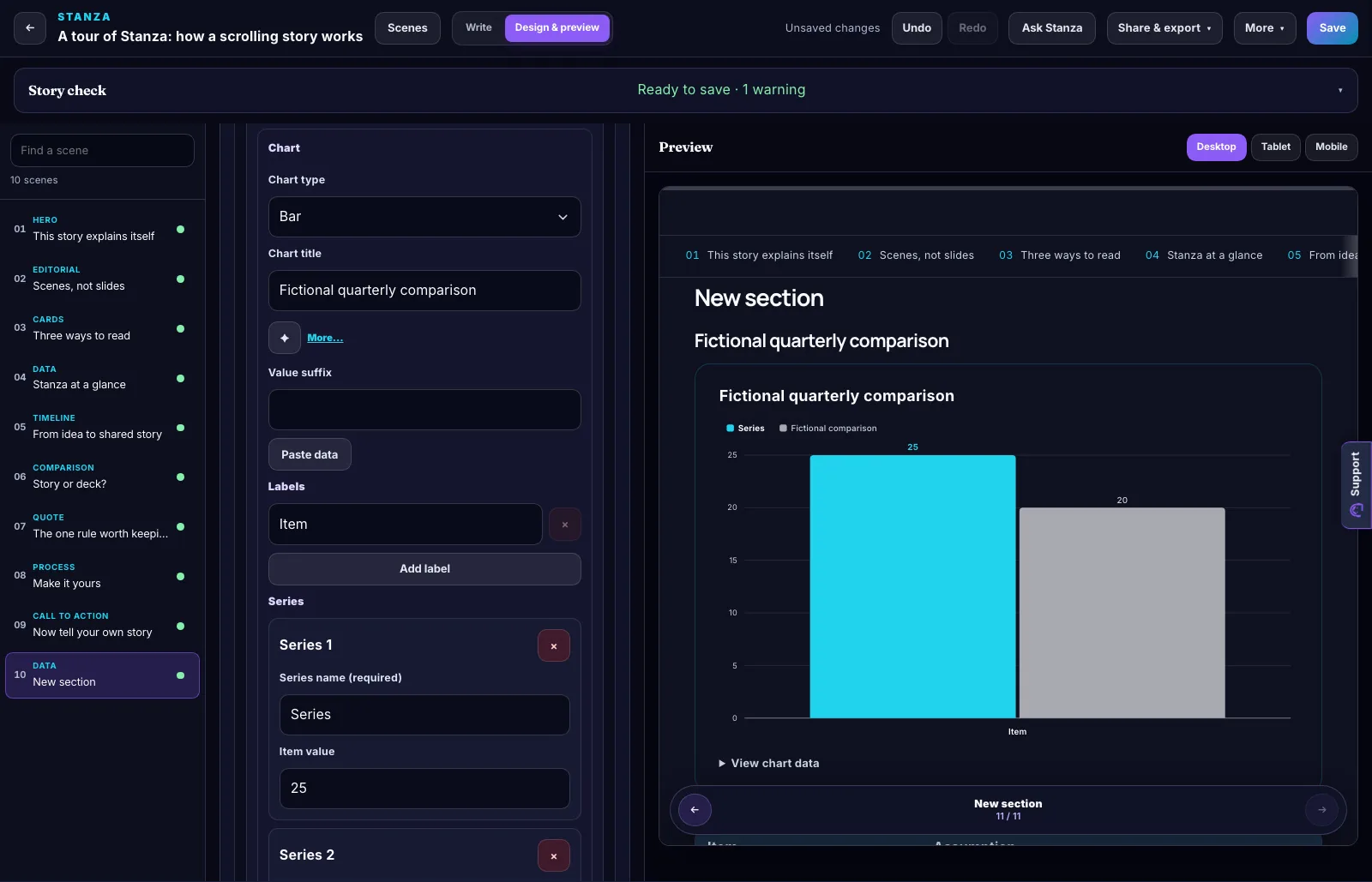
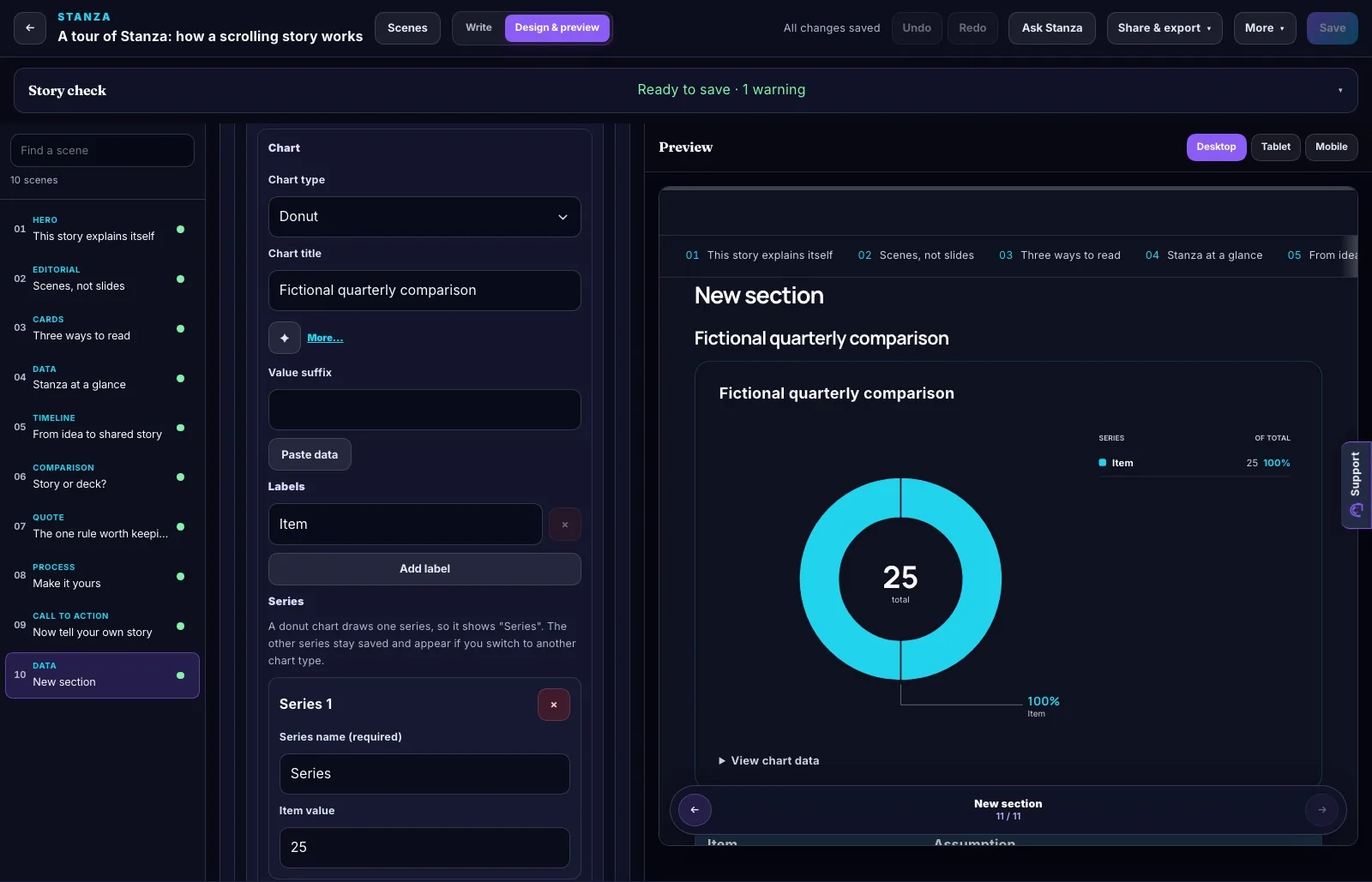
- Chart types. Choose Bar, Horizontal bar, Stacked bar, Line, Area, Donut, Pie or Funnel. All eight types are available for authoring. Pie, Donut and Funnel display the first data series only; check that the chart type and values fit your source.
- Each scene has a capacity budget. It reads Fits, Getting full or Needs another scene. When a scene is overfull, use Continue on new scene rather than cramming, and preview the result at the reading size your audience will use. The budget is guidance for deciding when to split the content, not a promise that every scene will fit every screen.
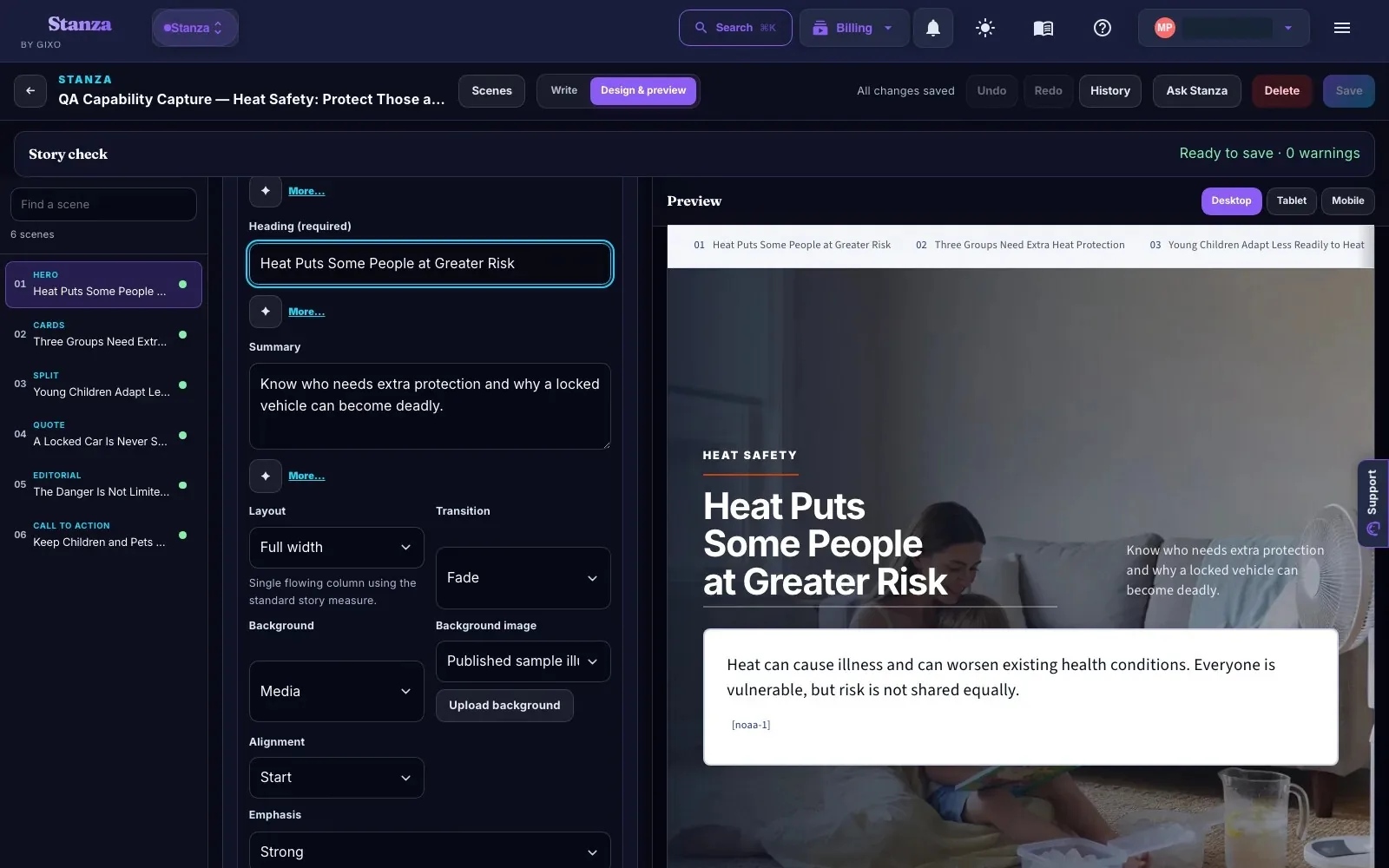
- There are two kinds of image. An image block sits in the flow of a scene: pick a story image, upload your own image or paste a direct URL, then add alt text (required) and a caption. A section background sits behind the content: set Background to Media to select or upload an image. The Story assets panel also accepts uploads you can reuse across scenes.
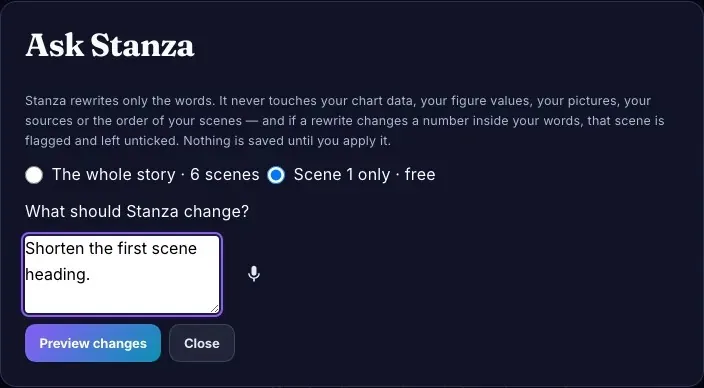
- Ask Lumen rewrites the words of one scene (free) or the whole story (uses plan capacity). It never touches your chart data, figure values, pictures, sources or the order of your scenes, and it leaves scene structure, IDs, URLs, presenter notes and a quotation's attribution alone; if a rewrite changes a number inside your words, that scene is flagged and left unticked. Preview changes, tick the scenes to change and apply them. Nothing is saved until you apply, and one Undo takes the whole change back. For a story that retains its creation inputs, Regenerate runs those saved inputs again. Review the rewritten story before using it.
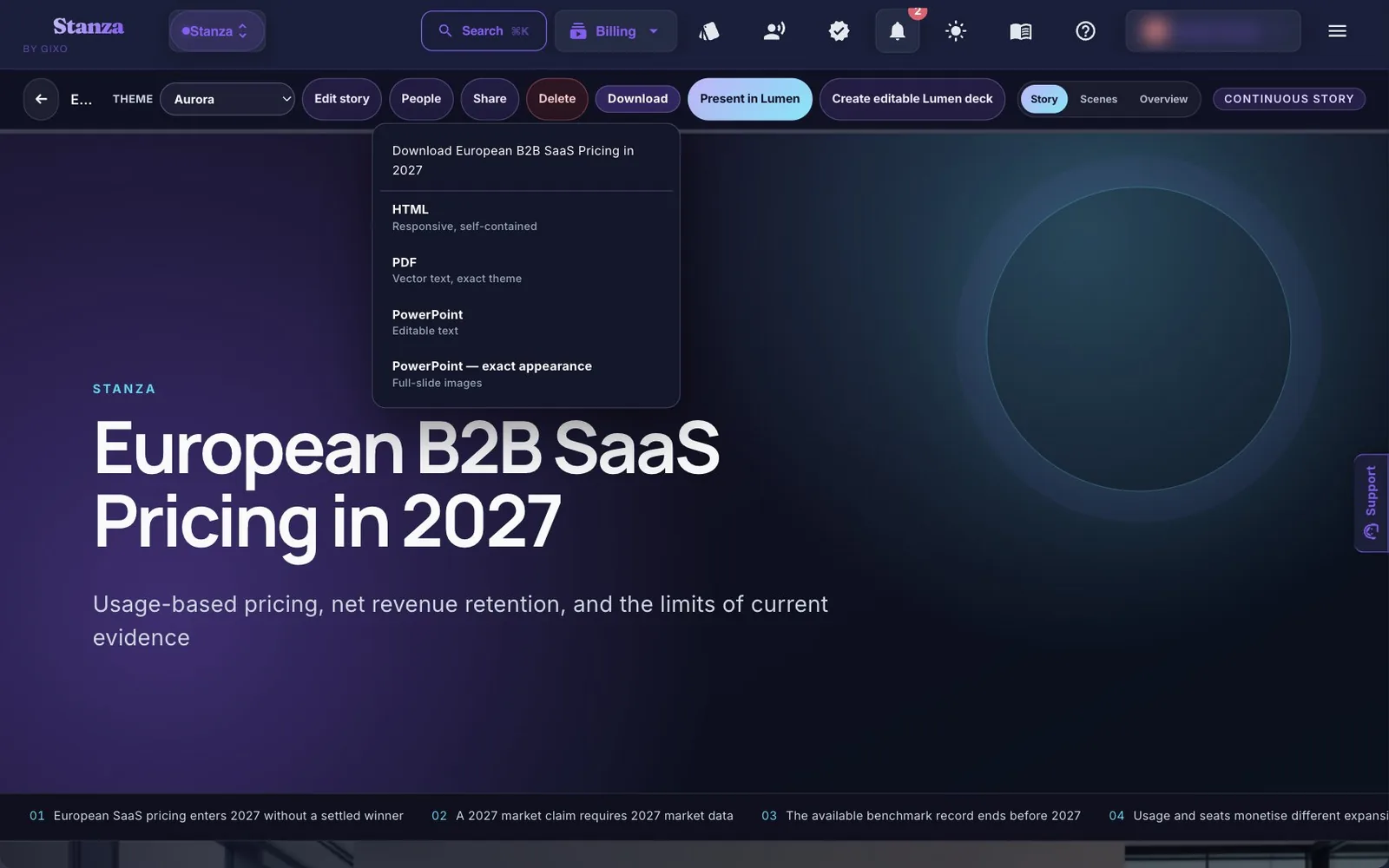
- Download and Share sit in the editor's top bar, as in the deck editor. Download offers PowerPoint (editable), PDF, HTML and PowerPoint (exact appearance, not editable); Share holds Share…, Present and People & comments. A download is refused while the story still has a placeholder where a real value belongs: the message names the place, so you can replace or remove it and download again.
- Story history lets you inspect saved revisions and restore one. Save any current edits first. Duplicate creates a separate copy, so you can develop a different direction without replacing the original story.
- Use my brand colours in the Theme panel opens six swatches: primary, accent, page, cards, text and secondary text. Anything you leave unset keeps the theme's own colour. If text and background end up too close to read, the panel shows the contrast ratio.
Presenting and converting
A story presents full screen. Scenes lists every scene so you can jump straight to one, and Notes shows your presenter notes, which never appear in the story itself, in the HTML or PDF download, or in a shared link — both PowerPoint downloads do carry them, in PowerPoint’s own notes pane. The Notes button appears once a scene has notes. From the story viewer, Create editable Lumen deck turns a story into a deck; from a deck, Expand into a Visual Story goes the other way. Stories download as HTML, PDF or PowerPoint on every tier, including after a trial or plan ends — retrieval is never the paid wall. What gates a download is share permission: owners and View & Download collaborators may take a copy, a View only collaborator gets a 403.
What needs a plan
| Action | What it takes |
|---|---|
| Downloading your decks and stories | No active plan is needed. Sign in as the owner or a collaborator with View & Download or Full Edit permission. View only sharing does not include downloads. |
| Generating decks and stories; AI editing | An active trial or plan. Uses plan capacity, except single-slide AI edits. |
| Starting a blank deck | An active trial or plan. No plan capacity used. |
| Public share links | Any plan, including the trial. |
| Sharing with people, comments, Brand Kit | Professional and up. |
| Saved brand themes | Business and up. |
| Slides from documents, and Deck from Documents | An active Lumen trial or plan. Uses plan capacity. A Gixo Business plan alone no longer includes it. |
Without an active plan, slides show a small “Made with Gixo” mark in the editor and in present mode. Downloaded files don't carry it.
Choose the handoff your recipient needs
| Handoff | What remains editable | What to check |
|---|---|---|
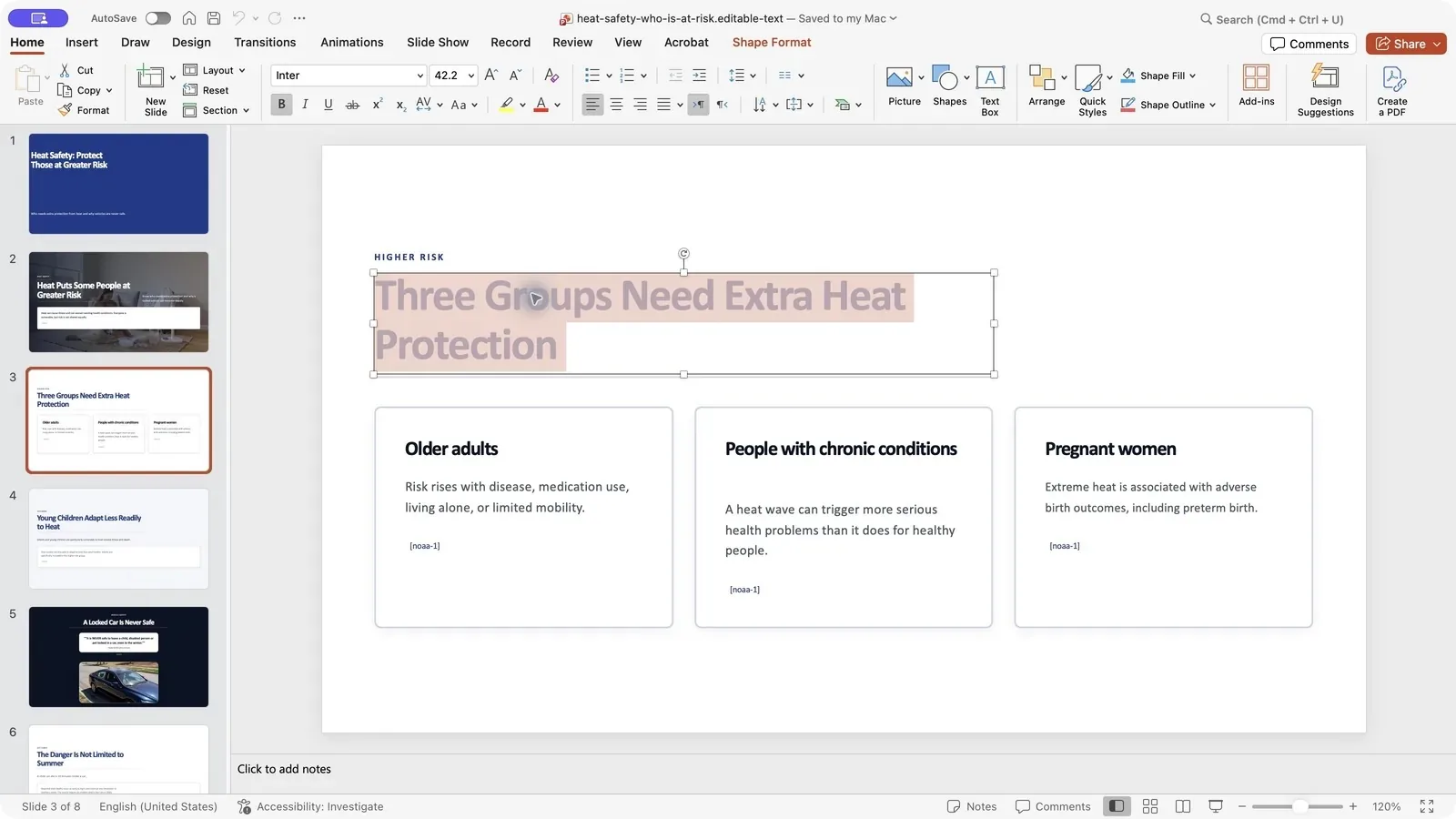
| PowerPoint with editable text | The default PowerPoint download places headings, supported visible text and tables in native, editable PowerPoint objects. Visual artwork is rendered behind them as a background image. | Fonts and line wrapping can change on another computer. Background decoration is not a set of independently editable shapes. |
| PowerPoint with exact appearance | The scene appearance is preserved as an image on each slide. | Text inside the image is not independently editable. Use this for visual handoff, not for a colleague who must rewrite the slides. |
| Create editable Lumen deck | Creates a separate deck that you edit in Lumen. | This is a conversion to slide layouts, not the original responsive story and not a PowerPoint download. Review the converted layout before exporting. |
| HTML story | A standalone scrolling document for the browser. | Useful for sharing the reading experience; it is not a live collaborative editor or a synchronized copy of later changes. |
Inspect two visual stories Lumen wrote from public U.S. government pages. The heat safety story comes with its HTML story, editable-text PowerPoint, exact-appearance PowerPoint and PDF; the electricity story has the same four files beside it, and both are on the Lumen examples page. Lumen wrote each from the pages alone on 3 October 2026, the files are its own exports, unedited, and the heat story’s pictures are generated. They show what Lumen writes from a source and what remains editable in each file, not customer results.
Plans and your trial
Lumen is priced per seat, in US dollars. Every plan includes generation capacity that resets each month; your subscriptions page shows a usage bar rather than counts.
| Plan | Per seat, monthly | Per seat, annual | Minimum seats |
|---|---|---|---|
| Lite | $10 | $90 | 1 |
| Starter | $25 | $250 | 1 |
| Professional | $45 | $450 | 2 |
| Business | $55 | $550 | 5 |
| Enterprise | $99 | $999 | 10, through Azure Marketplace or a private offer |
Your 14-day trial
- No card is needed, and each email address gets one Lumen trial. It includes AI generation and clean exports, and it works like Starter: public links are included, sharing with people and Brand Kit aren't.
- After the trial, your decks stay available to review, present and download; AI generation and AI editing pause until you choose a plan.
Seventeen free tools
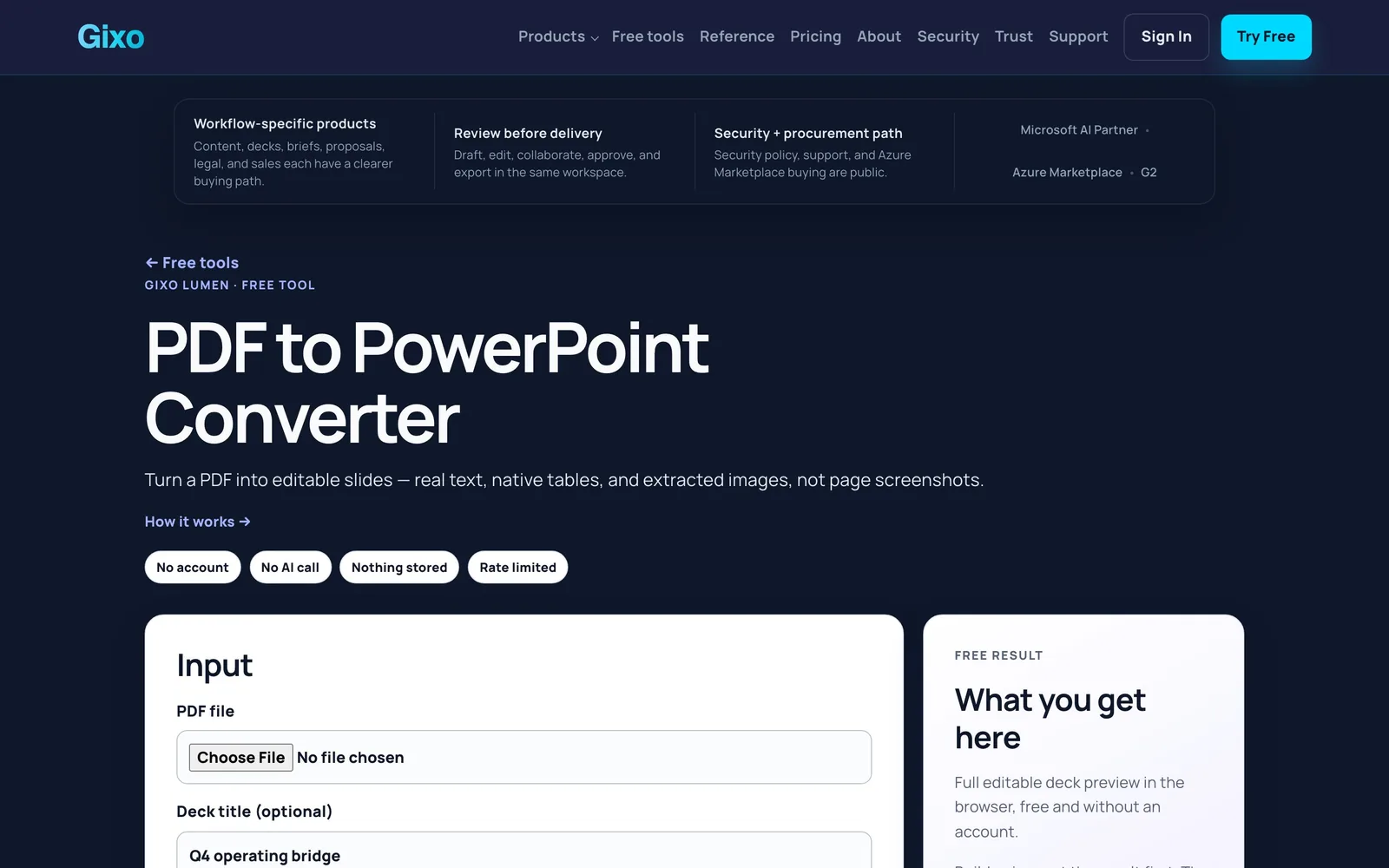
These tools provide browser previews without sign-in. The document converters extract the structure of an existing source into slides without AI rewriting. Review and edit the preview for free; sign in when you want to download its PPTX or PDF.
| Group | Tools |
|---|---|
| Converters Turn a PDF, Word file, text, web page or HTML into editable slides. | gixo.ai/tools/pdf-to-powerpoint gixo.ai/tools/word-to-powerpoint gixo.ai/tools/text-to-powerpoint gixo.ai/tools/url-to-powerpoint gixo.ai/tools/html-to-powerpoint gixo.ai/tools/pdf-to-google-slides |
| Cleaners Shrink a PowerPoint, or validate and repack a Canva or Google Slides export. | gixo.ai/tools/compress-powerpoint gixo.ai/tools/canva-to-powerpoint gixo.ai/tools/google-slides-to-powerpoint |
| Checkers Structure, colour contrast, legibility and consistency checks, and a slide-by-slide deck diff. | gixo.ai/tools/deck-structure-check gixo.ai/tools/deck-contrast-auditor gixo.ai/tools/slide-legibility-checker gixo.ai/tools/deck-consistency-audit gixo.ai/tools/deck-diff |
| Planners A pitch or board deck skeleton, an extractive deck summary, and a speaking-time estimate. | gixo.ai/tools/deck-skeleton-builder gixo.ai/tools/powerpoint-summarizer gixo.ai/tools/presentation-time-calculator |
Tips
- Start another deck while one builds. Generation carries on after you leave the page.
- Version History distinguishes saved versions, Autosave snapshots and the latest As generated deck. Autosaves have a separate capped, byte-bounded ring and do not displace full-save history. A later generation replaces As generated. Save a deliberate checkpoint before comparison; this is bounded history, not an unlimited backup.
- Choose the handoff. Review the PDF for a visual handoff. Lumen PowerPoint uses a hybrid export; a visual story’s default PowerPoint has native editable text boxes, while its exact-appearance option uses full-slide images.
- If an export stops, the message names the slide. Fix the placeholder or image and export again.
Initial code and capture review: 9 October 2026. Source coverage, image policy and history rechecked on 11 October 2026. Source-coverage fallback, all eight chart types and editing controls rechecked on 13 October 2026. Text checked against the Lumen code on 24 October 2026, at commit 9c3e18153e; screenshots captured before then may show the older home, create form, toolbar and story editor. See gixo.ai/support if the product has changed.
Quick links
| Lumen workspace | gixo.ai/dashboard/lumen |
| New deck | gixo.ai/decks/create |
| Slides from documents | gixo.ai/decks/create?add=sources |
| Generate a visual story | gixo.ai/stanza/create |
| Lumen plans | gixo.ai/products/presentations#plans |
| Help and support | gixo.ai/support |