
Plan the reading order
Supply the audience, decision, source material and required coverage. Review the outline before generating. For a QBR, keep results, variance, risks and next decisions distinct instead of mixing them into a status collage.
Images and motion
Two capabilities that are easy to miss until you are inside a deck: how images get onto a slide and how a slide behaves when it is presented. This page documents both, including where each one runs and what it does not do.
Everything described here is in the shipping product. Where a capability has a boundary, the boundary is stated rather than left implied.
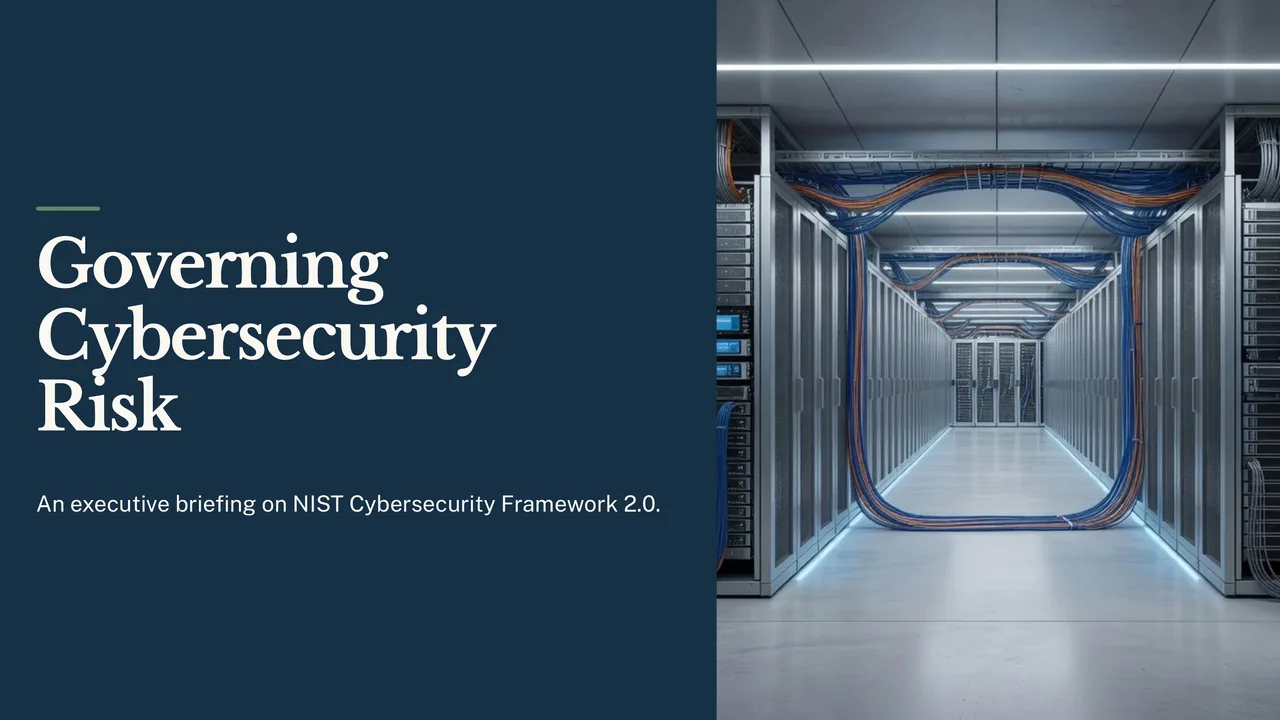
Open an actual exported deck, then compare its outline, source constraints and slide choices with the job you need to finish.
A 10-slide briefing for an organisation’s leaders on NIST’s Cybersecurity Framework 2.0, built only from the framework document: the six Functions as a set with Govern at the centre, what Govern covers, questions leaders can ask their teams, how Current and Target Profiles show the gap to close, and the four Tiers. It describes no company, so it has no performance data.
A briefing for the executive leadership of an organisation of any kind; no company is named and none is described. Cover, in this order: what the framework is and why leaders should care; the six Functions, shown together as a set with Govern at the centre, with no numbering or order because the document says they are addressed concurrently; what the Govern Function covers, using the document's own list of Govern topics; questions leaders can ask their teams, in the document's own terms; what Current and Target Profiles are and how comparing them shows the gap to close; the four Tiers by name; and what to ask for next. Do not show any process as numbered steps. Say executives, leaders or the organisation wherever the document does: it mentions boards of directors only as readers, so do not give a board any role the document does not give it. Give at most one slide to how different kinds of organisation use the framework. Use only the supplied document. Where it gives no figure, date or finding, do not supply one: use no placeholders, no illustrative numbers and no made-up status data. Pictures should show technology, infrastructure or abstract subjects, not people. Workflow: Corporate executive. 10 slides requested. Document supplied as text (NIST, "The NIST Cybersecurity Framework (CSF) 2.0, NIST CSWP 29 (26 February 2024)", https://nvlpubs.nist.gov/nistpubs/CSWP/NIST.CSWP.29.pdf).
A separate reviewer agent read the deck’s 70 claims, slides and speaker notes, against the framework document: 62 are supported, 8 loosen or go a little beyond its wording, and none is missing from it or contradicts it. 19 of the 70 are advice the deck gives, and all 19 are supported. It is not a person’s review.
Supply the audience, decision, source material and required coverage. Review the outline before generating. For a QBR, keep results, variance, risks and next decisions distinct instead of mixing them into a status collage.
Edit structured slide fields, preview field alternatives or review a whole-slide rewrite. Ask Lumen can propose wider changes; inspect and select the changes before applying them to the saved deck.
Check charts, speaker notes, images and contrast in presentation view and the downloaded file. A new-period deck is a separate draft with changed values and sources to review.
Choose a creation mode and workflow profile, supply source material and review the planned coverage. Slide fields have layout-specific budgets. Field assistance offers alternatives with rationale and word counts; whole-slide refinement shows field-level changes. Ask Lumen can propose wider structural edits, which require a reviewed preview before application.
Paste spreadsheet rows, choose header handling and preview replacement chart data. Where offered, select Business metrics explicitly and inspect their source receipt. Review changes in values and sources before accepting a next-period draft. Theme controls cover brand colors, type, logo placement, background and contrast choices; a custom theme still needs visual review.
Inspect full-screen and audience views, speaker notes, next-slide preview, navigation and timer. Check PDF and PowerPoint separately. Supported elements can become native editable shapes or charts; complex visuals can use a flattened fallback. Speaker notes and per-slide handoff choices should be inspected in the actual file.
PowerPoint export is hybrid: supported content may remain editable while complex visuals can be flattened. Conversion between a responsive story and slides requires a preview; it is not lossless.
Definition
A multimedia presentation is a presentation that carries more than one kind of media at once — text and imagery together, usually with motion, and often with audio or video — so the argument reaches the room through several channels instead of bullet points alone.
Lumen covers three of those media: layout, imagery on every slide, and per-element motion when the deck is presented. It does not cover the other two. A Lumen slide holds no audio track and no embedded video clip; if a deck genuinely needs one, it is added after export, in PowerPoint. That is stated here, first, rather than at the bottom of the page, so the decision is available before you start building.
Slide media
On a slide with a compatible editable image slot, open its image controls to create an image, bring your own, adjust how it sits in the frame and describe it for accessibility.
Create
Describe what the slide needs and generate an image for it without leaving the deck.
Bring your own
Use your own photography, diagrams or screenshots in a compatible editable image slot.
Find
Use Image Studio's real-photo finder to request attributed options. Check the returned source and usage terms before selecting one.
Refine
Adjust an image after it is placed, with fine-tuning for framing, text and size in Image Studio.
Frame
Control which part of an image stays visible when the slide crops it, and reset the focal point at any time.
Describe
Write the accessible description once and it stays attached to the image for screen readers and search.
Replace
Remove an image and put a different one in its place without rebuilding the slide.
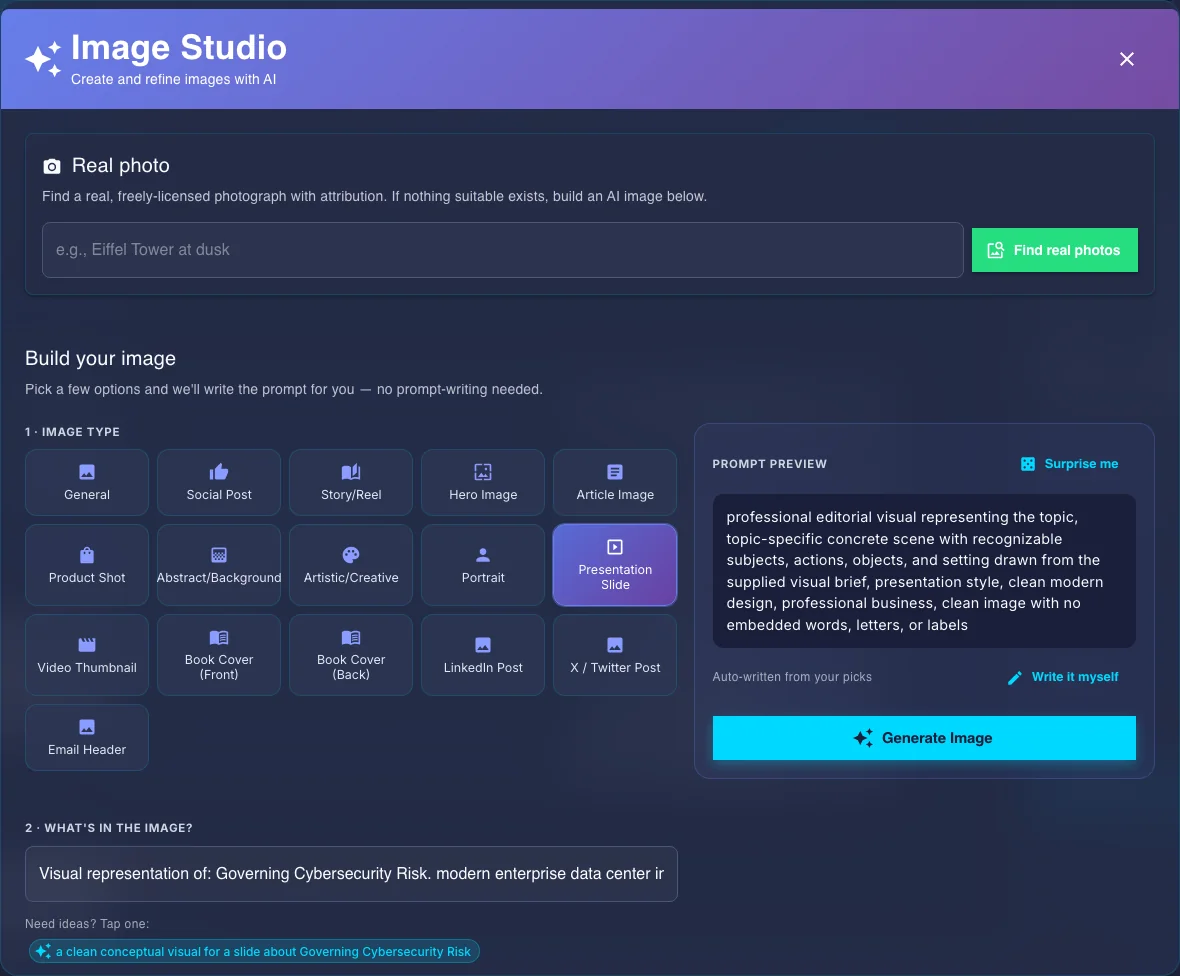
Scope note: image tools operate on the slide you are editing. Lumen does not currently offer a separate browsable asset library shared across decks. Image Studio also has a real-photo finder that requests freely licensed options with attribution. Search results depend on the service; inspect the photograph, source and usage terms before using one. You can also generate an image, upload your own file or use the brand assets you attach.
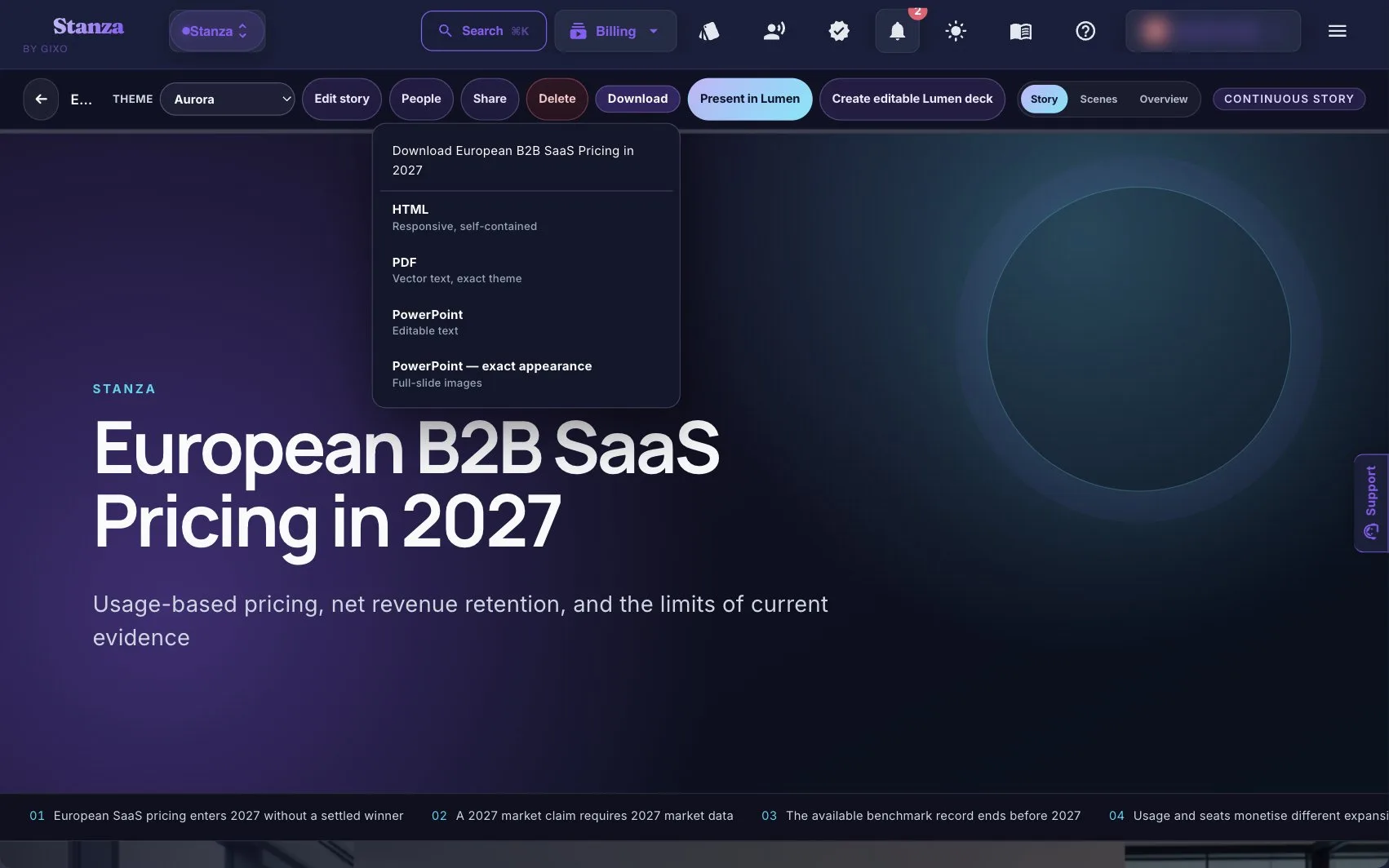
Stanza has its own scene editor in the Lumen workspace. Select a story image for a scene background or upload your own picture, then inspect the preview at the reading width your audience will use.
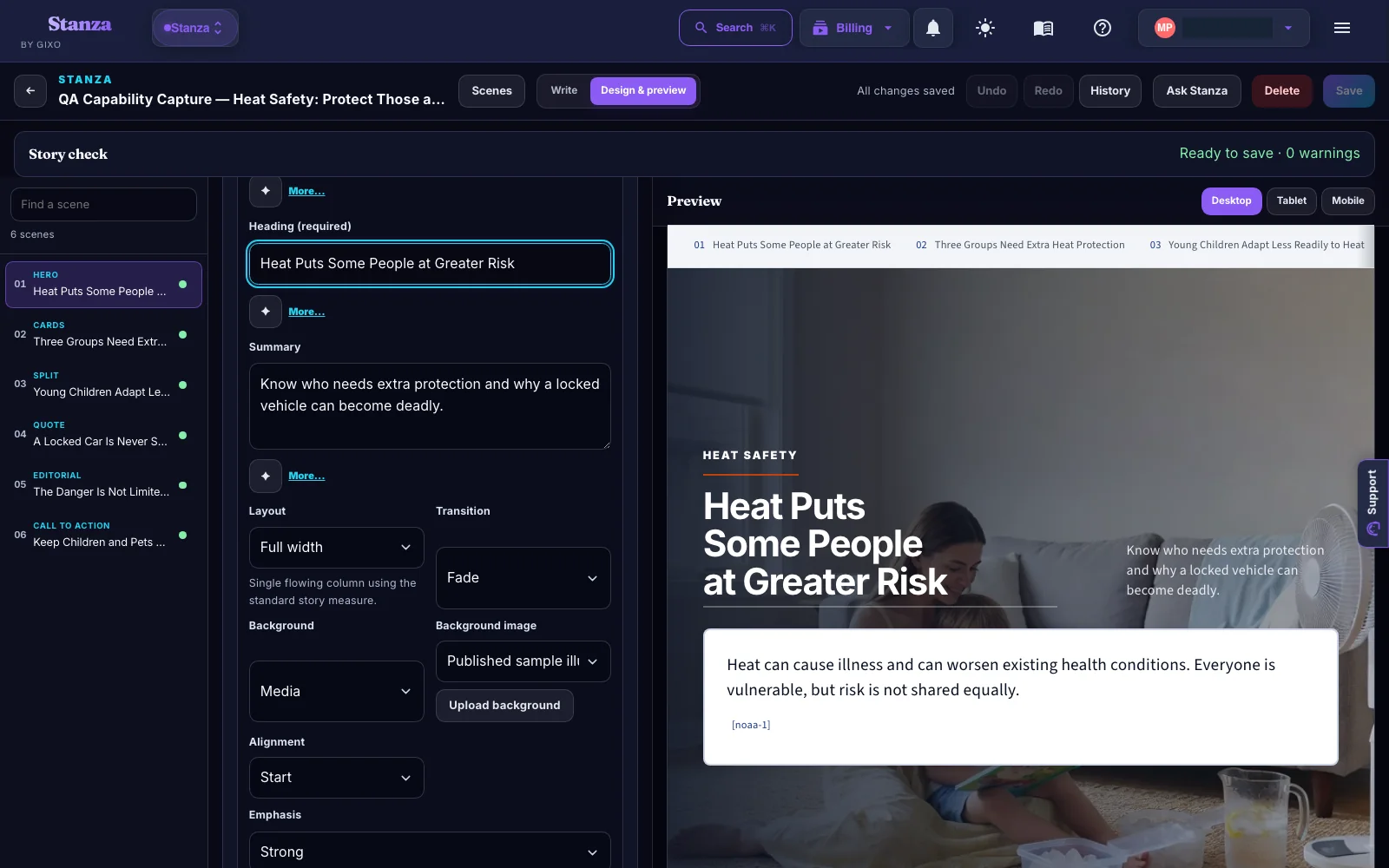
See Stanza's scene editing controls and inspect the published story exports.
Presentation animation
When a slide is shown in presentation mode, its content animates in rather than appearing flat. The order follows the structure of the slide, so the room reads the headline before the supporting detail.
The slide title enters immediately, so the point of the slide registers before anything else.
A short beat later the secondary heading follows.
Supporting copy arrives after the headline has landed.
Cards, statistics and steps stagger one after another rather than appearing as a block.
Cards, statistics, process steps, timeline entries, comparison columns, agenda items and FAQ entries each receive their own position in the sequence, so a row of four statistics lands one after another instead of together. The effect is a fade with a short upward movement, applied per element.
If the person viewing the deck has asked their operating system to reduce motion, the animation is suppressed and the deck presents without it. That check happens before any animation runs, so the preference is honoured on the viewer's machine rather than configured by whoever built the deck.
Scope note: this animation applies to decks presented in Lumen. Exported PowerPoint files carry slide content and layout, not these entrance effects, because the animation is part of the in-browser presenter rather than the exported file.
Scope
Multimedia presentation is a loose phrase, and it is worth being exact about which parts of it Lumen covers, because the answer changes what you should plan for.
The two deck media capabilities documented above are images in compatible editable image slots and a per-element entrance sequence when the slide is presented. Generate or upload an image where the layout supports it, then inspect its framing and description. Together those are what carry the visual weight of most presentation slides — the picture that makes the point land and the pacing that stops a dense slide arriving all at once.
It is tempting to treat imagery as the slide design lever. In practice the layout does more of the work: whether a point is a comparison, a set of statistics, a process or a timeline decides how the eye moves across the slide, and the image supports that rather than replacing it. Choose the layout for the argument first, then decide what the image is doing there. A picture added to a slide that had no structural problem usually makes the slide slower to read, not faster.
A Lumen slide carries text, layout, and imagery. If a deck genuinely needs an embedded video clip or an audio track, that gets added after export, in PowerPoint. This is stated rather than left to be discovered: if a video is central to the presentation, plan the handoff for it rather than expecting it to survive a browser-based build.
Examples
Three slide patterns where the combination of imagery and motion does real work rather than decorating a bullet list.
Four figures across a slide are the classic case where everything arrives at once and the room reads none of it. As a repeated element each statistic takes its own place in the entrance sequence, so the number you are speaking to is the number that just appeared. An image behind the row gives it a subject; set the focal point so the crop keeps that subject visible at the slide's aspect ratio rather than centring on empty sky.
Process steps and timeline entries stagger individually for the same reason. The slide becomes a build without you maintaining a build: the title registers, then step one, then step two, in the order the structure already declares. Nothing is configured per slide, so a deck rebuilt from a new outline keeps the behaviour.
Comparison columns are also staggered elements, so the left case is on screen and spoken to before the right one appears. Because image controls live on the slide rather than in a separate asset step, each column can hold its own generated or uploaded image with its own alt text — which is what makes the comparison legible to a screen reader as well as a room.
No audio narration track and no embedded video clip. Where a published example elsewhere shows a video playing inside a slide, that is a different tool or a post-export edit in PowerPoint, not something a Lumen deck carries on its own.
Common questions
A presentation that delivers its argument through more than one kind of media at the same time — text and imagery together, usually with motion, and often with audio or video — rather than through bullet points alone. The term is loose, so it is worth checking which media a given tool covers. Lumen covers layout, per-slide imagery and per-element motion in the presenter; it does not carry an audio track or an embedded video clip on a slide.
Choose the layout for the argument first — comparison, statistics, process, timeline — because the layout decides how the eye moves and the image supports it rather than replacing it. Then put an image on each slide that needs one, generated from a description or uploaded from your files, and set its focal point so the crop keeps the subject. Write the alt text while you are there. Motion needs no setup: content enters in structural order when the deck is presented, and is suppressed automatically for viewers who have asked for reduced motion. If the deck needs audio or video, plan that as a PowerPoint step after export.
Yes. On a slide with an editable image slot, use your own photography, diagrams or screenshots, generate an image, or request attributed real-photo options in Image Studio. Brand assets can also supply images. The real-photo finder depends on search results and service availability; inspect the source and usage terms before using a result. Lumen has no separate browsable asset library shared across decks.
Yes. In presentation mode each slide's content arrives in sequence rather than appearing flat: the title first, the subtitle a beat later, then lead and body text, then each repeated element — cards, statistics, process steps, timeline entries, comparison columns, agenda items, FAQ entries — staggered one after another. The effect is a fade with a short upward movement, applied per element.
No. The entrance sequence belongs to the in-browser presenter, so exported PowerPoint files carry slide content and layout without those effects. If the deck will be delivered from PowerPoint and the build order matters, plan to add the animation in PowerPoint after export.
The animation is suppressed and the deck presents without it. The check runs before any animation starts, on the viewing machine, so the preference belongs to the person watching rather than to whoever built the deck. Nothing about the slide content changes — only the entrance.
From source material to presentation handoff
Start a 14-day, no-card Starter trial to generate and review decks and evaluate clean hybrid PPTX and PDF exports. Existing decks remain reviewable after the trial; paid Lumen continues generation and unlocks the delivery paths shown in pricing.
Lumen also includes Stanza, a responsive visual-story mode that turns the same sources into a scrolling web story instead of a slide deck. Start quickly, or plan first and approve the scene plan before generation. Stanza grounds sources through the same pre-authorized search path as Lumen decks, it ships under Lumen access, and a supported Lumen deck can be converted into a separate Stanza story. Review conversion warnings: the original theme and slide imagery are not copied automatically.

Updated