
WordPress publishing guide
Connect Gixo to your WordPress site and publish AI-generated content directly. Article HTML is sent through the WordPress REST API; inspect the destination draft because themes and plugins can change presentation.
How to Connect, Generate Content, and Publish to WordPress
Six steps from verifying your WordPress setup to publishing your first post.
Ensure the WordPress REST API is accessible on your site. Visit yoursite.com/wp-json/wp/v2 in a browser — if you see JSON data, the API is active. Some security plugins disable it by default.
In your WordPress admin, go to Users, edit your profile, and scroll to the Application Passwords section. Create a new password with a descriptive name like "Gixo Integration" and copy the generated password.
Open Gixo Settings, go to Integrations, and select WordPress. Enter your site URL, WordPress username, and the Application Password you created. Click Connect to authenticate.
Send a test post as a draft to verify the connection works. Check your WordPress dashboard to confirm the draft appears with correct formatting, headers, and content structure.
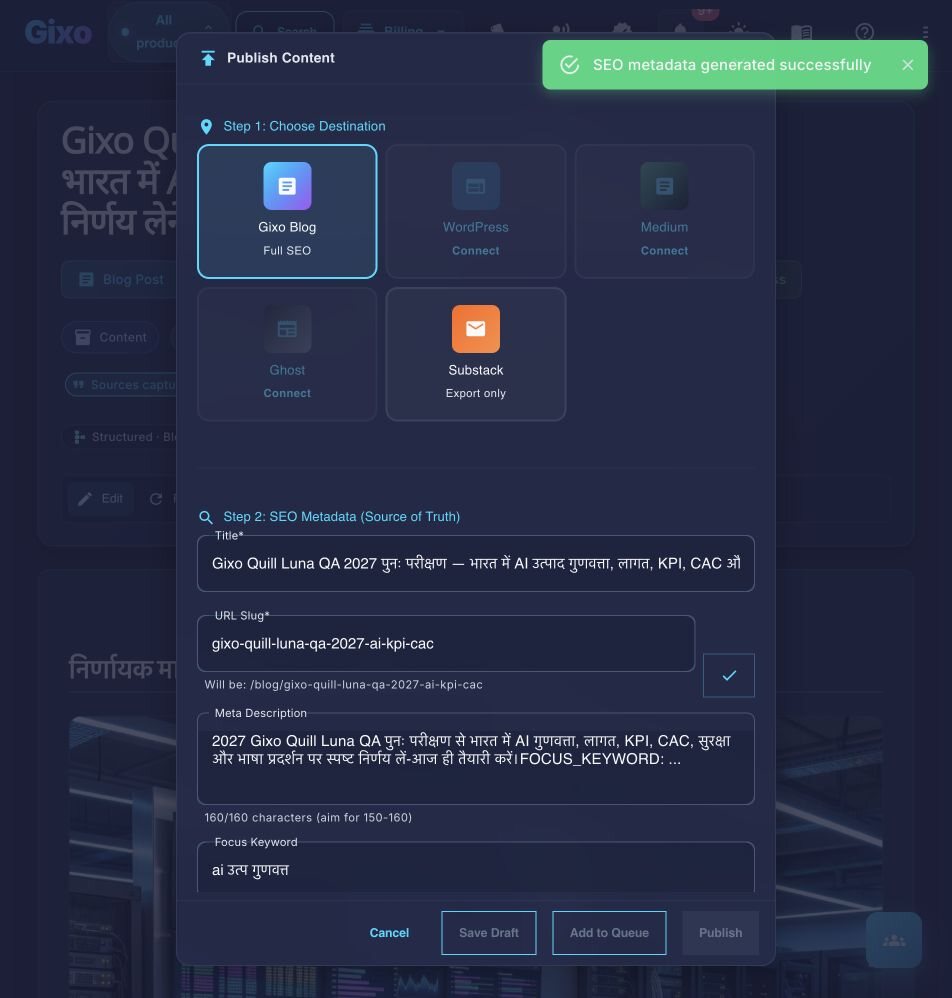
Choose a category and tags for the piece in the publishing form. The WordPress delivery adapter resolves existing category and tag terms by name; check the result in your draft post.
Generate content in Gixo and publish directly to WordPress. Choose between publishing as a draft for review or publishing live immediately. HTML formatting, headers and images are sent through the REST API; review the published post, because your theme and any security plugins can change the result.
Frequently Asked Questions
Inside Quill
Carry an approved draft into publishing metadata and delivery
Updated