
Ghost publishing guide
Connect Gixo to your Ghost CMS and deliver your article HTML for review in Ghost. Create a custom integration, configure your Admin API key, and start publishing.
How to Connect Ghost, Generate Content, and Publish
Six steps from creating a custom integration in Ghost to publishing and scheduling content.
In your Ghost admin panel, go to Settings, then Integrations, and click Add Custom Integration. Give it a name like "Gixo" — Ghost generates an Admin API key and a Content API key for this integration.
From the custom integration page, copy the Admin API key. This key grants write access to create, update, and publish posts through the Ghost Admin API. Store it securely.
Open Gixo Settings, go to Integrations, and select Ghost. Enter your Ghost site URL and the Admin API key. Click Connect to authenticate. Gixo verifies the connection and confirms your Ghost site is linked.
Send a test post as a draft to verify the connection works. Check your Ghost admin to confirm the draft appears with correct formatting, headers, and content structure before publishing anything live.
Set tags in Gixo before sending the article. Check the assigned author and tag organization in Ghost before publication; the Gixo delivery form does not select a Ghost author.
Send a draft to Ghost for review or publish now from the Gixo article form. To publish later, schedule the draft inside Ghost. The separate delivery API supports scheduled Ghost posts. Ghost imports the HTML into its editor representation; inspect images, structure and theme styling before publication.
Frequently Asked Questions
Inside Quill
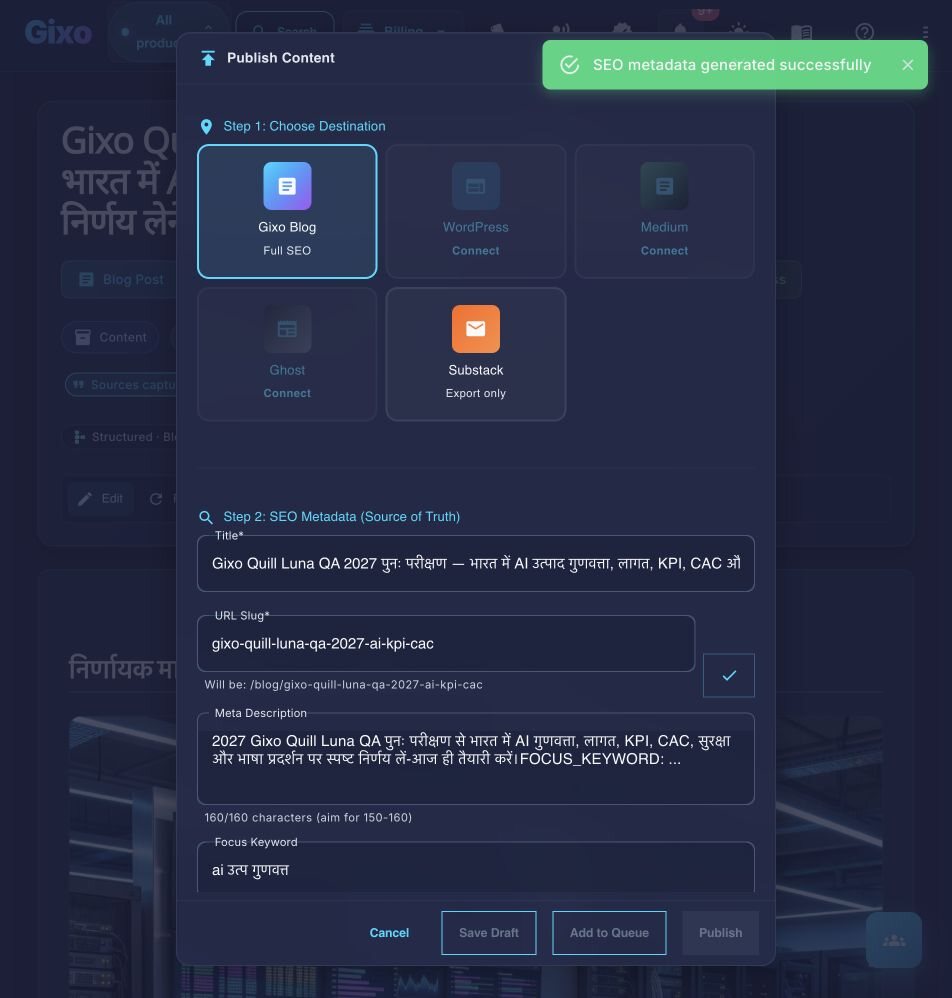
Carry an approved draft into publishing metadata and delivery
Updated