Blog templates: choose the reading layout after the article is sound
A blog template controls how an article is presented to a reader: a single reading column for continuous prose, or a guide layout with section navigation for procedures people revisit. In Gixo Quill, the publication designer applies the layout to the finished article so you can compare exported HTML files without rewriting the underlying headings, tables or checklists.
Compare blog templates with the same source article
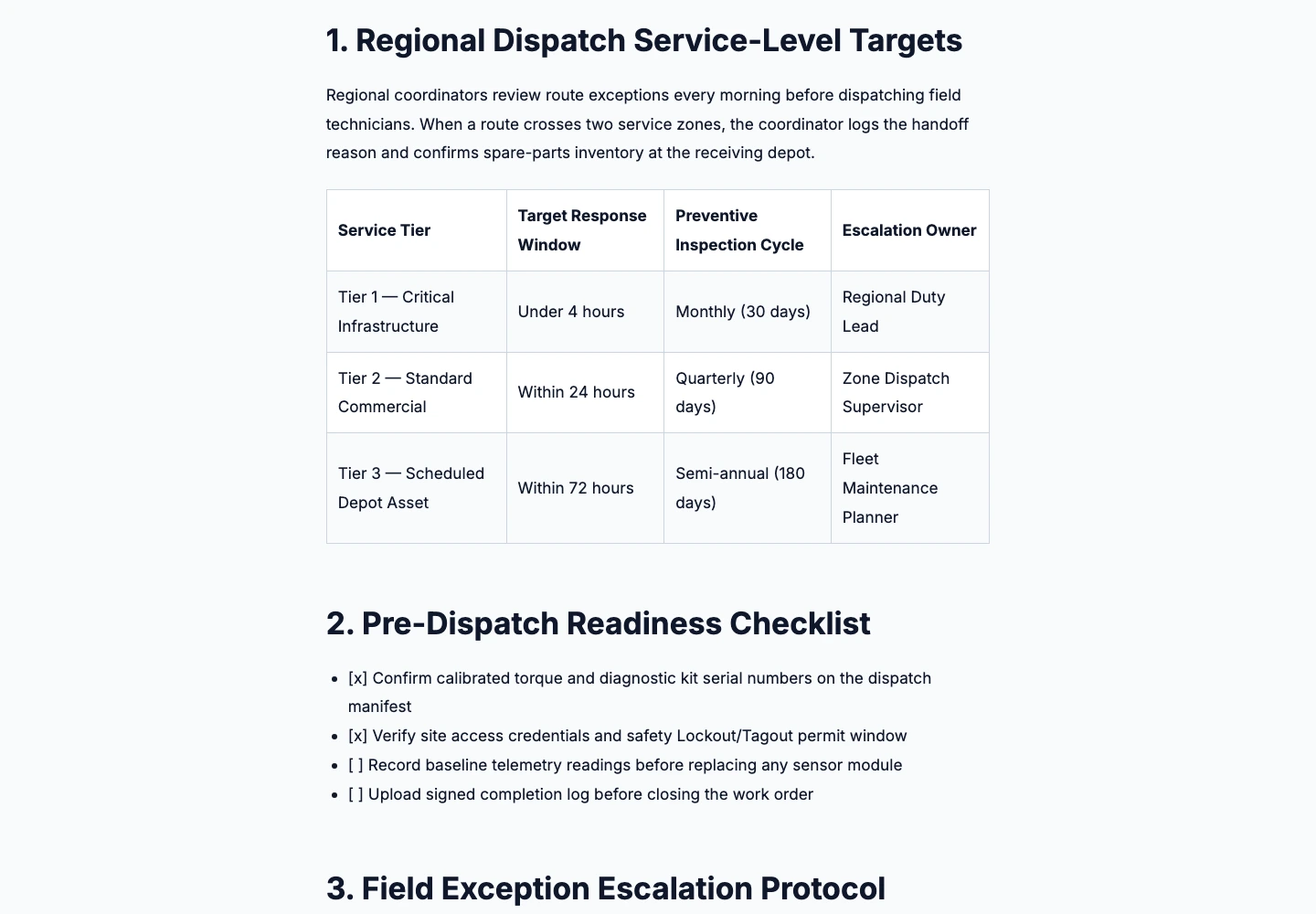
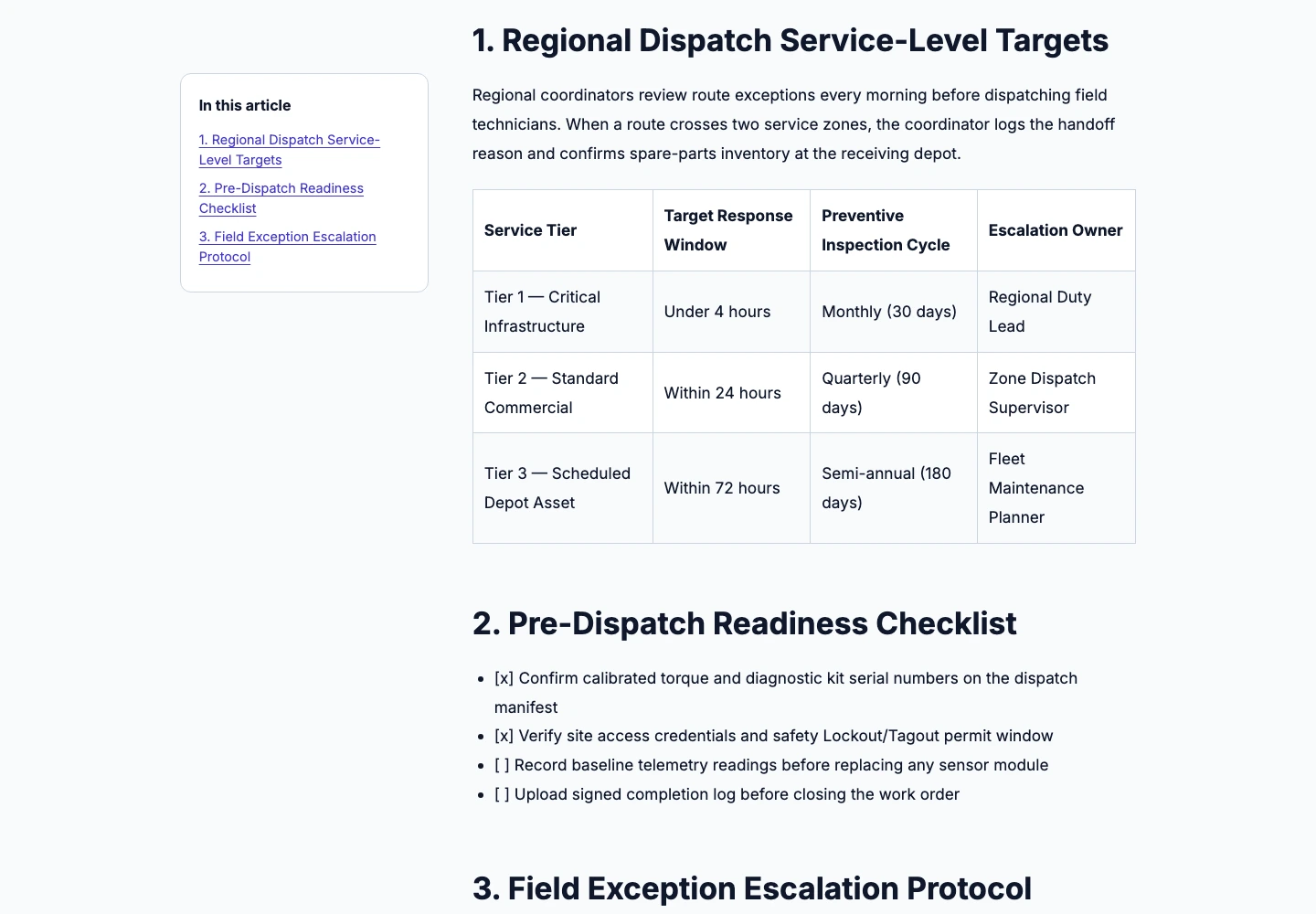
A blog template should help readers find an answer, scan sections and inspect supporting detail. Compare Reader and Guide using the same imported field-service article: the words, table and checklist stay the same while the reading structure changes. These are actual Quill HTML exports, rather than pictures of proposed designs.
Reader puts the article in a continuous reading column. Open the file to inspect its complete text. Inspect full size ↗Guide gives the same headings a navigation structure. The source article is unchanged. Inspect full size ↗
Choose the reader's job
Use a continuous article for a short explanation. A long reference guide benefits from navigable sections, especially when readers return to one procedure. A template name is a layout choice, not a promise that the article is complete.
Check what survives the design change
Compare all four source headings, the sixteen table cells and the four checklist states with the imported body. A visually attractive template must not silently drop a row or turn an unchecked task into a completed one.
Review phone reading separately
Open the downloaded HTML at a narrow width. Check the reading order, table scrolling and section links. Fixed PDF pages and a responsive article are different handoffs; a successful desktop preview alone does not prove mobile readability.
Save the design, then inspect the file
In the publication designer, choose the article layout and visual theme, select Save design and then Download HTML. More contains secondary sharing and delivery actions. A downloaded page does not create a public share or publish to a connected blog.
Inspect the source brief or data
A blog template should help readers find an answer, scan sections and inspect supporting detail. Compare Reader and Guide using the same imported field-service article: the words, table and checklist stay the same while the reading structure changes. These are actual Quill HTML exports, rather than pictures of proposed designs. The field-service organization and instructions are fictional. These retained files demonstrate template and structure preservation, not an approved operating procedure. HTML may reference externally hosted images; inspect dependencies before hosting the file yourself.
The field-service organization and instructions are fictional. These retained files demonstrate template and structure preservation, not an approved operating procedure. HTML may reference externally hosted images; inspect dependencies before hosting the file yourself.
Explore a specific workflow
What stays constant between Reader and Guide
This comparison summarizes the retained field-service article exported above in two Quill web publication layouts.
Reader and Guide blog template comparison
Check point
Observed in the retained HTML exports
Source structure
Four H2 sections, a sixteen-cell inspection table and a four-item checklist come from the same imported Markdown body.
Reader template
Presents the article as a continuous reading column for linear top-to-bottom reading.
Guide template
Adds section navigation from the existing headings while keeping the body text, table cells and checklist states unchanged.
Export handoff
Select the layout and theme in the publication designer, click Save design, then click Download HTML.
Boundary
Downloading the HTML file does not create a public share link or publish directly to an external CMS.
Separate generation prompts from publication templates
Before export, content-type guidance shapes what sections an article draft should contain. At export time, a blog template shapes how the approved text is read on desktop and mobile screens. Check both: verify that every table row, heading and checklist state survived the layout change, and open the downloaded HTML at a narrow mobile width before hosting it.