
Project delivery
Keep the agreement, the plan and the client’s decision connected
Create a project, organise the work, review time and budgets, and retain the decisions behind delivery.
Start here
Use this guide with a safe test project first. You need Keystone account access and the appropriate workspace and project role. Some controls depend on the subscription and the current release; unavailable controls should not be inferred from a screenshot.
About the examples
The screenshots use fictional records in a local preview. They show the actual product controls and the stated records, not customer results or general access to every optional feature.
Find your work
Home shows the projects you can open. My work collects your assigned work. Team is the capacity view; Templates contains reusable project structures. Open a project to use Plan, Time, Money, Client and Talk. These are the labels in the redesigned interface.
Create a project
Choose New project. Start blank, select an available template or use a supported source path. Enter a useful name, review any captured scope and save. A template copies its defined structure and relative dates; it does not copy the old project’s members, approvals, billing or completed state.
Build and maintain the plan
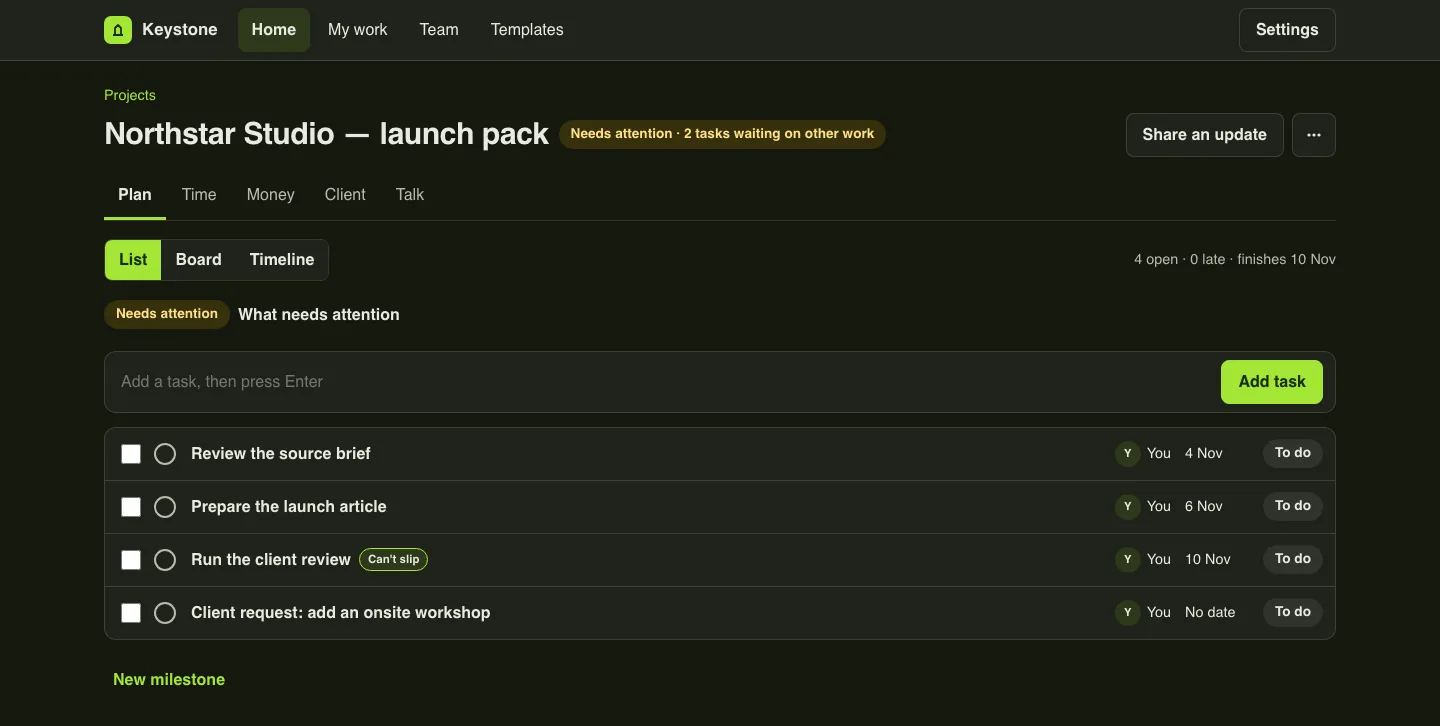
In Plan, add tasks and milestones. Open a task to set its details, owner and dates, then save. Use List, Board and Timeline for different views of the same work. Keep a task’s lifecycle explicit: moving it to a column is not a substitute for reviewing whether it is complete.
Save or discard an open edit before moving to another project tab. Where dependencies and saved plans are available, review the sequence and compare dates with the saved plan. Scheduling calculations do not silently change task dates.
Record time and review submissions
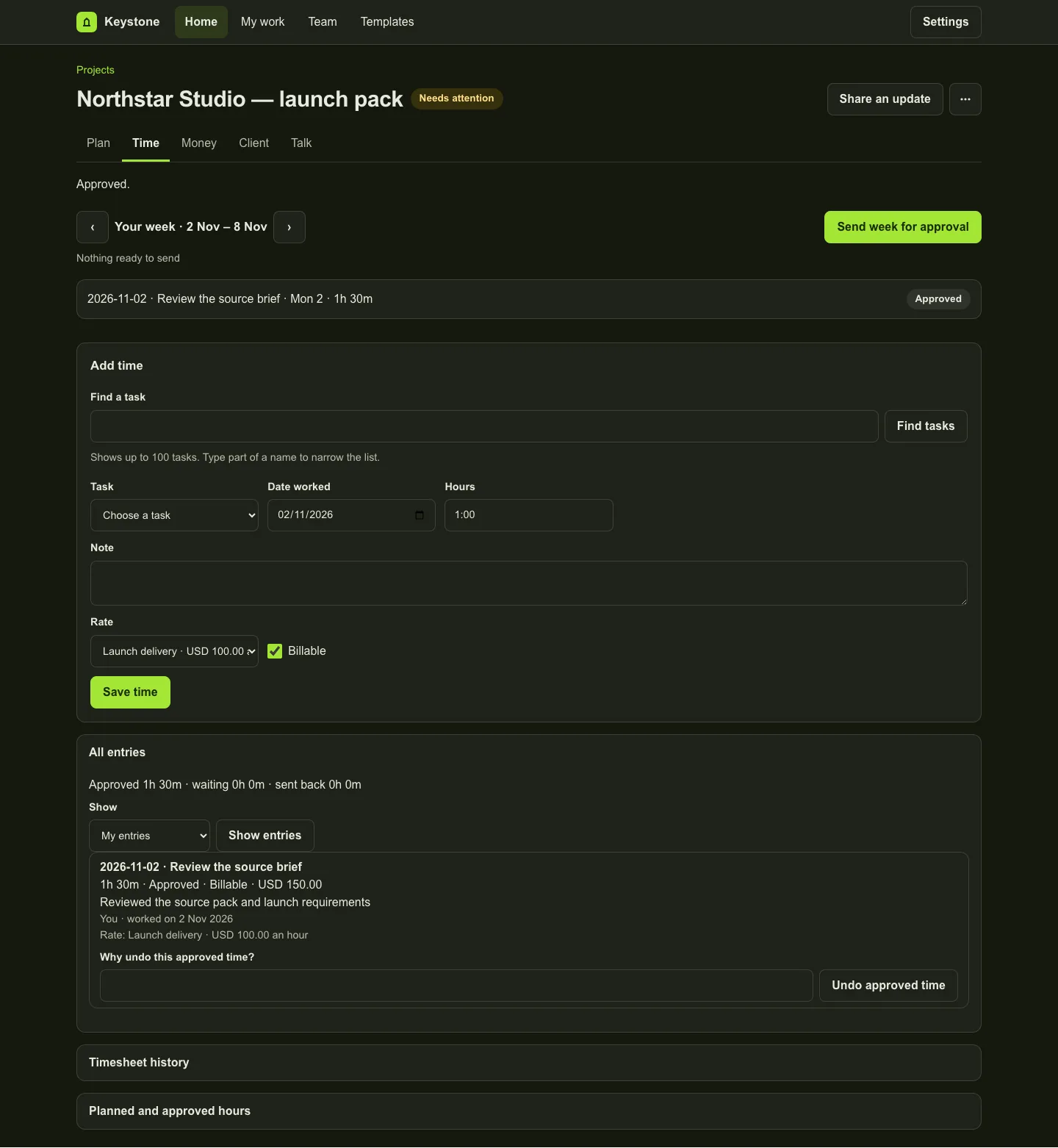
Open Time. Record a date, duration, task and billability. Review the rate captured on the entry. Editing a rate later does not reprice earlier entries. Use Send week for approval, then inspect the submitted record before deciding.
An approval or rejection retains its decision and reason. If self-approval is permitted, the record identifies it. Correct a rejected entry with a reason and resubmit. Approved time is retained. In All entries, enter a reason under Why undo this approved time?, then choose Undo approved time. Review the retained adjustment; record and submit replacement work separately.
Read the budget and commercial records
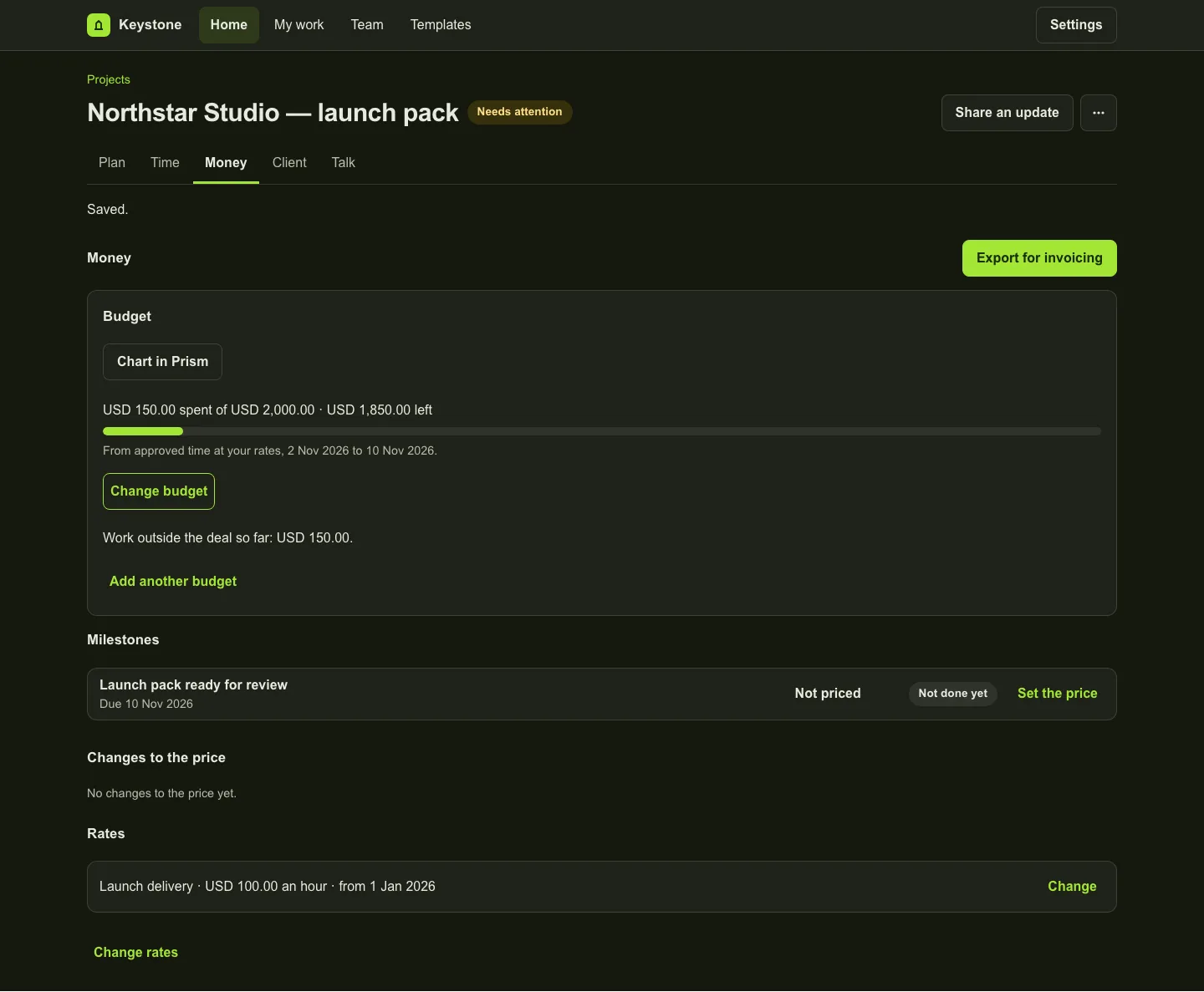
In Money, review each named budget’s dates, limits and scope. Compare approved net recorded time or value with that budget. Pending and rejected entries remain separate. Check missing-rate and currency notices before quoting a balance.
Review milestone pricing and the supported invoicing export separately. Exported rows are input to your invoicing process; they do not establish a posted invoice, a payment or accounting profit. Do not add overlapping budgets together.
Review a client request
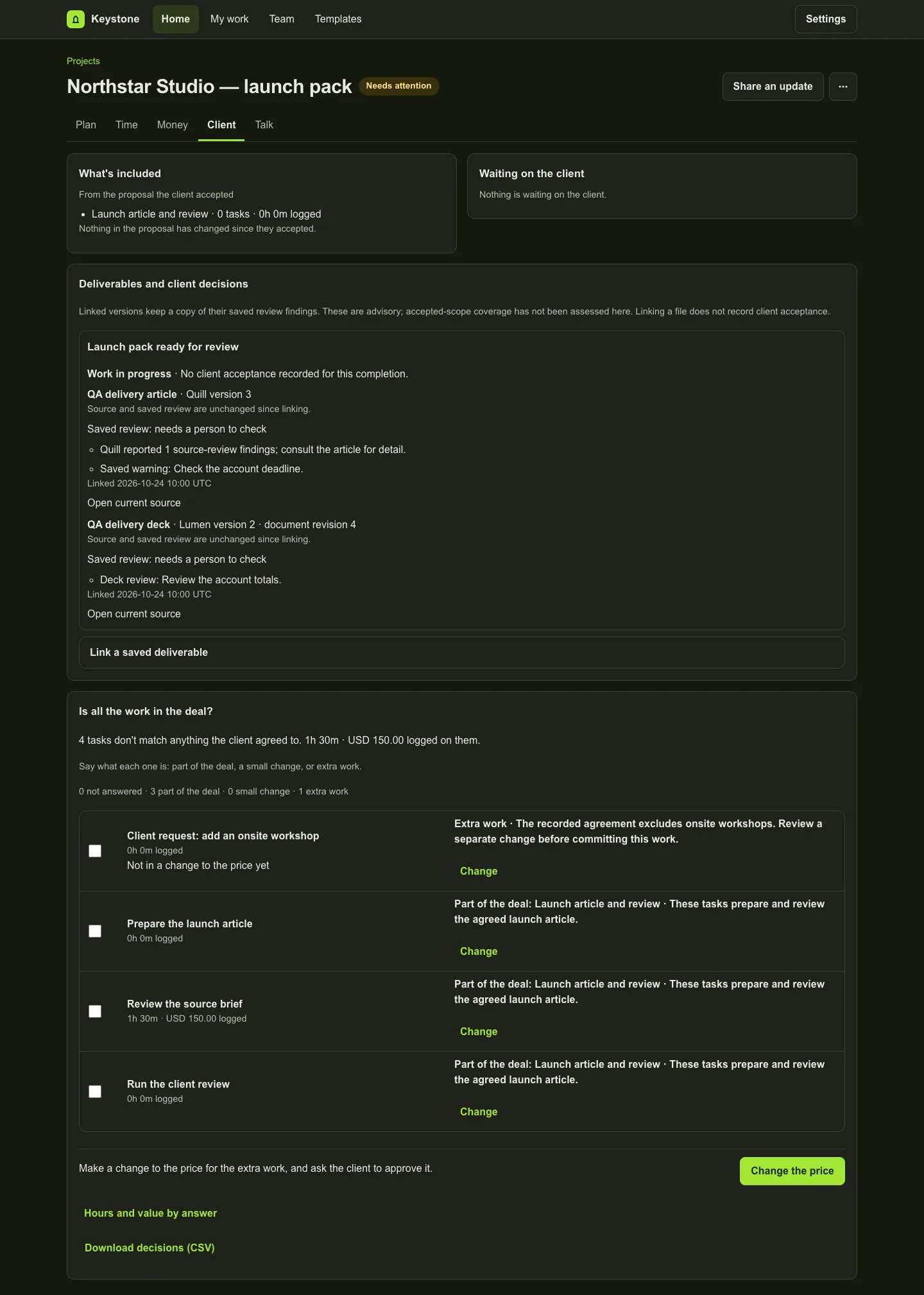
Open Client and choose the request to review against the accepted scope. Inspect the relevant evidence, record the manager’s decision and keep the reason. For new work, review the change-order preview before saving the next agreement step.
If Arc-assisted scope review is available, use the request and accepted-scope quotations to check the suggestion. Confirm only the decision you can support. Unsupported or unclear evidence needs a person’s review; the suggestion is not a legal ruling.
Finish a milestone and record client acceptance
Check that the required child work is closed before completing its parent. Review the milestone’s completion and commercial details. In Client, use Record their answer for the relevant priced completion and enter the client, date and evidence. Finishing work does not automatically accept it.
If you later revise the milestone, review the new work and its decision separately. An older completion’s acceptance does not establish acceptance of the revised work.
Link a saved deliverable
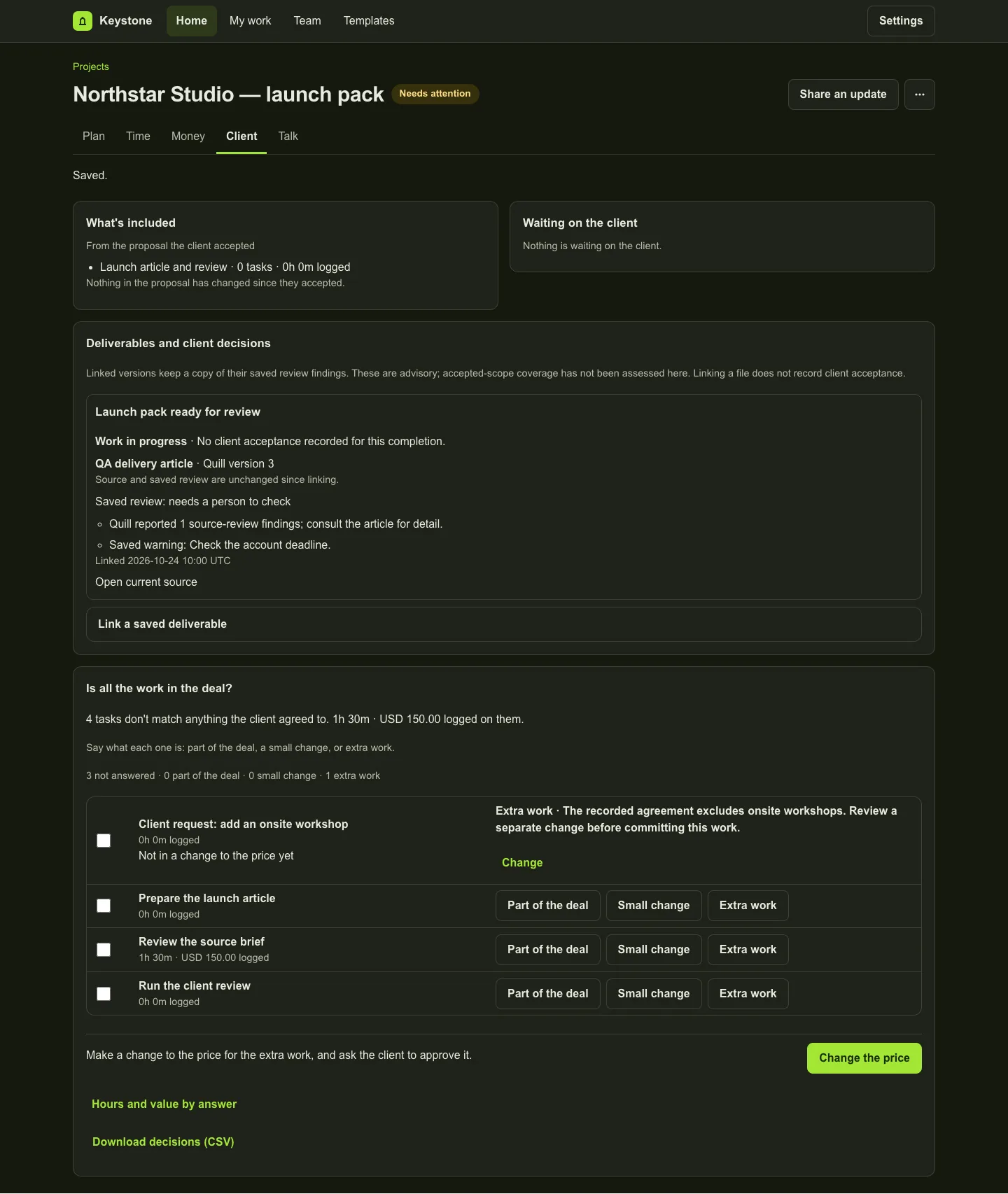
Where enabled, open Client and choose Link a saved deliverable. Preview an authorised Quill article or Lumen deck, inspect the version reference and findings, then confirm the copy into the project. A changed source requires another preview.
The project retains a version reference and bounded findings, not the complete historical document. The open link uses the current authorised source. If the source is changed or unavailable, the retained reference stays readable. Findings are advisory and do not prove accepted-scope coverage. Adding a link after a client decision does not prove which file was previously accepted.
Prepare an update in another product
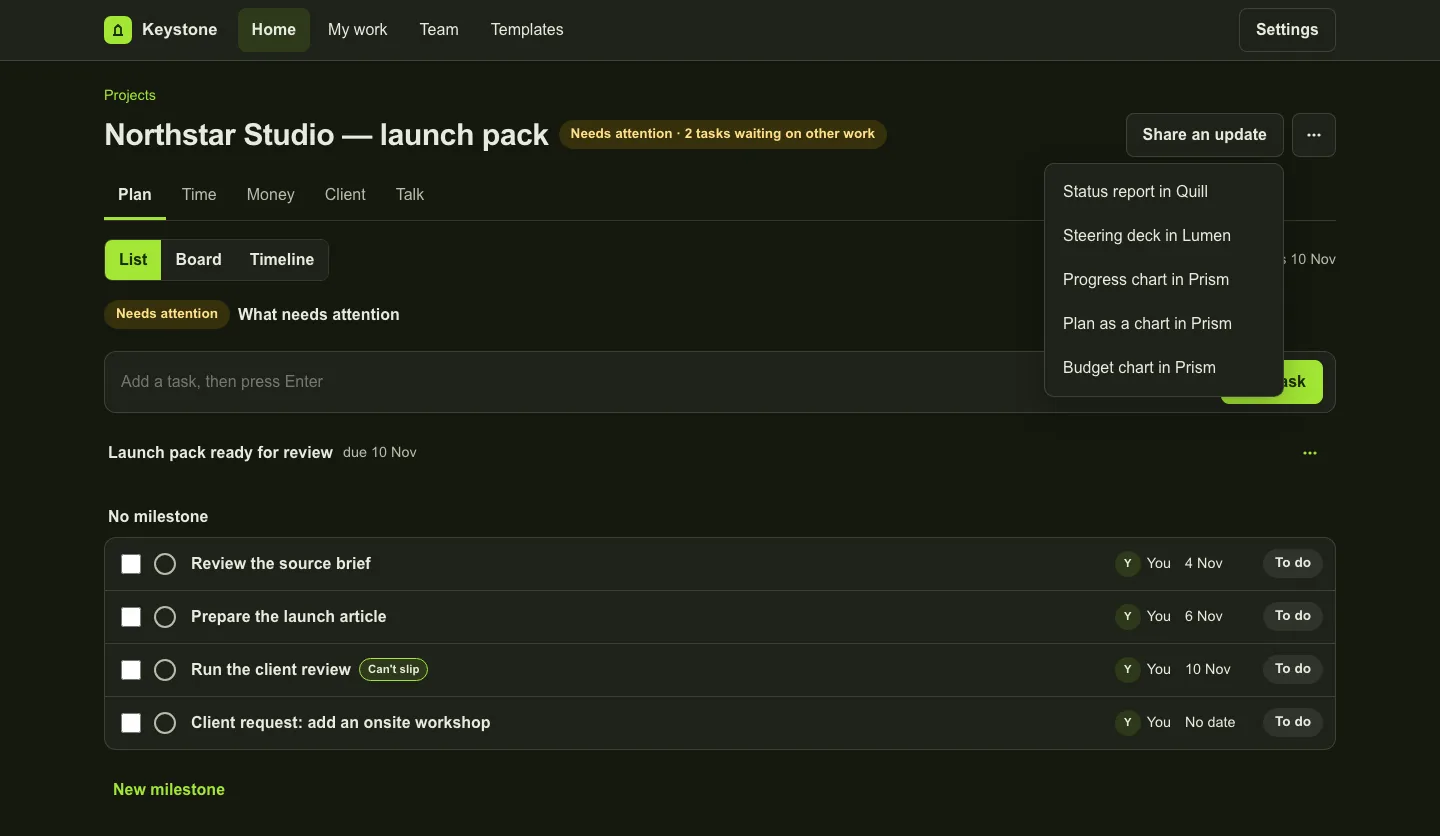
Use Share an update for the supported Quill or Lumen path, or Chart in Prism where offered. Review the attached project facts and captured-source time in the destination. Opening a destination starts no generation; use its explicit create action under its own subscription.
Captured facts do not refresh automatically. If the project changed, return to the project and create a fresh capture. Review generated statements and visible findings before sharing the output. A citation link alone is not proof that the sentence is supported.
Review team capacity
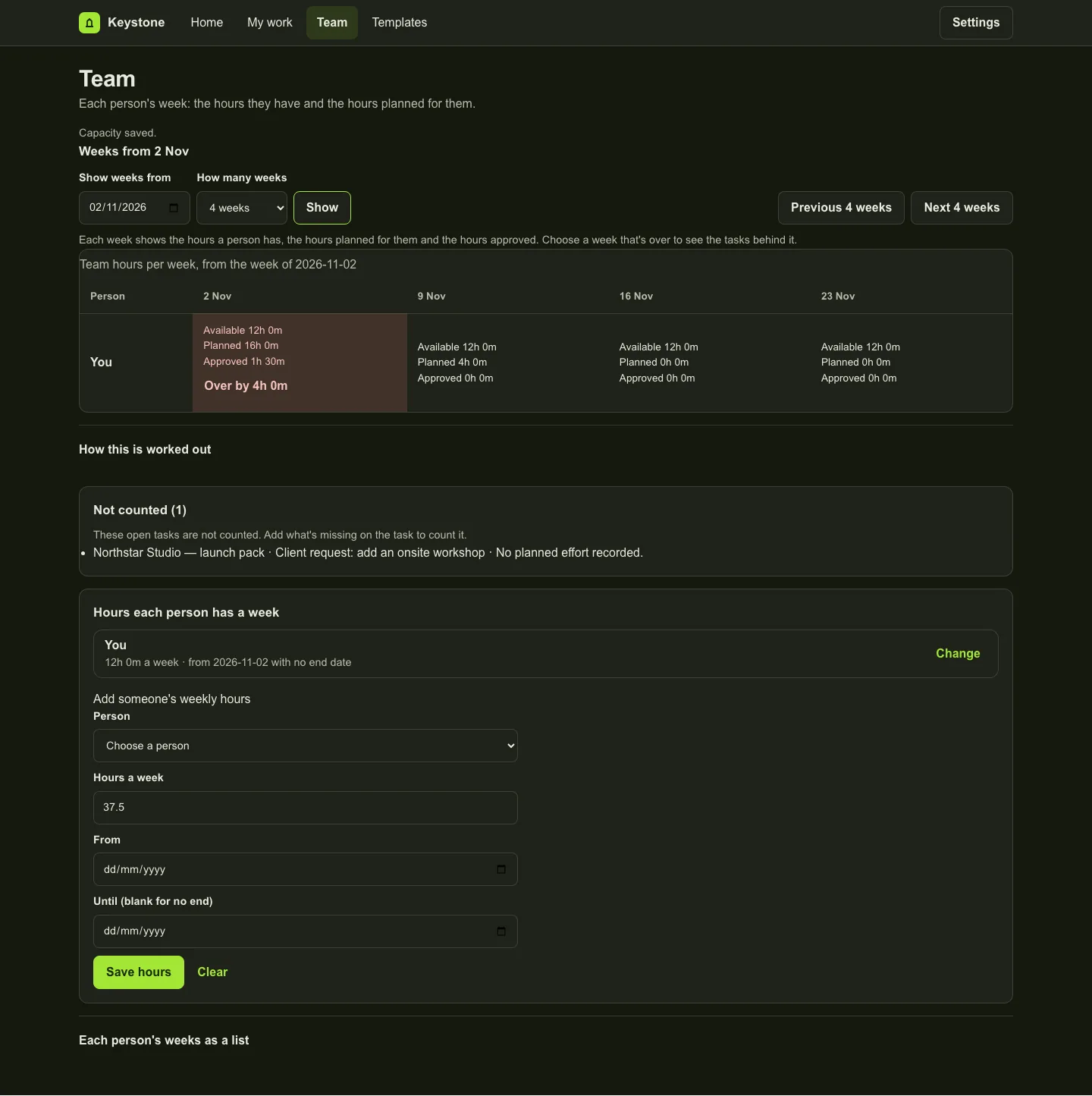
With capacity access, open Team, choose the week and planning window, and review the available and planned hours. Record capacity explicitly. Inspect tasks behind an overloaded week and the notices about work not counted.
Planned effort is separate from recorded actual time. A missing capacity or incomplete task plan does not become zero work or full availability. Reassignment, if enabled, remains an explicit reviewed action.
Use discussion, reminders and history
Use Talk for project discussion and the task’s own controls for task context. Closed or archived work remains subject to retained-access rules. Availability of calendar-file downloads and personal or channel reminders depends on the release and setup. A calendar download is a file; it is not a live calendar connection.
Recover carefully from a failed or unknown save
If the screen says the item changed, reload and review the saved record before editing again. If it offers Retry for an unconfirmed action, retry that same action. Do not create a second copy while the first result is unknown.
Navigating away can discard the current screen’s unsaved recovery state. After reconnecting or reopening, inspect the saved project before manually repeating a change. This is recovery guidance, not a promise that every network interruption is automatically resolved.
Understand preview estimates and AI findings
Historical estimates need sufficient comparable retained history. If the sample is insufficient, no credible range should be inferred. A P50/P80 range is a planning aid rather than a commitment.
Scope suggestions, requirement review and evidence checks remain review aids. Check the quoted scope and supporting evidence yourself. Keep unresolved findings visible and make the final delivery decision yourself.
Plans, people and access
Prices are in US dollars per person. One paid seat covers one person, with a one-seat minimum. The annual figures below are the total per person per year.
| Plan | Monthly | Annual total | What it adds |
|---|---|---|---|
| Starter | $9 | $90 | Core projects, tasks, comments, basic views and time logging. |
| Professional | $19 | $190 | Dependencies, saved plans, budgets, time approvals and commercial/client controls. |
| Business | $29 | $290 | Portfolio, capacity planning and team management. |
The no-card 14-day trial uses Starter and requires Keystone account access. Professional and Business controls are outside the Starter trial. Your subscription, current workspace/project role and the current release all matter.
AI generation in Quill, Lumen or another Gixo product needs that product’s separate subscription. Opening a connected destination does not start generation.
Retained records, history and ordinary exports remain subject to the applicable retained-access rules after a plan change. Creating or changing work depends on current access.
Continue exploring
Keystone overview · Product tour · Project examples · Supported connections