
Gixo Keystone · Project scheduling
Project scheduling software for the dates your team has to discuss
Keep task dates and milestones in the same project as the work. Keystone’s Timeline helps you see the sequence, review dependencies and identify the tasks that affect the finish.
Project access, your subscription and the current release determine which controls are available.
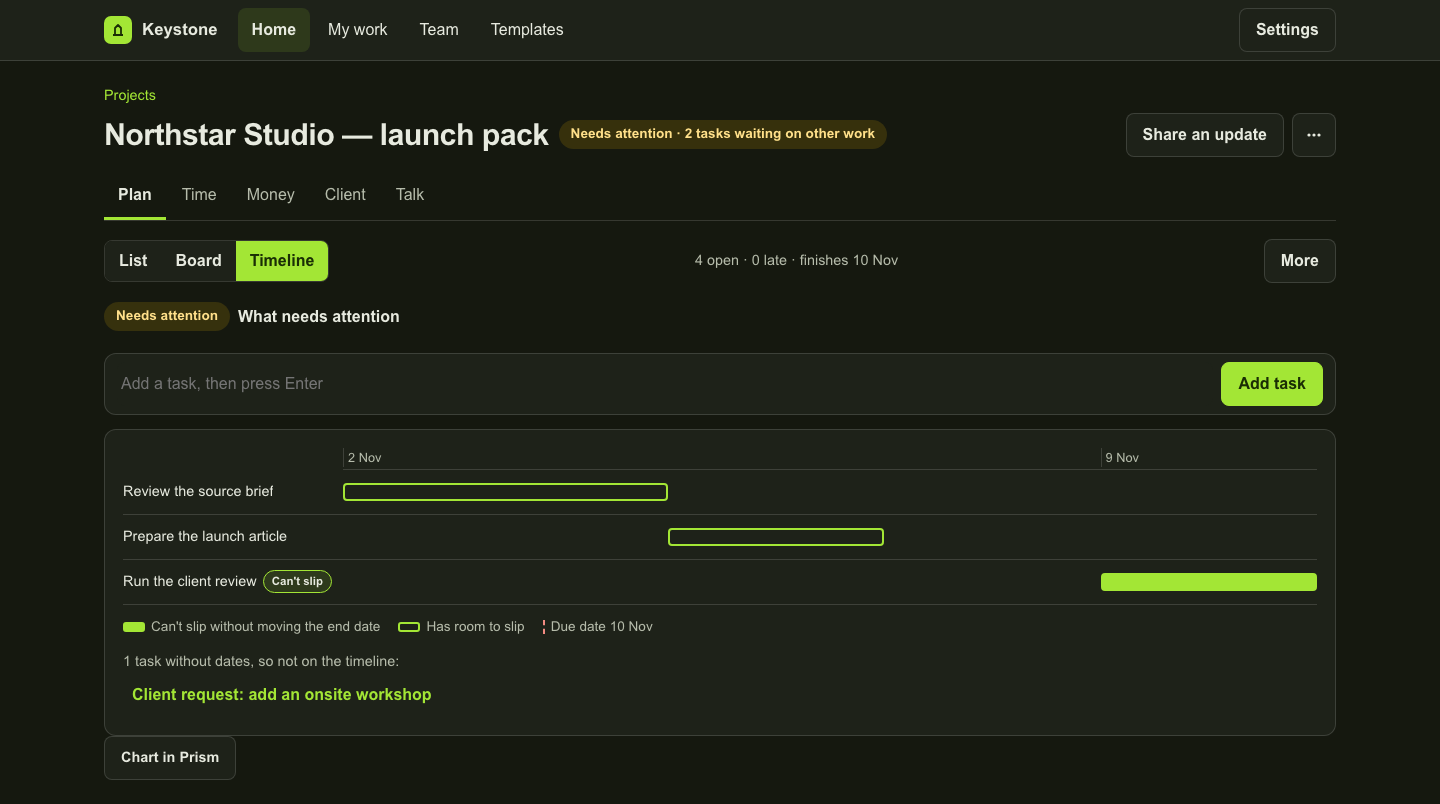
One project, three useful views
Start with the next actions in List, inspect flow in Board and review dates in Timeline. The views refer to the same tasks. Missing dates remain visible so an incomplete plan does not look complete.
Review the path to the finish
Where scheduling controls are available, review dependencies and the critical path. Compare the current dates with a saved plan to discuss what moved and why. Calculations help explain the sequence; they do not silently rewrite your saved dates.
Make the waiting decision part of the conversation
A delayed client decision can matter as much as a late task. Review the project’s waiting decisions and schedule signals together before agreeing the next date. Check the recorded work instead of treating a status colour as a promise.
Take a chart into the discussion
When the Prism connection is available, Chart in Prism opens the project facts for a visual you can style and export. It is a separate product action with its own access requirements. A chart is a presentation of the captured facts, not a live scheduling engine.
What to expect from the plan
The Professional tier adds dependencies and saved-plan controls. Basic project views belong to Starter. Historical estimate ranges are a separate preview: they require sufficient comparable history and are not a delivery guarantee.
Inspect the work
A fictional project in the actual workspace
These examples use fictional data in an isolated local preview. Each caption explains what its screen establishes. They do not represent a customer result.
Product copy reviewed 2 November 2026.