
Skip to content
Prism
Sign In Get started

Prism · worked guide

Pie chart colors: pair distinct slices with visible labels and totals

A pie chart palette separates parts of a single total, but color alone should never carry the data. Pair high-contrast slice fills with explicit category names, percentages or counts, and a stated denominator so the chart stays readable across screens, printouts and color-vision differences.

Open the pie chart maker →

Prism · inspect the actual output

Pie chart colors need labels and a visible denominator

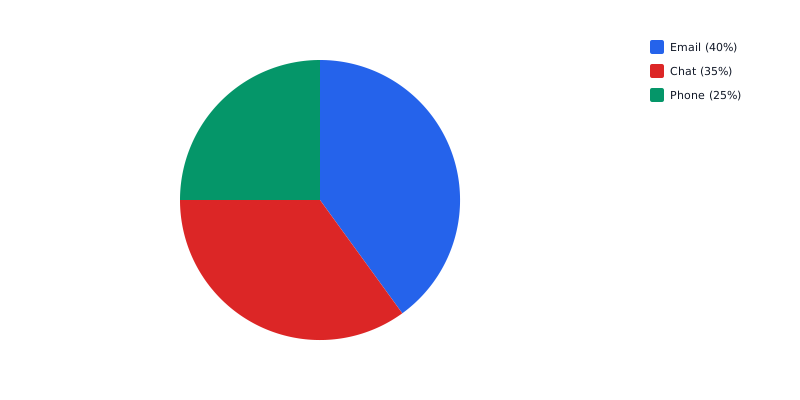
Use distinct colors to separate categories, then provide category names and values so color is not the only way to read the chart. This actual Bold render uses three fictional support channels: Email 40, Chat 35 and Phone 25, for a total of 100 requests. The labels show both the category and its share.

Actual Bold pie chart showing Email 40 percent, Chat 35 percent and Phone 25 percent
Rendered through Prism's anonymous deterministic renderer from the downloadable CSV. No AI generation or saved customer record was involved. Inspect full size ↗

Keep the category-to-color mapping stable

If Email is blue in one view, keep that mapping when presenting the same categories elsewhere. Moving a category to a different position should not make the reader infer that the meaning of its color changed.

Make the values readable without color

In this source table, Email is 40 of 100, Chat is 35 of 100 and Phone is 25 of 100. Keep a visible text equivalent alongside the visual. A palette alone is not an accessibility certification; check labels, contrast, scale and the surrounding page.

Verify the whole before choosing a pie

Use categories that form the intended total. These three supplied counts sum to 100; the file does not provide a real observation period or explain whether the categories overlap. Negative values, changing denominators and many small slices need a different presentation or clearer source definitions.

Keep Bold as the starting point

The chart maker starts with Bold. Review the result at its intended display size before exporting. Choose colors for this chart's reading task, and keep meaningful labels when using the chart in an article, report or deck.

Inspect the source brief or data

Use distinct colors to separate categories, then provide category names and values so color is not the only way to read the chart. This actual Bold render uses three fictional support channels: Email 40, Chat 35 and Phone 25, for a total of 100 requests. The labels show both the category and its share. The support counts are fictional supplied inputs, not customer support results. The actual palette is blue, red and green; the adjacent text values carry the meaning independently. Bold remains the product default; this guide changes no saved preferences.

The support counts are fictional supplied inputs, not customer support results. The actual palette is blue, red and green; the adjacent text values carry the meaning independently. Bold remains the product default; this guide changes no saved preferences.

Read the support-channel Bold render

This table lists the exact fictional inputs and slice fills from the deterministic Prism SVG output above.

Support-channel Bold pie palette and values
SliceValue, fill and review point
Email40 of 100 requests (40%, 144 degrees) rendered in blue (#2563EB) with a matching legend label.
Chat35 of 100 requests (35%, 126 degrees) rendered in red (#DC2626) with a matching legend label.
Phone25 of 100 requests (25%, 90 degrees) rendered in green (#059669) with a matching legend label.
Starting themeRendered with Prism’s default Bold preset (brand-bold) on a light #F8FAFC card surface.
Whole checkThe three supplied counts sum to 100 Fictional Requests; verify that categories are mutually exclusive before using a pie.

Keep color meaning consistent across views

When a report shows the same categories in more than one chart, keep each category tied to the same color rather than reassigning colors by rank order alone. If a category has more than five or six slices, or if readers need to compare close values across time periods, switch to a bar or stacked bar chart and keep the source table beside the figure.

Open the pie chart guide and maker →

Updated