
Gixo Folio · User guide
Everything you need to write a book in Folio
Write, organize, review and inspect the actual book files, with a link to each screen.
Start here
A book with a review trail
Folio keeps the outline, chapters, source material, book-local voice, claims and canon, reader feedback, frozen editions and exported files in one workspace. Start from your own writing, a manuscript you already have or a reviewed AI plan. Save prose, organize it, review specific passages and inspect the file you intend to share.
The book's header holds what you use most: Read, Check my book and Get your files. Everything else, from parts and scenes to editions, proofs and the publishing handoff, is under More (⋮) → Publisher tools.
About the example screens
Captured on 11 October 2026. The Orchard Field Guide is fictional material written manually for this guide. AI instructions are shown before submission. The saved review plan is unread, the reader round has no outside readers, and the actual PDF proof remains unapproved with warnings. These screens demonstrate controls and recorded states; they do not establish generated quality, factual accuracy or retailer acceptance.
Text checked against the code on 24 October 2026 at commit 9c3e18153e. The screens were captured on 11 October 2026; where a screen differs, the text describes the current one. Open the current interface for access, storage and format conditions.
Start blank, import, or plan
In Your books, open New book and choose With AI, Blank or Import a manuscript. Blank uses no AI: give a title, an author, the kind of book (Fiction, Non-fiction or Workbook), an optional synopsis and your own chapter titles. Its language starts as your account language; select it to choose another. Import a manuscript takes Word (.docx), Markdown or plain text up to 15 MB. Inspect the converted chapter split before you choose Create book from manuscript.
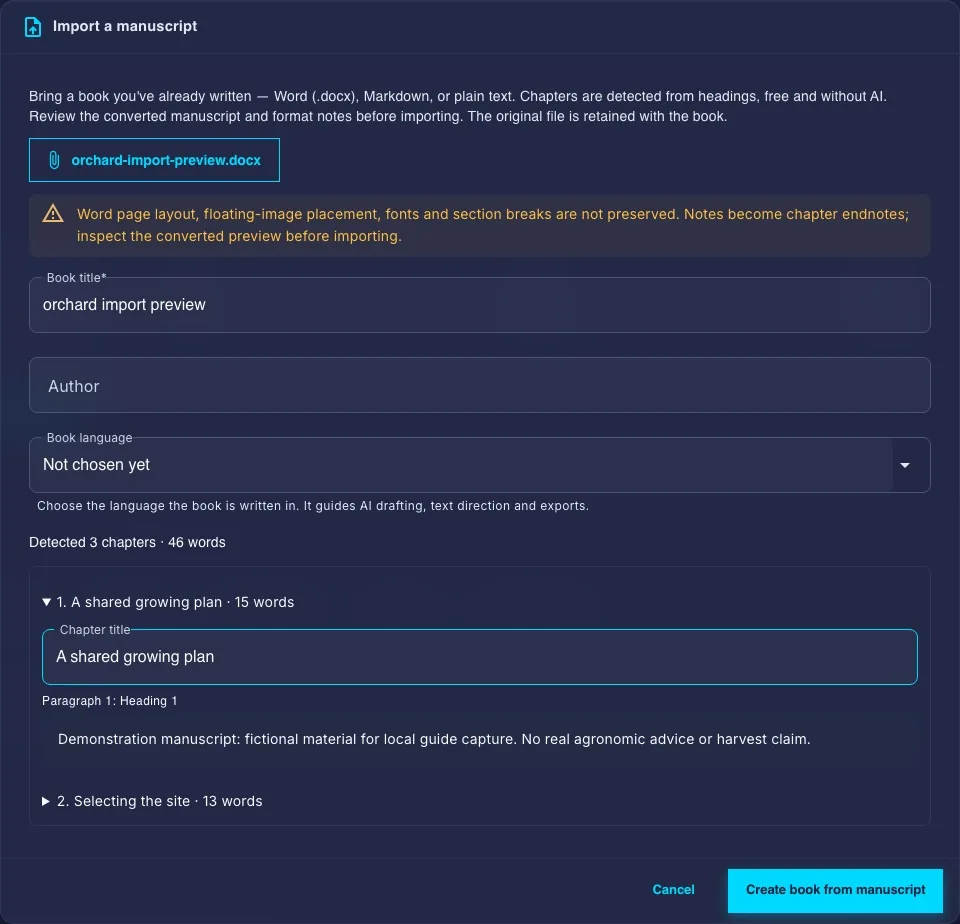
Heading 1 in Word, # headings in Markdown and "Chapter 1" lines split the chapters. With no headings, everything stays one chapter. The preview lets you rename chapters and choose the kind of book. Folio preselects the language from the manuscript's own text, without AI; when it cannot tell, the language starts unset so you choose it. The original file is kept with the book, and Sources in Publisher tools offers it for download. Word page layout, fonts, floating-image placement and section breaks are not preserved.
With AI opens New book with AI. Describe the book, set its language, then pick the kind or a suggested book plan. Review the details, the outline variants (titles, subheadings and key points) and the chapter count. Requested counts are targets. The last step, Create Workspace & Open Chapter 1, creates the book and starts drafting Chapter 1, so check your AI access before you submit. Open New book with AI.
Your working manuscript
The outline on the left chooses, adds, renames and reorders chapters; drag a chapter to move it. One line above the manuscript shows the kind of book, chapters drafted and finalized, your AI drafting capacity and, once there is a review or a proof, its status. The manuscript is the workspace itself: Check my book opens beside it, and More → Publisher tools holds every other book tool, grouped under Writing, Reviewing and Publishing.
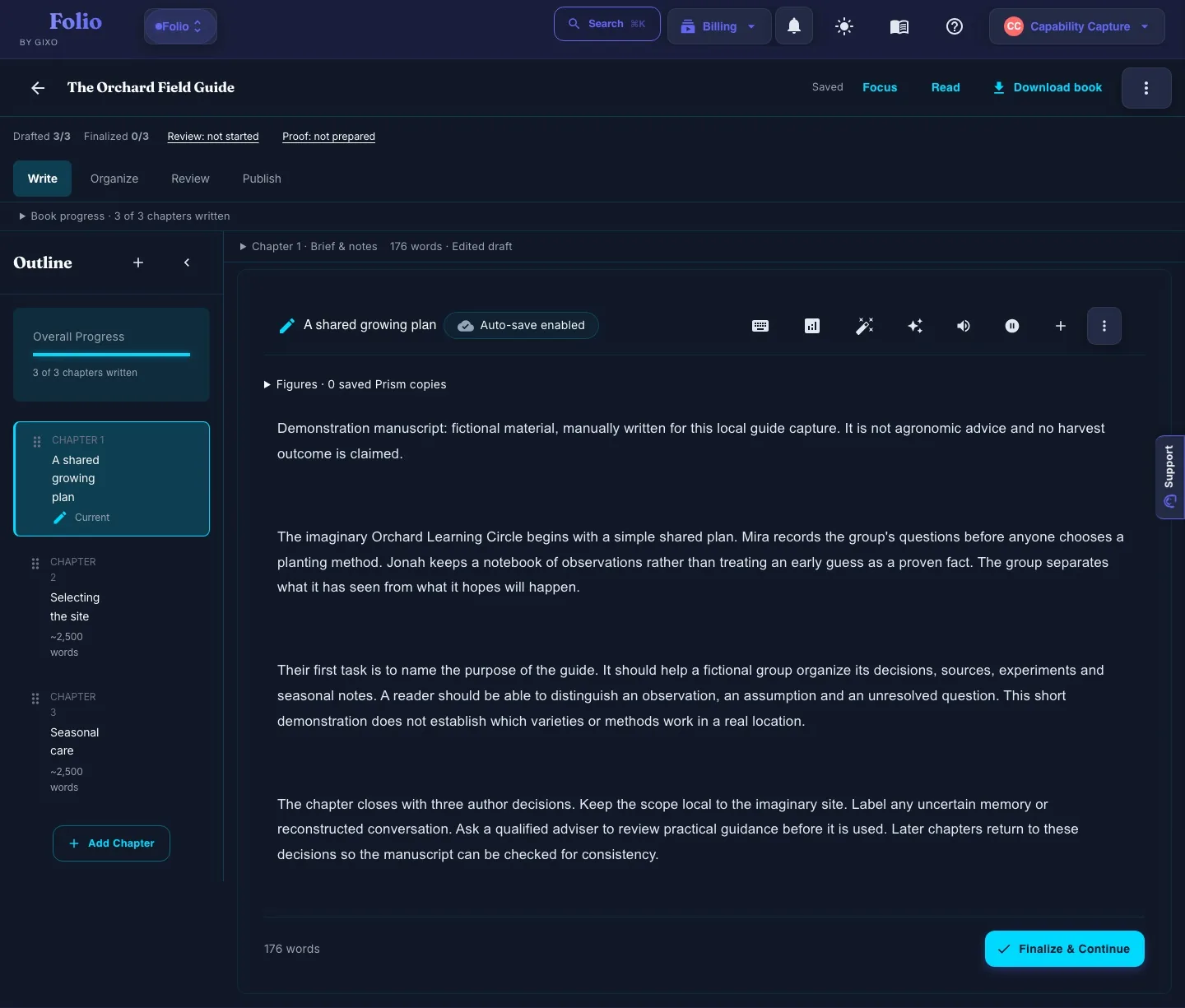
The header says Saved, Saving… or Unsaved changes. Focus hides the outline; Read opens reader mode; Get your files opens downloads. The More menu holds Search book, Book activity, Story bible, Team comments (team books only), Publisher tools, Book settings and Archive book.
An unwritten chapter offers Write it myself, which uses no AI, beside Draft chapter N with AI and, when more than one chapter is unwritten, Draft all remaining chapters with AI. Draft chapter N with AI drafts that chapter. It usually takes several minutes. The remaining chapters are drafted on our servers one at a time, each reading the ones before it, and you can close the tab. A brief, source files and custom instructions can guide a draft. AI drafting needs eligible access and capacity; without them, the reason shows under the buttons with a link to plans. Word goals and continuity instructions guide the model; review the resulting prose and its evidence.
To remove a chapter, use Remove chapter in its outline menu and confirm. It leaves the outline at once, and Undo puts it back for up to 10 seconds; leaving the book, switching chapter or another outline change saves the removal sooner. A finished chapter, the chapter you have open and a book's only chapter cannot be removed; the menu says why.
Use the editor and book blocks
Select text to open the formatting bar, with comments and a Rewrite… button. Headings, lists, links, tables, alignment, right-to-left direction and selection comments support ordinary editing; alignment and direction are also under Align or set direction in the chapter menu. The + (Insert) menu in the chapter header adds a Block, Table, Image, Visual or Saved Prism visual. Type / on a new line to open the block picker directly.
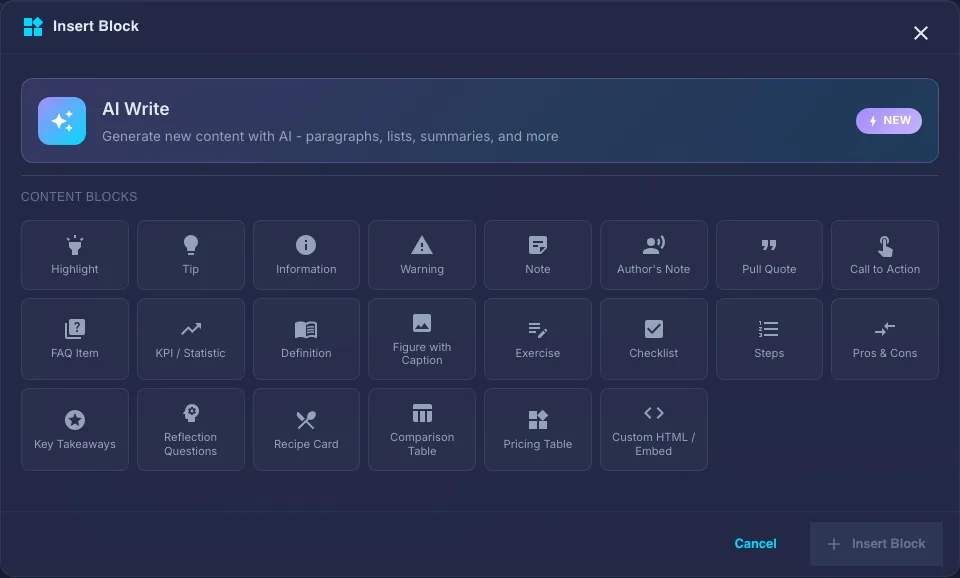
The 22 block types include Recipe Card, Exercise, Definition, Author's Note, Key Takeaways and Reflection Questions, plus checklist, steps, figures, pull quotes, comparison tables and other structures. Choose the structure that suits the reader, fill its fields, then inspect its output format.
Figure controls, including Insert → Saved Prism visual, can retain a saved Prism visual with caption, attribution, alt text and export-specific placement. Image Studio also accepts image inputs. Generated visuals require separate eligible access and human review; the presence of an insert control does not prove image quality, rights or printable resolution.
Choose the right assistance action
Ask AI in the chapter header holds Keep writing (Ctrl+M), which continues the prose at the current point, the Keep writing automatically switch and Ask Folio, which proposes changes to the chapter for review. Select a passage and choose Rewrite… for Rewrite, Simplify, Expand or Power edit, an instruction-led rewrite. AI Write, in the block picker, writes new content.
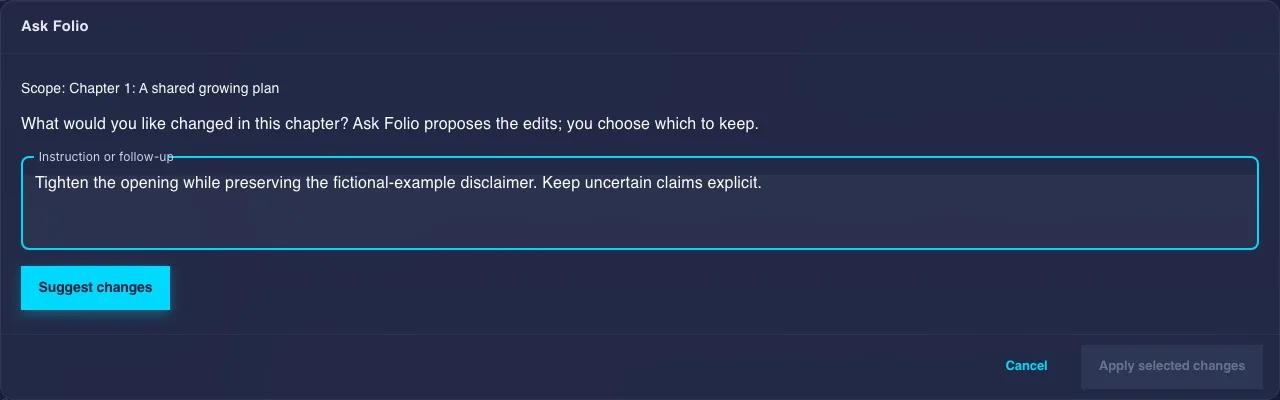
Inspect the proposed wording before you choose Replace on a rewrite or Apply selected changes in Ask Folio; Discard keeps your text. Eligible replacement paths recheck the selected quote and revision and keep the prior text; stale or unsupported selections need a fresh review. Assistance can change meaning or introduce errors.
Keep writing automatically is an explicit switch and can request more writing after an idle interval. Turn it off before stepping away. Current AI access and capacity apply to these actions separately from manual editing and own-book downloads.
Save, snapshot and recover
Auto-save runs after an idle interval and during sustained editing. Ctrl/Cmd+S requests a save. If a write cannot be confirmed, keep your working text and resolve the message before navigating away; a failed save offers a retry. If the saved chapter changed elsewhere while you wrote, Folio shows This chapter has two versions with the saved text and yours side by side. Choose Keep mine or Keep theirs; your writing stays until you choose.
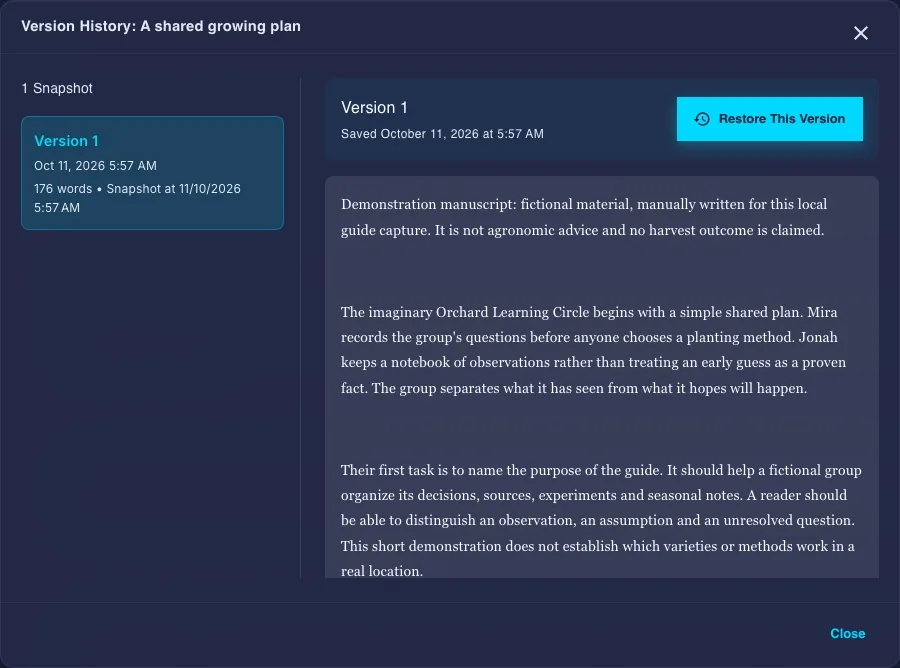
The chapter menu offers Save Snapshot, Version History and Import as New Version. Inspect a version before restoring. Snapshots and browser recovery copies are bounded by retention and storage; browser copies depend on the device and browser.
Every chapter version is a full copy of its chapter, stored inside the book. When a book reaches its storage limit, the latest changes wait in the editor unsaved, and Folio offers Remove versions older than the newest 10. A confirmation states how many versions go; the newest 10 of every chapter and every chapter's current text stay, and removed versions cannot be restored. Not now keeps them.
Folio checks saved revisions to refuse stale overwrites and preserve working text when a conflict is found. This supports recovery and review, but it does not make simultaneous editing conflict-free. Finalize & Continue marks a chapter finished as a separate author decision; it refuses only an empty chapter.
Organize parts, scenes and cut passages
Open More → Publisher tools and choose Parts and scenes from the Tool list. It works on the chapter open in the manuscript; pick another chapter in the outline, which is also where chapters are reordered. Open Parts and chapter names to add a part and place the open chapter in it. Select a passage, or extend the selection, before a scene or section action.
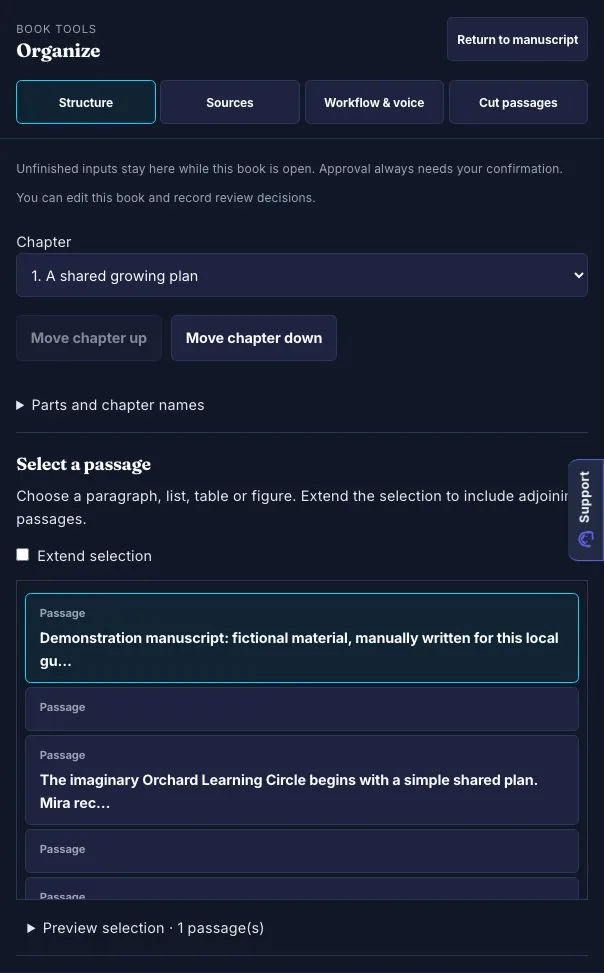
Scene or section records can carry titles and metadata. Move selection to stash takes a passage out of the current draft; Cut passages in the Tool list shows what you cut, and Restore at the end of the open chapter puts one back. Inspect retained text before reinserting it. Start new chapter here splits a chapter and Merge with joins a scene to the next one; both act on current selections and preserve bounded earlier copies.
Organization tools help retain structure and decisions. They do not enforce a story arc or make a reordered book read well. Read the surrounding chapters after a structural change.
Set book-local workflow and voice
In Publisher tools, choose Workflow & voice. Choose an author profile, answer its reader and revision questions, and set the constraints and writing example for this book.
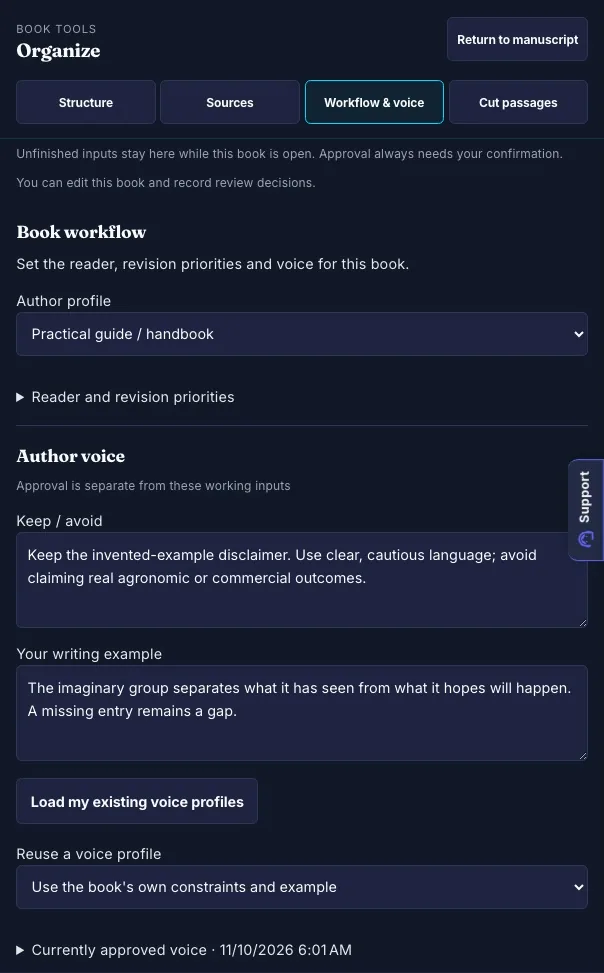
Working inputs and approved context are distinct. Preview and explicitly approve the context that should guide later work. Profiles differ in readiness and scope; a limited profile is not a validated author outcome.
The book's own constraints and example can be used without claiming a perfect imitation. Loading an existing shared voice profile has its own access conditions. If approved voice changes after an edition is frozen, that earlier edition keeps its earlier source identity.
Keep source coverage visible
In Publisher tools, choose Sources to add and inspect research material: Add from your library connects an uploaded source or a Quill article, and a link imports a new source into your library. Research sources are separate from importing a manuscript as a new book; an imported book's original file is offered here for download.
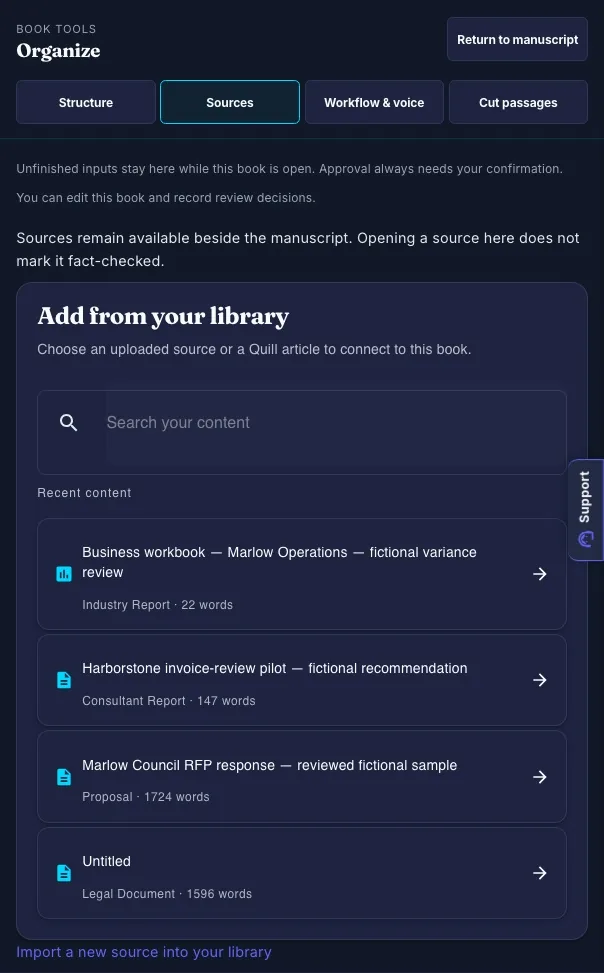
Check extraction status and the readable ranges before relying on a source. Search operates over available extracted text; an empty result does not prove that a fact is absent from the original. Inspect a passage and record the range you reviewed.
Source records can guide drafting and bounded factual comparisons. Marking a range reviewed records your work; it does not establish truth, permission to reuse, full extraction or complete evidence coverage.
Separate claims from approved canon
Claims and canon live in your Story bible (More → Story bible), the one editor for its entries. Open an entry's details to approve it, reject it or mark it unsure, set the chapters it applies to, when in the story it holds and who knows it, and record why in its decision history. In Publisher tools, Claims & canon counts entries by state, lists those waiting for your review (suggestions, unsure entries and entries whose supporting text changed) and opens the Story bible.
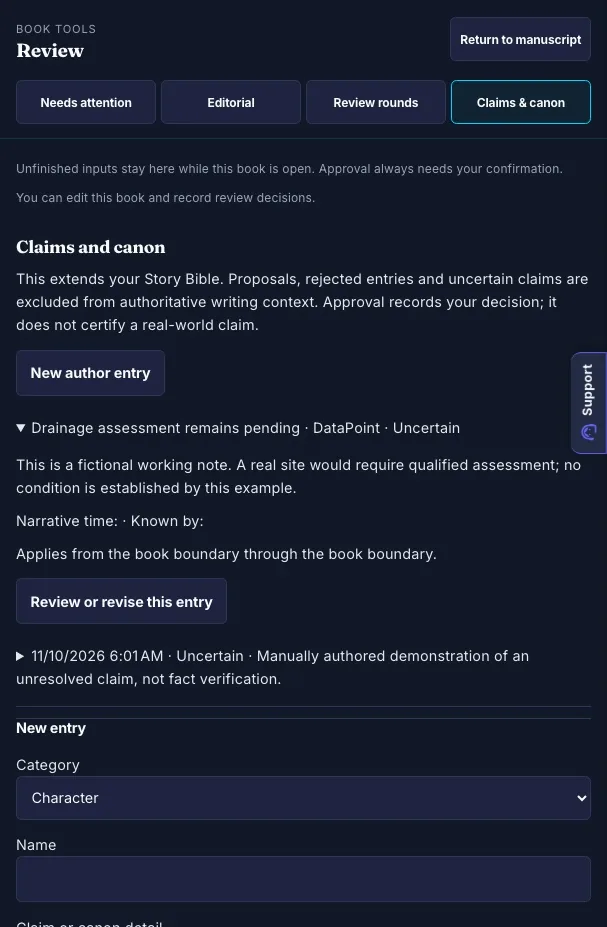
Suggested, rejected and unsure entries stay visible but are left out of what Folio writes from. Review the wording, scope and supporting material before approving an entry. Author-declared or approved context still represents an author decision, not independent certification.
Supporting manuscript changes can mark an entry stale. Use the retained history to understand an earlier decision rather than quietly replacing uncertainty with a confident claim.
Plan and resume editorial reading
In Publisher tools, choose Editorial passes, then Plan a new pass. Choose a Developmental, Copy, Factual, Continuity or Production pass, write its editorial question, select chapters and sources, and choose Save reading plan. A plan records bounded passages and progress.
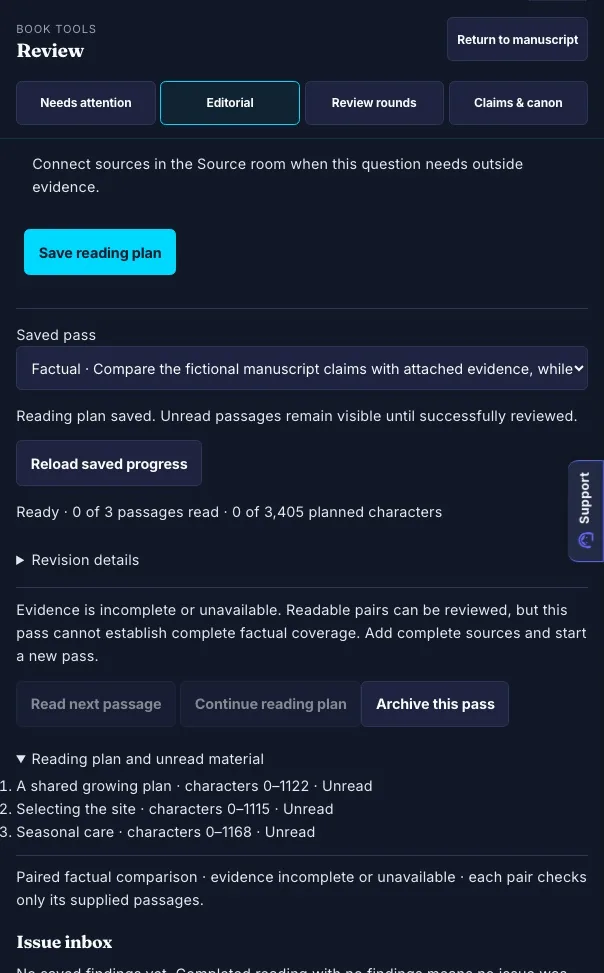
Read or continue an eligible plan in stages with Read next passage or Continue reading plan. Review findings and their quoted evidence, then record decisions. Factual work compares supplied manuscript and source passages in bounded pairs; missing or partial evidence limits the conclusion.
Scheduled reading completion is not proof that every fact is correct. Ungrounded suggestions, unread material and changed inputs remain relevant. Check my book is a different, whole-book continuity check with its own model pass.
Manage beta-reader feedback
In Publisher tools, choose Review rounds. Choose the review kind and chapters, record a question, and use existing access for readers who can view and comment on the book.
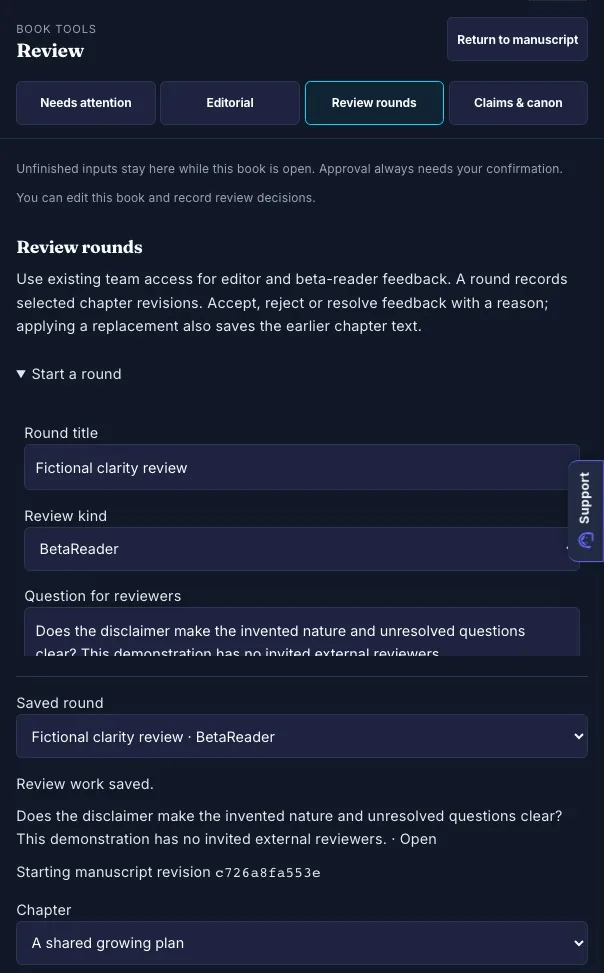
A round binds feedback to selected chapter revisions and a quoted block. An owner or editor records acceptance, rejection or resolution with a reason. Accepting a note alone does not replace manuscript prose.
A separate explicit replacement action checks the current quote, revision and eligible plain-text block, then saves the previous text before applying. A decision can still be recorded on older feedback, while applying stale prose is refused. This workflow manages feedback from your readers; it does not recruit or supply a reader pool.
Check my book
Check my book in the header opens one list beside the manuscript. Its button reads every chapter for continuity: Story Bible facts, dates, names and terms, repeated passages and loose threads. Each finding is marked Fix before publishing, Worth a look or For your information, quotes the passages and offers Open chapter N. The check changes nothing in your book and needs an active Folio plan. Below it, Review findings and reader feedback gathers saved review work and outstanding states so you can return to the relevant passage, pass or round.
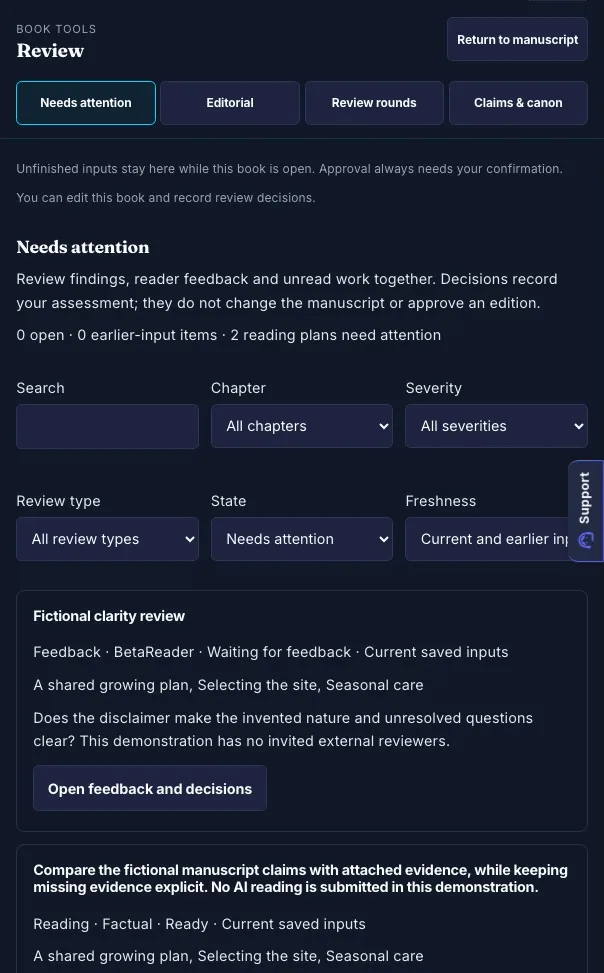
Readiness states distinguish drafted text, finalized chapters, evidence coverage and proof inspection. A changed manuscript can make a prior review or edition earlier than the live text. The list shows search and filters once it holds more than ten items.
Use the list as navigation for author review. "No continuity problems found" is not a full read-through; read the book yourself before you publish. Its counts and checks may omit defects, and a readiness label is not retailer eligibility, a factual certification or a promise that the reader's questions are resolved.
Read the whole book
Use Read in the book's header. Reader mode presents the manuscript without the editing tools, with display and chapter navigation controls.
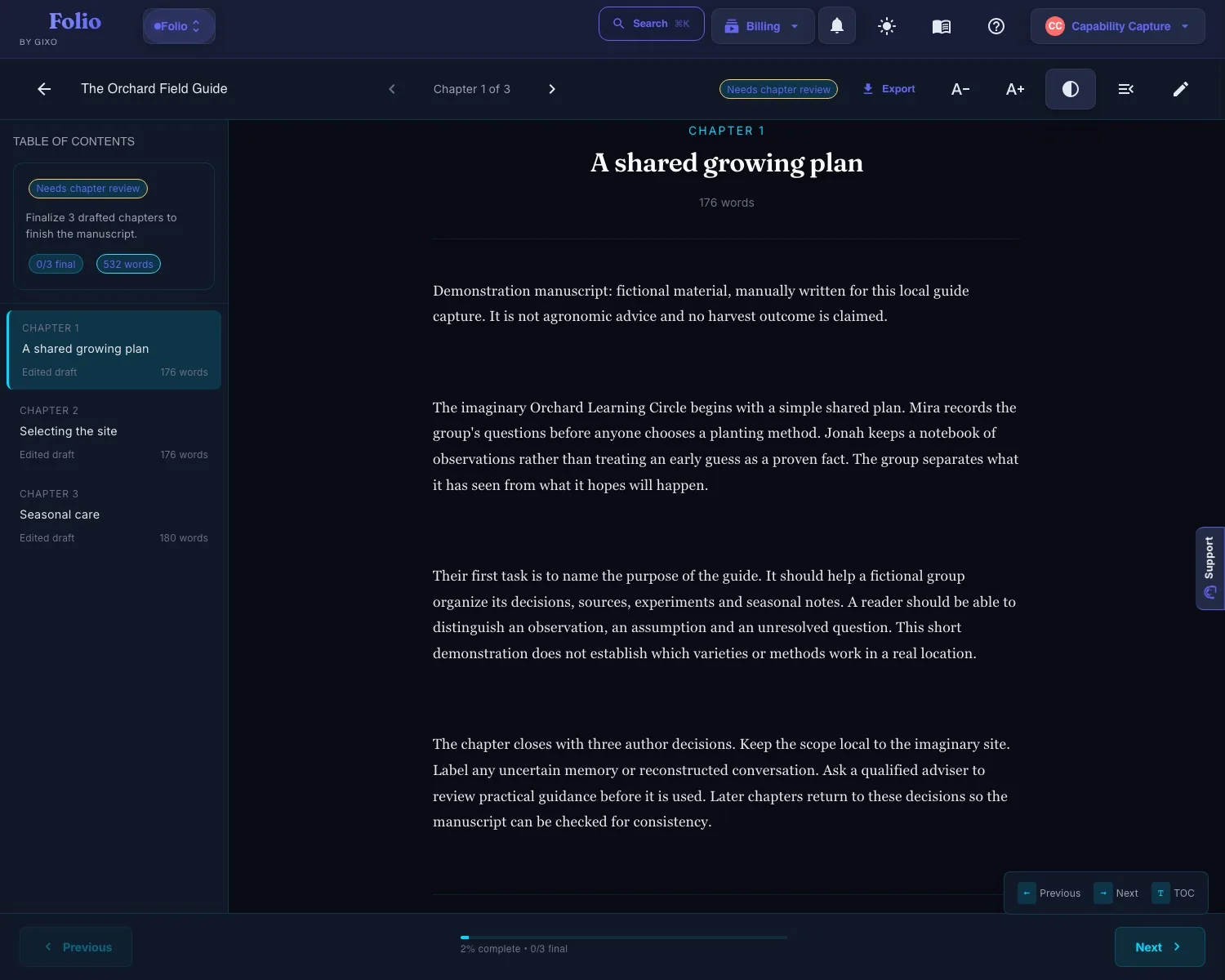
Check chapter order, transitions, repeated wording, placeholders and the limitations around practical examples. Reader mode is useful for reading prose; actual EPUB devices and printed PDF pages still need separate inspection.
Your library keeps current, completed, team, archived and recently deleted books distinct. Archive and restore controls differ from deletion. Review confirmation messages carefully; deletion and retention are not a substitute for your own durable copy.
Choose the output format
Open Get your files in the book's header, or Download whole book in the chapter menu; Download this chapter gives chapter output. Three cards come first: Ebook (EPUB), Print-ready PDF and Word manuscript. Other formats holds SCORM, HTML, Markdown and a multi-format package. Authorization, file size and renderer validation apply, but ordinary own-book downloads do not require a new subscription.
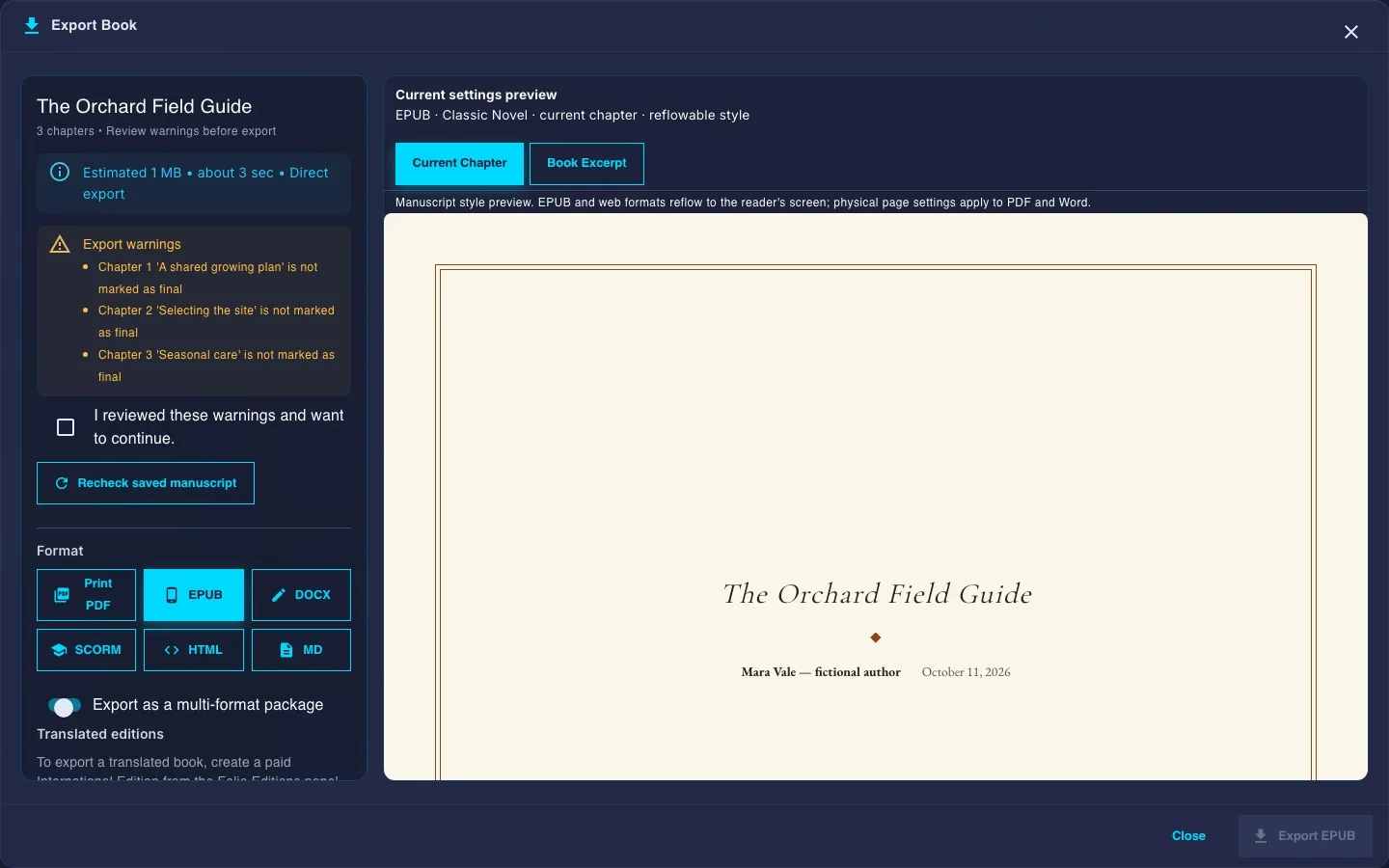
| Print-ready PDF / Word manuscript | Paginated print interior or review scope; the editable Word file for an editor or publisher can reflow. |
| Ebook (EPUB) | Reflowable EPUB 3 with reading-system fonts. Inspect navigation and devices. |
| HTML / Markdown | Portable manuscript content for another workflow. |
| SCORM | Static SCORM 1.2 reading package; course quizzes and branching need separate authoring. |
Download works at once. Empty chapters are left out of every file, and one line says how many, with Show which. Highlighted drafting passages, which may be unfinished placeholders or intentional examples, are the one thing asked about before a file is made: open each to revise it, or choose Keep as written (or Keep all as written). Every other warning is listed under Before you publish with its own answer, such as Skip it, Write it or Keep as is, and never holds a download. If an export fails, your settings are kept; try again, or choose Download Word instead.
Pick one of six Book styles, with more under More styles. Under Cover, Generate cover image designs a cover picture that appears in the EPUB; PDF and Word build their cover page from the title fields. Own-book exports carry no Gixo colophon. Attribution on source images is separate. These files use your original manuscript; the same screen links to Make an audiobook and Translate this book, the two edition services.
Inspect print layout and cover controls
Choose Print-ready PDF, then inspect Page Layout: trim, margins, mirrored inside/outside margins, page numbers, running headers, footers and optional bleed. PDF Scope chooses Full Book, Current Chapter or Selected Chapters; full-book interior and chapter-review scopes differ.
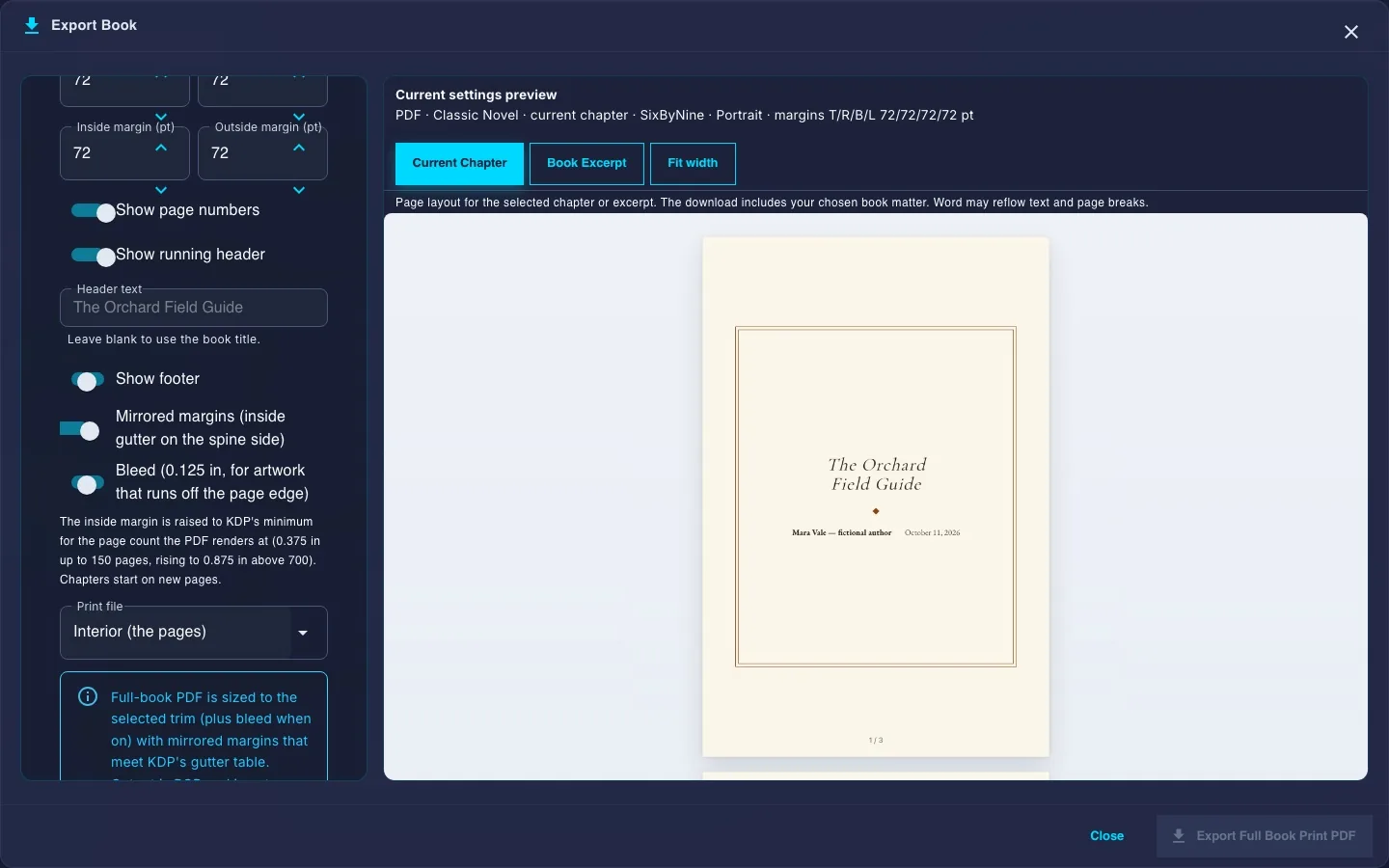
The separate paperback wrap-cover mode (Print file → Paperback cover (back, spine and front), with a Paper and ink choice) derives spine geometry from the rendered interior page count and selected paper settings. Inspect front, back and spine content, dimensions and any required cover file for your destination.
Measured font, image, page and geometry warnings are preflight checks. The PDF is RGB and is not certified PDF/X. Specialist prepress, CMYK conversion, destination paper/ink limits and acceptance checks remain external review steps.
Freeze an edition and make its proof
In Publisher tools, choose Editions & proofs; once a proof exists, the proof status in the progress line opens it too. The Make an audiobook and Translate this book cards come first. Below them, label the edition, confirm saved manuscript and settings, freeze them, and generate the actual file. Keep the frozen source and settings distinct from the live book.
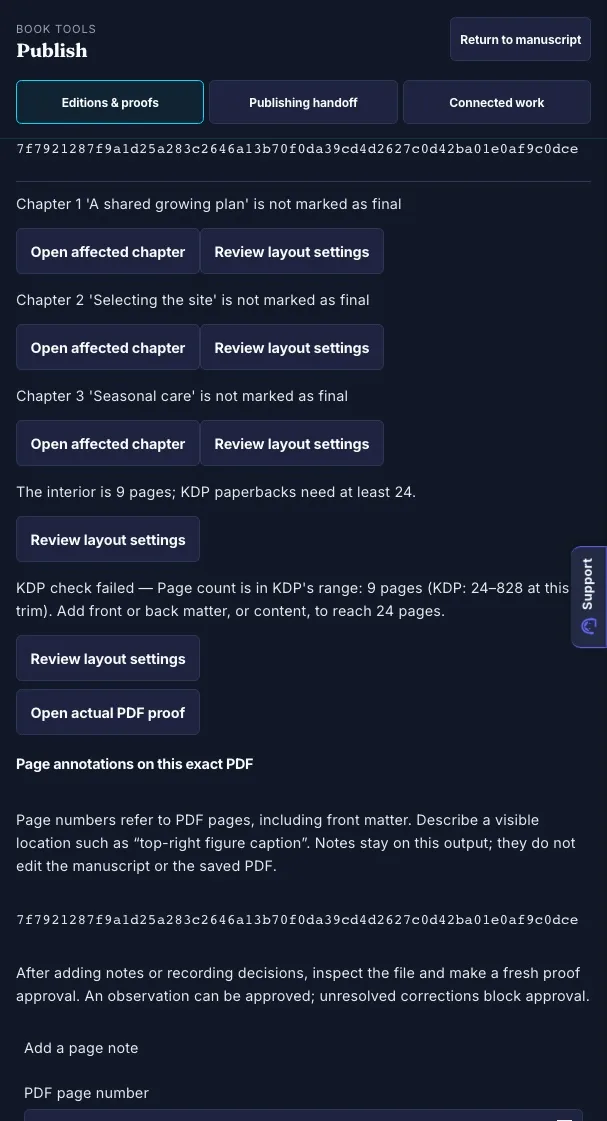
Download and inspect that exact proof. Its file identity includes a hash, so approval belongs to the inspected output. New text, metadata, voice or layout can require a new edition or proof; earlier files and decisions retain their earlier identity.
This demonstration is below KDP's minimum paperback length and is deliberately unapproved. Generating a file is different from approving it, completing editorial clearance or receiving retailer acceptance.
Inspect the actual PDF pages
Use Open actual PDF proof to read the saved file. Move through its pages and adjust the view, or download that same proof for inspection in another reader.
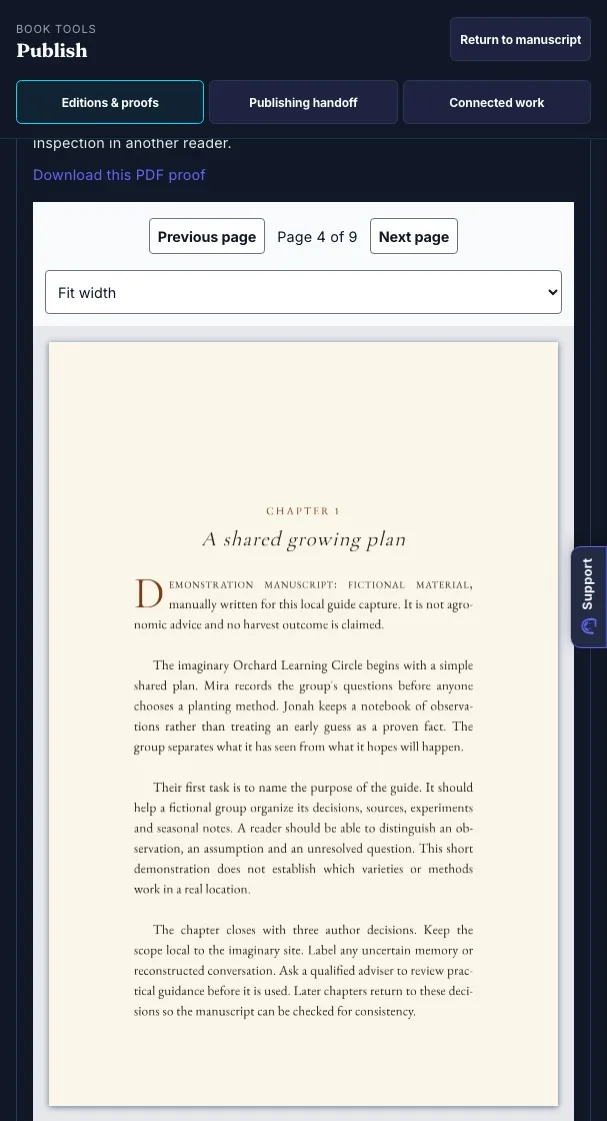
Check every page, including front matter, chapter starts, page chrome, figures, blank pages and the end of the book. A settings preview cannot substitute for inspecting the downloaded artifact.
The demonstration has short continuation and book-matter pages and is below paperback minimum length. This view demonstrates file inspection controls; it is an unfinished proof rather than a print-quality outcome.
Record page notes on the exact PDF
The actual PDF viewer reads the saved proof file. Page annotation numbers include front matter. Record a visible location, a comment and optionally the frozen chapter, then save the note on this exact output.
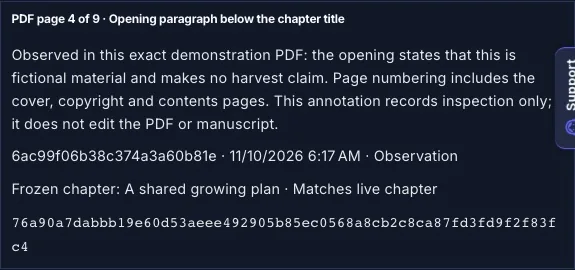
Page notes do not edit the manuscript or the saved PDF. A note needing correction blocks approval until its decision is resolved. Adding notes or decisions requires a fresh inspection and approval; an observation can be approved after review.
A note remains bound to its original output hash and frozen chapter revision. If the manuscript moves on, it is earlier feedback rather than a review of the current prose. Correct the live manuscript, generate a fresh proof and inspect it before recording a new approval.
Inspection is separate from clearance
Optional editorial receipts record reviewed scope and author/editor decisions. Neither a receipt nor a checked box independently verifies claims, rights or print acceptance.
Prepare your author upload
In Publisher tools, choose Publishing handoff. Start with an approved exact file, review destination requirements, select the relevant proof and declare the actual authorship and AI use. Without an approved proof, the panel says Create and approve a proof first and offers Create or review a proof.
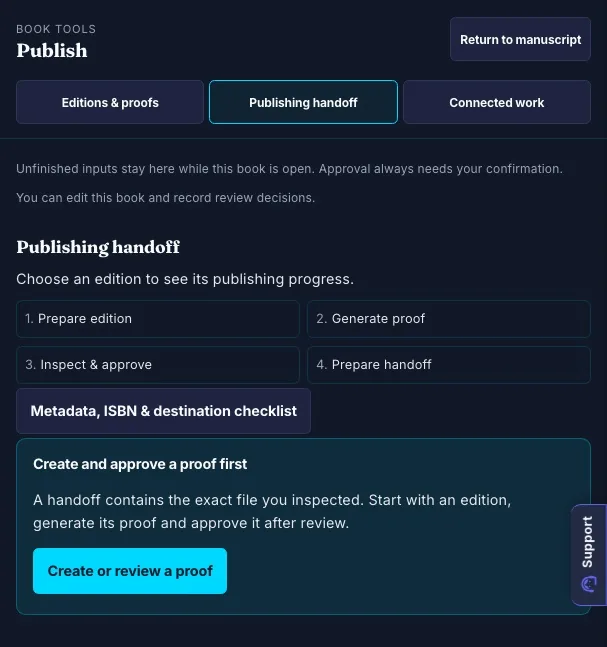
A prepared package contains the reviewed file, its provenance declaration and official requirement links for the author to upload. Folio does not submit to retailers or verify acceptance. A later submission record is reported by the author.
Metadata, ISBN & destination checklist can include ISBN, categories, keywords, pricing and rights-related inputs. Its ISBN check validates and formats a number you hold and draws its barcode; it does not issue an ISBN. Confirm separate cover, tax, price and content requirements with the destination.
Use a book as connected source material
In Publisher tools, choose Connected work. It starts from an approved proof; until then it says why for the step your book is at and offers the button that makes or approves the proof. Choose a source preparation path and finish the working material in the product that owns the destination format.
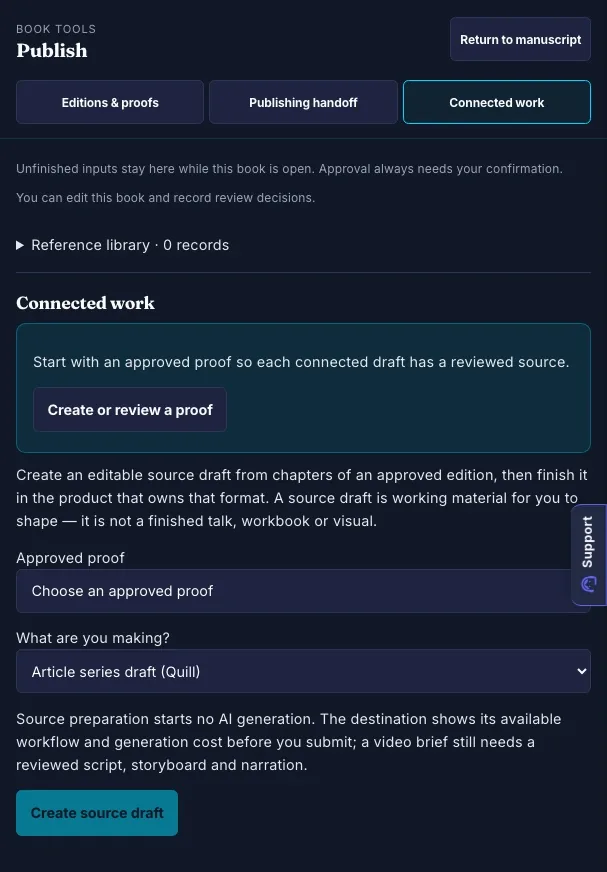
The choices are blog posts from this book, a companion workbook, a talk, an infographic, a reading sample, launch posts, and a trailer or video sample. A source draft is editable working material, not a finished talk, visual or video.
Source preparation and destination generation have distinct steps. The destination presents its workflow and applicable access/cost before submission. Saved source identity and freshness help explain what a draft came from; they do not promise a citation or external writeback. The Reference library on the same screen imports and exports reference records as CSL-JSON from your library manager; citation formatting and bibliographies remain separate.
Translation, narration and adaptation
Edition services are separate from ordinary manuscript downloads. Start them from the Make an audiobook and Translate this book cards at the top of Editions & proofs, or from the links in Get your files. Translation and narration have their own eligibility, purchase and length conditions. Passage review applies to those saved editions, under Review a translated or narrated passage. Check the current service screen before submitting or buying.
Voice previews and edition creation are service actions with their own access conditions. A language without a mapped narrator can be refused before audio purchase. Supported translation locales do not imply the same narration-language support.
Plans and privacy
Current plan prices and included AI access are shown at Folio plans. Manual authoring, importing and own-book export are separate from eligible AI work. Commercial author plans are single seat; existing sharing permissions determine who can view, comment or edit a book.
Books default to private. Choosing to share, existing team membership and organization policy can change who has access. Inspect recipients and permissions before sharing. Paid edition services have separate access and purchase conditions from ordinary own-book files.
Free book tools and quick links
The public tools work with the text or files you supply. Their deterministic checks and builders are useful preparation steps; a result does not establish complete editorial quality or publishing acceptance.
| DOCX to EPUB Converter | Build a reflowable EPUB from a heading-structured Word file. |
| EPUB Preflight Checker | Check structure, reading order, metadata and resources. |
| Book Publishing Preflight | Review supplied metadata, rights answers and book-matter order. |
| Chapter Balance Checker | Compare chapter word counts and flag imbalance. |
| Repetition & Filler Audit | Find repeated phrases and listed filler terms. |
| Editorial Style Sheet Builder | Record spelling, capitalization and hyphenation decisions. |
| Free Ebook Creator | Assemble supplied cover, contents and sections. |
| Book Page Count Calculator | Turn a word count, chapter list or manuscript into estimated pages at 5×8, 5.5×8.5 and 6×9 trim, with reading time and length category. |
| Copyright Page Builder | Build a draft page from the publishing details you enter. |
Quick links
| Folio dashboard | gixo.ai/dashboard/folio |
| Your books | gixo.ai/studio |
| New book with AI | gixo.ai/studio/new-book |
| All free tools | gixo.ai/tools |
| Folio plans | gixo.ai/products/books#plans |
| Start a Folio trial | gixo.ai/start-trial?product=folio |
| Help and support | gixo.ai/support |
Text checked against the Folio code on 24 October 2026 at commit 9c3e18153e; screens captured on 11 October 2026. If a screen has changed, open its current controls and contact gixo.ai/support.