
Cycle Diagram Maker
Type your stages in order and Gixo Prism renders an exact circular process diagram — arrows looping back to the start, stages spaced evenly around the ring. PDCA, a product lifecycle, a retrospective loop, a feedback cycle: name the steps and Prism draws the loop, no dragging arcs or nudging arrows into place.
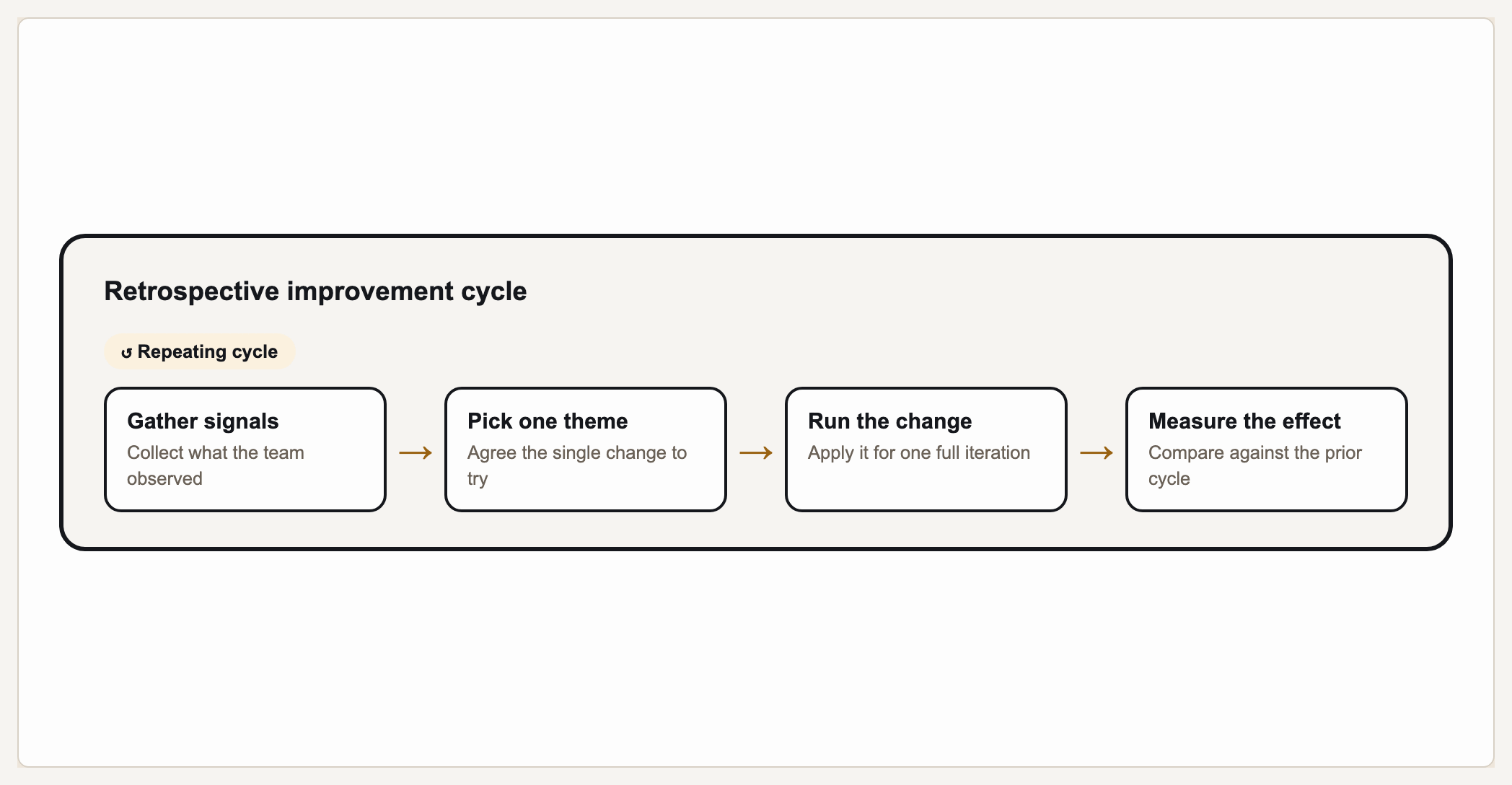
A cycle diagram shows a repeating, circular sequence of stages — where the last step feeds back into the first, like PDCA (Plan-Do-Check-Act), a product lifecycle, or a continuous-improvement loop. Gixo Prism's diagram maker has a dedicated cycle geometry (PrismLayoutKind DiagramCycle) built for exactly this: you type your stages in order and Prism places them evenly around a ring with looping arrows, deterministically, with no AI image model in the loop. The stages you type are the stages that render, in the exact order and position you meant, every time.
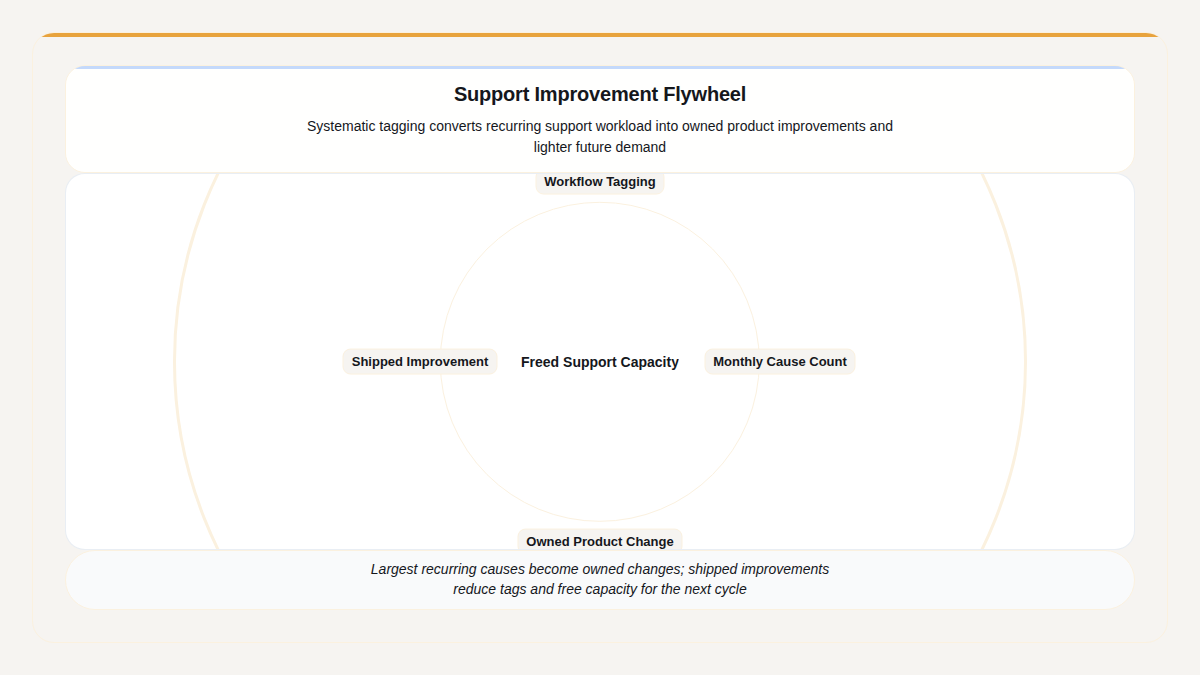
A real Gixo Prism cycle. The loop is the one your source describes.
What makes a cycle diagram maker actually usable?
A circular process diagram looks simple, but the arcs, arrows, and even spacing all have to land exactly right — or the loop it's showing stops reading as a loop.
Prism's cycle geometry places your stages evenly around a ring and loops the arrow from the last stage back to the first — no manual arc-drawing, no eyeballing angles to keep the circle even.
PDCA, product lifecycle, sprint retrospective, feedback loop, buyer journey, sales cadence — the cycle geometry doesn't care what the loop represents, only that the stages repeat.
No AI image model draws this circle. Prism renders the cycle geometry deterministically, so every stage label lands exactly where you put it in the order — no garbled text, no drifted arrows.
Apply your brand palette to the cycle and it stays consistent with every other chart and diagram you build in Prism — plus 4 theme presets (conservative, bold, brand-conservative, brand-bold) to start from.
Add a stage, rename one, or reorder the loop, and the cycle re-renders exactly — spacing and arrows recomputed. Export as clean, self-contained HTML/SVG to drop into a deck, doc, or page.
When a linear process fits better than a loop, the same diagram maker covers process, matrix, pyramid, funnel, tree, pillars, Venn, concentric, stack, and graph geometries — all deterministic, all on-brand.
Cycle diagram or linear process?
Both show ordered stages — the difference is whether the last step returns to the first.
- Use a cycle diagram when the process repeats and the end feeds back into the start: PDCA, a continuous-improvement loop, a product or customer lifecycle, a sprint retrospective, a feedback loop. The circular shape is the message — it says "this never ends."
- Use a linear process (flow) diagram when the stages run start to finish once and stop: onboarding a customer, shipping a release, a one-time approval chain. A straight left-to-right flow reads more clearly there than a forced circle.
Prism has a dedicated geometry for each — the cycle geometry for loops, the process geometry for linear flows — so you pick the shape that matches the reality, and the layout renders exactly from your stages either way.
How do you make a cycle diagram with Gixo Prism?
Four steps from a list of stages to an exact, on-brand circular process diagram.
Type each stage of the loop — Plan, Do, Check, Act, or whatever your repeating process runs through.
Choose the cycle shape so Prism knows to close the loop — the last stage's arrow returns to the first.
The cycle geometry spaces your stages evenly around the ring and renders the looping arrows automatically — no dragging arcs, no nudging angles.
Pick a theme preset or your Brand Kit, then export the cycle as clean HTML/SVG for your deck, doc, or page.
Frequently Asked Questions
Explore the Prism visual toolkit
Updated