
AI document generator for documents you can stand behind
Gixo generates structured business documents — briefs, proposals, reports, legal drafts, and articles — not free-form text. Each document type follows its own structure guide, can be grounded in the files you upload, applies your brand dictionary during generation, and exports to the format the document actually ships in: Word, PDF, PowerPoint, or EPUB.
An AI document generator is software that produces a structured business document — not free-form chat text — by following a per-document-type structure guide, grounding claims in files you upload, applying your brand rules automatically, and exporting to the format the document actually ships in (Word, PDF, PowerPoint, or EPUB). Gixo is built this way across six document workspaces: content, decks, briefs, proposals, legal documents, and books. The product workspace keeps drafting, source context, brand inputs, editing and supported exports together. Inspect the result and complete the review appropriate to the document before signing or publishing.
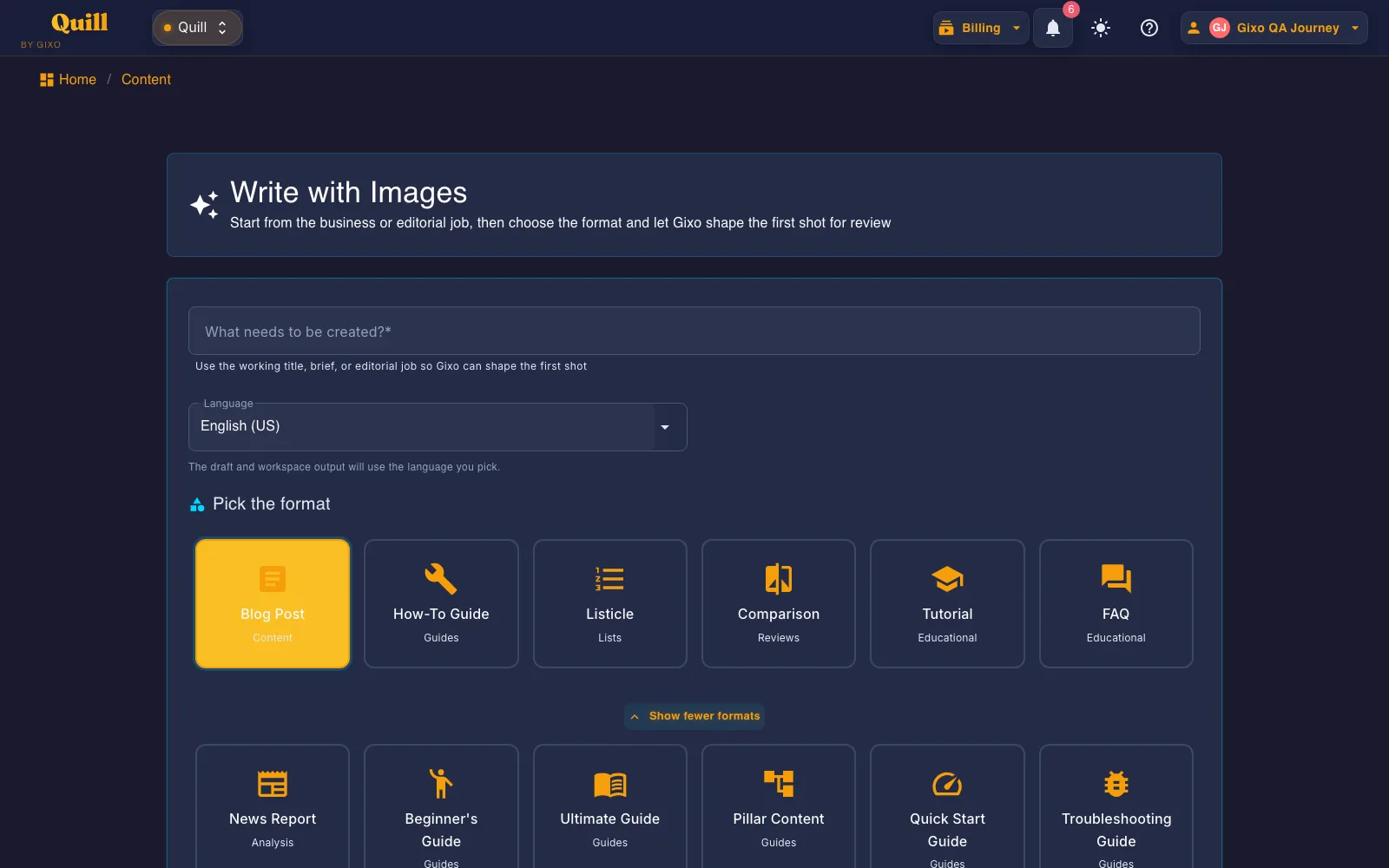
What makes an AI document generator different from an AI writer?
A document is not a wall of text. Gixo treats each document type as a format with rules.
What does Gixo's AI document generator include compared to general AI assistants and template tools?
General AI assistants and template libraries both produce documents. The difference is what happens between your input and the file you ship.
What you get when you export to Word or PDF
Most AI writers hand back prose and a download link. Quill gives you a document you set up first, with a live preview that redraws as you change it.
Headings export as real Word heading styles, not bold paragraphs, so the navigation pane and any contents list work. Numbered and bulleted lists carry their own numbering rather than typed-in digits.
Pick a theme, write the cover, choose where page numbers sit, turn the contents list on or off, set line spacing and orientation. A live preview redraws the whole document as you change each control, so you know what you are getting before you download it.
Inline markers, a references section with retrieval dates and full URLs, or both — they are separate switches. Images keep their attribution and licence line as a caption, so the file you hand over carries its own provenance rather than losing it at the door.
Six formats — PDF, Word, HTML, Markdown, plain text and JSON. The cover page and the contents list, when you include them, open both the PDF and the Word file; in Word the headings are real heading styles, the lists carry Word's own numbering and the footer numbers the pages.
See the actual export, not a description of it
Rather than describe the export, here is one. Both files are the same Quill article, exported on 30 September 2026 through the ordinary Export Document screen, both A4 portrait. Nothing was tidied up afterwards, and the article is a sample written for this purpose rather than a customer document.
3.2 MB, 36 pages, A4 portrait. The document design exactly as it was set up: a cover page with the title and date, a contents list, and a numbered footer on every page.
2.8 MB, A4 portrait, opens in Word. The same article as an editable layout: the same cover page and contents list, real Word heading styles so the navigation pane works, list numbering Word owns rather than typed-in digits, a page-numbered footer, and 19 embedded images.
They are not identical, and that is the point. PDF carries the designed print layout; DOCX arrives as an editable Word layout, where fonts, backgrounds and page breaks may differ. Inspect the downloaded file for the destination you need. Both open with the cover page and the contents list. In the Word file that list is written out as text rather than a field Word refreshes, so if you restructure the document, retype it; and the file names its fonts rather than carrying them, so a computer without Inter shows another font in its place. Both files carry the same 19 images, byte for byte. Open both before deciding which one your workflow needs — Quill exports PDF, DOCX, HTML, Markdown, TXT, and JSON, and these two are the ones that carry a document design.
| Capability | Gixo | General AI assistants | Template tools |
|---|---|---|---|
| Per-document-type structure guides | Built in (briefs, proposals, legal, content) | Depends on your prompt | Fixed layouts |
| Generation grounded in uploaded files | Source packs with quality forecast | File context, conversational output | Manual copy-paste |
| Evidence attached to the output | References bound to your sources | Varies by tool and mode | None |
| Brand terminology guidance during generation | Brand dictionary auto-applied | Manual instruction each time | None |
| Review workflow on the document | Comments, versions, review states | Chat thread | Varies |
| Native exports | DOCX, themed PDF, PPTX, EPUB, HTML | Varies by tier and tool | Usually PDF |
What document types can one AI document generator actually produce?
When comparing a general assistant with a document workspace, check the current file, editing and export features of both. In Gixo, the workflow is organized around the document type, the source context available to reviewers, brand terminology and the supported download formats.
Gixo is built around that last mile. Business briefs start with a question, sources and reviewed outline, with checks for the resulting draft. Proposals are assembled from your RFP and source files, then edited and reviewed in place. Legal drafts follow jurisdiction-aware structure with counsel review in mind. Quill articles follow one of 49 direct-create format guides with brand voice and references. Lumen decks export as real PowerPoint files with native shapes.
If you need a one-off paragraph, use an assistant. If the output is a document someone will approve, sign, or publish — that is the job Gixo is shaped for.
Frequently Asked Questions
Updated