
Create visuals without leaving your editor
Generate and edit AI images directly inside the Gixo content editor. Describe what you need, choose a size, and the image appears in your document with automatic alt text. No separate tools, no downloads, no uploads.
What it does
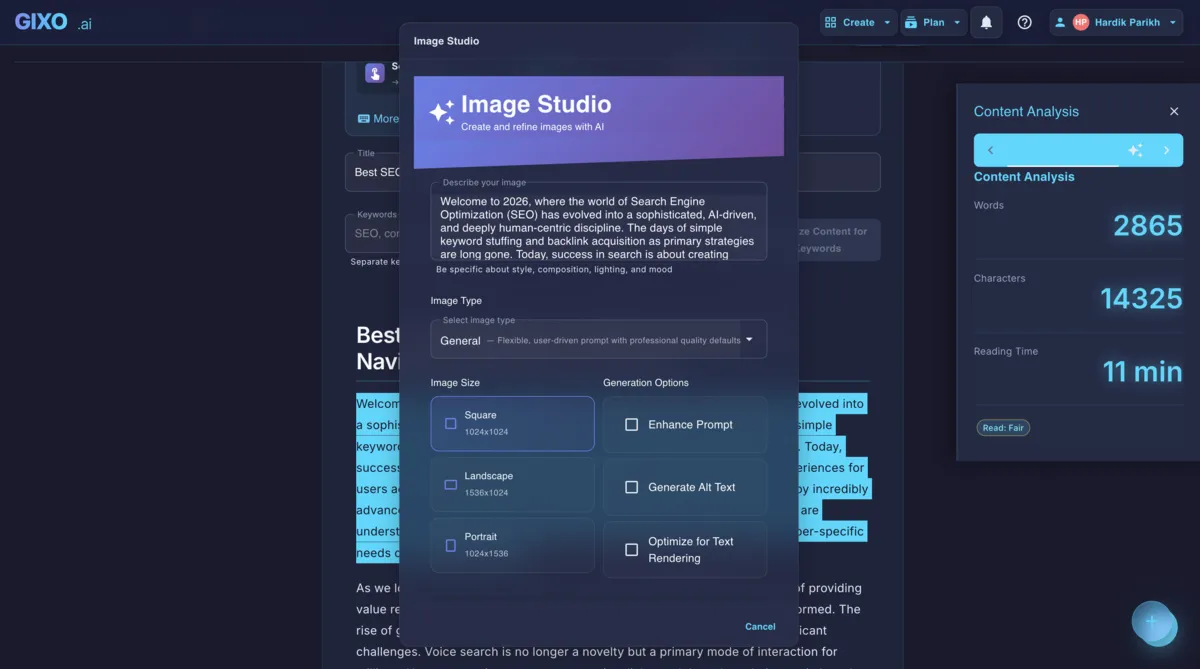
Image Studio is an AI image generator built into the Gixo content editor. Instead of switching to a separate image generation tool, downloading the result, uploading it into your document, and then writing alt text by hand, you open Image Studio from the editor toolbar and describe the image you want. The AI generates it in context, inserts it into your document at the cursor position, and writes accessibility-friendly alt text automatically.
You can generate images from the content surrounding your cursor or write a custom prompt describing exactly what you need. The prompt enhancement feature improves vague descriptions into detailed image prompts that produce better results. Choose between square, landscape, or portrait sizes depending on whether the image is a hero banner, an inline illustration, or a social media graphic. Every generated image stays inside your document workflow from creation to publication.
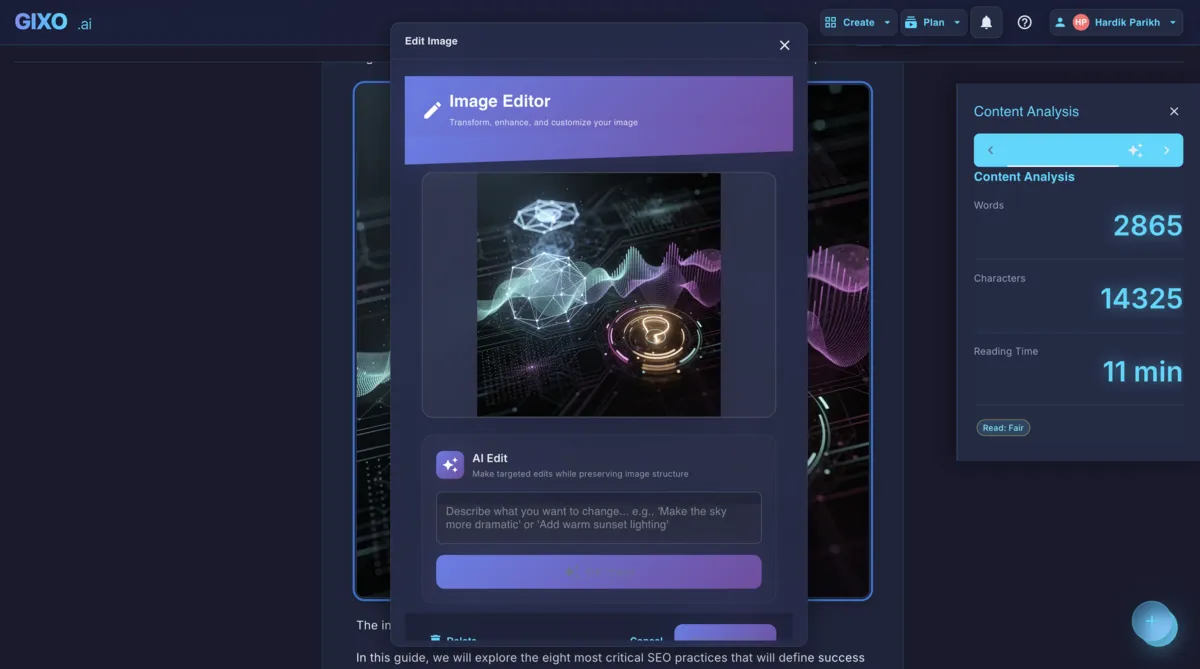
AI Image Editing After Generation
Generated images rarely come out perfect on the first attempt. Maybe the color palette clashes with your brand, a text element needs adjustment, or you want to add a specific detail the original prompt missed. Image Studio includes an AI Edit feature that lets you modify generated images with plain-language instructions. Type something like "make the background darker" or "add a subtle grid pattern" and the AI applies the change to your existing image. You refine visuals iteratively without regenerating from scratch or opening an external editor.
Text Rendering Optimization
One of the persistent challenges with AI-generated images is rendering readable text. When your image includes a headline, label, or callout, Image Studio applies text rendering optimization to ensure characters are crisp and legible. This matters especially for infographic-style images, social cards, and diagrams where the visual includes words that readers need to actually read. The optimization runs automatically during generation so you do not need to configure anything manually.
How It Works
Click the Image Studio button in the editor toolbar. The dialog opens over your document so you keep full context.
Write a prompt or let AI generate one from surrounding content. The prompt enhancer refines your description for better results.
Pick square, landscape, or portrait. Click generate and the image appears in seconds with automatic alt text.
Use AI Edit to refine the image. Describe changes in plain language and the AI applies them to your existing visual.
Before and after
See how in-editor image generation eliminates the multi-tool workflow that slows content creation down.
| Step | Before (Separate Tools) | After (Image Studio) |
|---|---|---|
| Generate image | Open Midjourney or DALL-E in a new tab | Click Image Studio in the editor toolbar |
| Write prompt | Copy context from your article manually | AI reads surrounding content and suggests a prompt |
| Download result | Save image to desktop, find it in downloads | Image appears directly in your document |
| Upload to editor | Drag file into CMS, position it, resize | Already positioned at cursor location |
| Write alt text | Manually type alt text for accessibility | Alt text generated automatically |
| Edit the image | Re-open external tool, re-prompt, re-download | Type edit instructions, AI modifies in place |
Stop Tab-Switching for Images
Generate, edit, and insert AI images without leaving your content editor. Try Image Studio today.
What you can create
Every tool you need to create and refine visuals, built directly into the writing experience.
Image Studio reads the content around your cursor and generates visuals that match the topic. No need to re-explain what the article is about.
Choose the right dimensions for hero banners, inline illustrations, or social media cards. Each size is optimized for its intended use case.
Write a basic description and AI expands it into a detailed image prompt. Better prompts produce more accurate, visually compelling results.
Every generated image gets descriptive, accessibility-friendly alt text without manual input. Meet WCAG standards and improve SEO with zero extra effort.
Modify generated images with text instructions. Adjust colors, add elements, change backgrounds, or refine details without opening an external editor.
Images containing headlines, labels, or callouts render text clearly and legibly. Critical for infographics, social cards, and diagrams with embedded words.
Who it's built for
Content creators who need visuals fast and do not want to manage a separate design workflow.
Blog posts with original images get more engagement and rank better in search results. Image Studio lets you generate unique visuals for every article while you write, instead of settling for generic stock photos or spending 20 minutes in a separate image tool. Alt text is handled automatically, which means every image contributes to your SEO without additional work.
When you are writing your own landing pages, pitch documents, and product announcements, stopping to create visuals in a different application breaks your flow. Image Studio keeps you in the writing zone. Describe the image, pick a size, and it appears in your document. You produce polished, illustrated content without a design team or a Canva subscription.
Client deliverables need custom visuals that match the brief, not recycled stock photography. Image Studio generates original images that align with the article topic, and the AI Edit feature lets you refine them based on client feedback without regenerating from scratch. Alt text and sizing are handled inside the editor, which speeds up the review cycle and reduces rounds of revision.
Related features
Image Studio works alongside other Gixo editor capabilities to give you a complete content creation workflow.
The full editor environment where Image Studio lives. Write, format, and publish content with AI assistance at every step.
Highlight any text for instant rewrites, tone changes, and expansions. Combines naturally with Image Studio for illustrated, polished content.
Real-time editing partner that improves clarity, tone, and structure as you write. Use alongside Image Studio for complete content production.
Frequently Asked Questions
Create Images Where You Write
Generate, edit, and insert AI visuals directly in your content editor. No extra tools needed.