
How to create a presentation with Gixo
A detailed, step-by-step tutorial on creating professional AI presentations. From entering your topic to exporting a polished file — everything you need to know. The no-card 14-day trial includes AI generation and clean hybrid PPTX/PDF export. After the trial, existing decks remain reviewable, presentable, and downloadable — hybrid PPTX/PDF export included. Only continued AI generation requires paid Lumen.
What You Will Learn About Creating AI Presentations
This tutorial covers every aspect of creating presentations with Gixo AI.
Learn how to provide effective topics and outlines. Understand what makes a good prompt and how to get the best results from the AI generation engine.
Explore the theme gallery and learn how to pick the right theme for your audience. Understand the difference between corporate, creative, academic, and startup themes.
Understand the 25 layout types the AI uses — title slides, content sections, data displays, timelines, comparisons, and more. Learn how layouts are selected automatically.
Master the slide editor. Change text, swap layouts, modify content fields, regenerate sections with AI, and restructure your deck to perfection.
Learn how to generate custom images on any slide. Describe the visual you want and the AI creates an image that matches your presentation theme.
Export to PDF for distribution or use present mode for live delivery. Learn about export options, quality settings, and sharing presentations with others.
Step-by-Step Tutorial
Follow these steps to create your first presentation with Gixo.
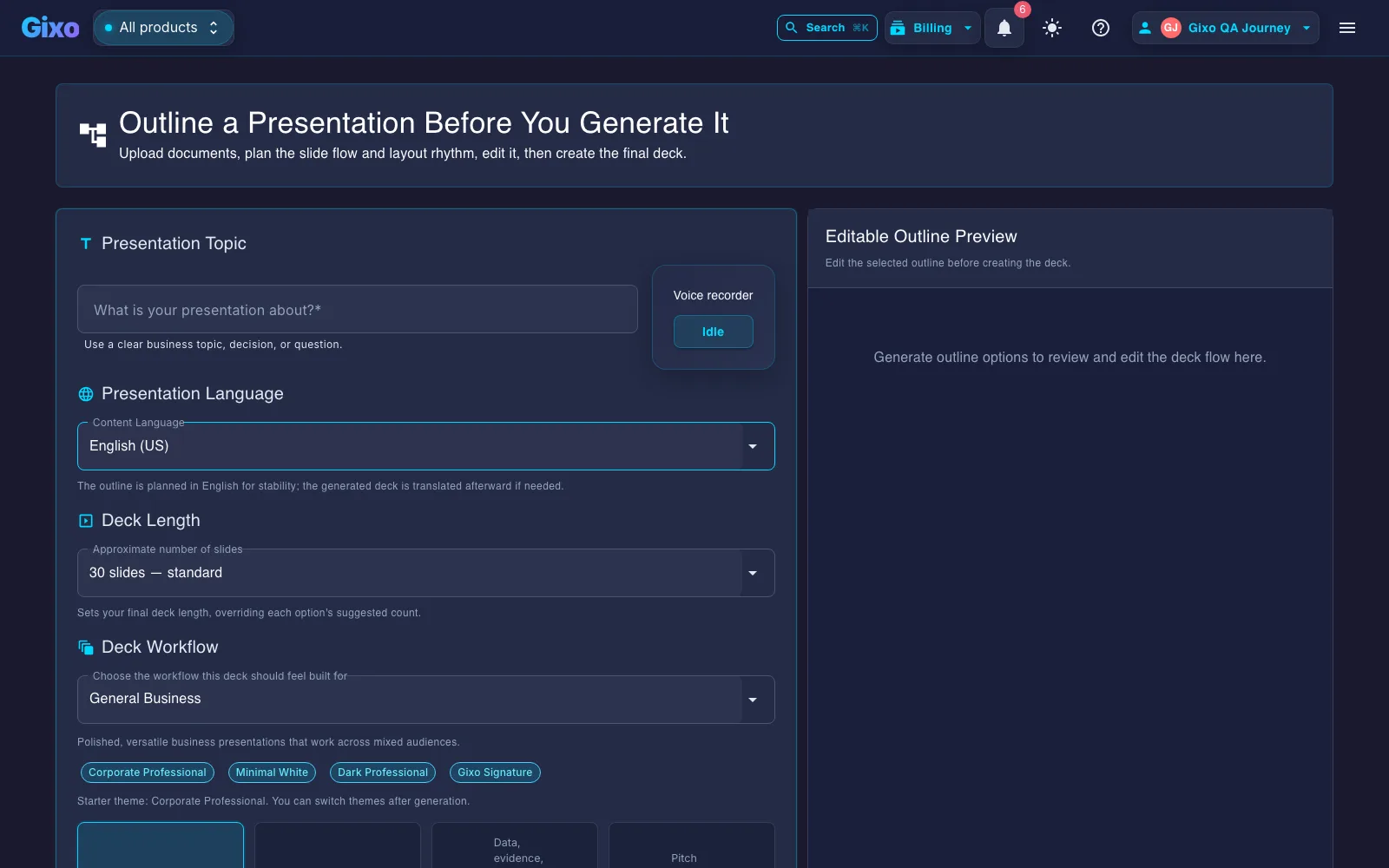
From the dashboard, click the Presentations section or navigate directly to the presentation creation page. You will see the topic input form and theme selector.
Type a topic like "Q1 2026 Sales Performance Review" or paste a detailed outline. The more context you provide, the more targeted and structured the output. You can also specify the number of slides, audience, and any specific sections to include.
Browse the theme gallery with 20+ options. Preview each theme to see typography, colors, and layout styles. Popular choices include Corporate Professional, Tech Enterprise, Gixo Signature, and Creative Gradient. The theme applies to every slide in your deck.
Click Generate and wait approximately two to three minutes. The AI analyzes your input, plans the slide structure, selects appropriate layouts for each section, and produces a complete deck with title, content, data, and closing slides.
After generation, the overview grid shows thumbnail previews of all slides. Use this to quickly scan the entire deck, check the flow, and identify any slides you want to edit. Click any slide to open it in the editor.
Click a slide to open the editor. Modify text content, change the layout type, update data fields, or use the AI to regenerate specific content areas. You can also reorder slides by dragging them in the thumbnail sidebar.
On any slide, use the image generation tool to create custom visuals. Describe what you want — for example, "modern office team collaboration" — and the AI produces an image that matches your theme and context.
Use present mode for live delivery with full-screen slides and keyboard navigation. Or export to PDF for sharing via email, printing, or embedding in other documents. The PDF preserves all theme styling and images.
Get Better Results from Every Deck
| Tip | Why It Helps |
|---|---|
| Provide a detailed topic | More context means more targeted, relevant slides |
| Include key data points | The AI can create data-driven slides with your numbers |
| Specify your audience | Tone and complexity adapt to investor, team, or academic contexts |
| Match theme to context | Corporate themes for business, creative for marketing, academic for research |
| Edit after generation | AI provides the starting point — your edits make it perfect |
| Use AI images | Custom visuals are more impactful than generic placeholders |
Present with Confidence Using Evidence
Before sharing your deck, use evidence validation to review key claims and present with confidence.
Keep decks grounded to source material and approved web research when needed. Gixo extracts key claims, highlights what needs verification, and surfaces citations, attribution, and trust status inside the deck viewer.